TTS Integration with MCP for AI Agents

Want to make your AI assistant speak? Text-to-Speech (TTS) integration is the solution. By using the Model Context Protocol (MCP), you can connect your AI agent to TTS services like TTSBuddy in just minutes. This allows your AI to deliver audible responses, improving accessibility for users with visual or reading challenges. MCP simplifies the process by acting as a standard interface, much like a universal port for AI tools.
Here’s the quick process:
- Set up: Create a TTSBuddy account and get an API key.
- Install tools: Use the TTSBuddy CLI or REST API for integration.
- Define functionality: Register the
speak_texttool in your MCP setup. - Test and refine: Ensure smooth audio playback and accessibility features like adjustable speed and voice persistence.
With TTSBuddy, you get access to over 58 voices in 14+ languages, including fast-response options for real-time interactions. The free plan offers 120 minutes of TTS monthly, while the Pro plan costs $9.99/month for 1,200 minutes.
This setup not only enhances user experience but also ensures inclusivity by catering to diverse needs.
MCP and TTS Integration: The Basics
What is MCP?
The Model Context Protocol (MCP) is an open standard designed to give AI applications a universal way to connect with external tools, data sources, and services. Here's a simple way to think about it:
"MCP is an open protocol that standardizes how applications provide context to LLMs. Think of MCP like a USB-C port for AI applications." - Official MCP Documentation [8]
Just as USB-C replaced a mess of incompatible cables with a single, standardized connector, MCP replaces fragmented, one-off integrations with a unified interface. This means any AI agent can use it without the need for custom solutions. MCP operates using three key components: Hosts, Clients, and Servers.
- Hosts are the AI applications themselves, such as Claude Desktop or VS Code.
- Clients are components within the host that communicate with servers.
- Servers are external programs offering specific capabilities, like a TTS engine or a database.
Communication between these components follows the JSON-RPC 2.0 message format. This ensures tools can be discovered and used by AI models without requiring developers to create custom integrations for each new service [7][9]. Thanks to this standardized approach, integrating TTS becomes straightforward, enabling AI agents to deliver voice responses effortlessly.
How TTS Adds Voice to AI Agents
Using MCP's framework, TTS (Text-to-Speech) integration enables AI agents to speak their responses. In this setup, a TTS engine is registered as a Tool - a callable function within the MCP system. When the AI needs to deliver a spoken response, it simply calls a tool like speak_text(text, voice_id). The TTS server then generates the audio and plays it back [10].
This design keeps things simple for the AI agent. It doesn’t need to manage complex tasks like audio encoding or synthesis. Instead, the TTS tool handles everything, delivering ready-to-play audio. For real-time interactions, MCP servers also ensure sequential playback, meaning multiple agents won’t speak over each other, avoiding confusing, overlapping audio [5].
Accessibility Benefits of TTS
TTS integration through MCP significantly improves accessibility. Whether users are visually impaired, have reading difficulties, or are working in environments where they can’t look at a screen, TTS allows them to receive responses audibly. By leveraging MCP's modular setup, TTS not only enhances how users interact with AI but ensures accessibility remains a core focus.
Additionally, MCP TTS supports voice persistence for individual agents. This means each AI sub-agent can have its own distinct, consistent voice. For users managing complex systems with multiple agents, this feature makes it easier to identify which part of the system is speaking, improving clarity and reducing confusion in multi-agent workflows.
Build AI Voice Agents with MCP to Automate EVERYTHING 😱 😱
Setting Up Your Development Environment
Before diving in, make sure your system is compatible, you have a TTSBuddy account with an active API key, and the TTSBuddy CLI is installed. Once these essentials are sorted, you can move on to configuring your system, account, and CLI.
System Requirements
TTSBuddy CLI works seamlessly on macOS, Linux, and Windows. It’s a standalone binary built in Go, so you don’t need any additional runtime dependencies. To get started, you’ll need terminal access. If you plan to use the MCP npm package (@theproductivepixel/aittsm), make sure Node.js 18 or later is installed [2].
Creating a TTSBuddy Account and API Key
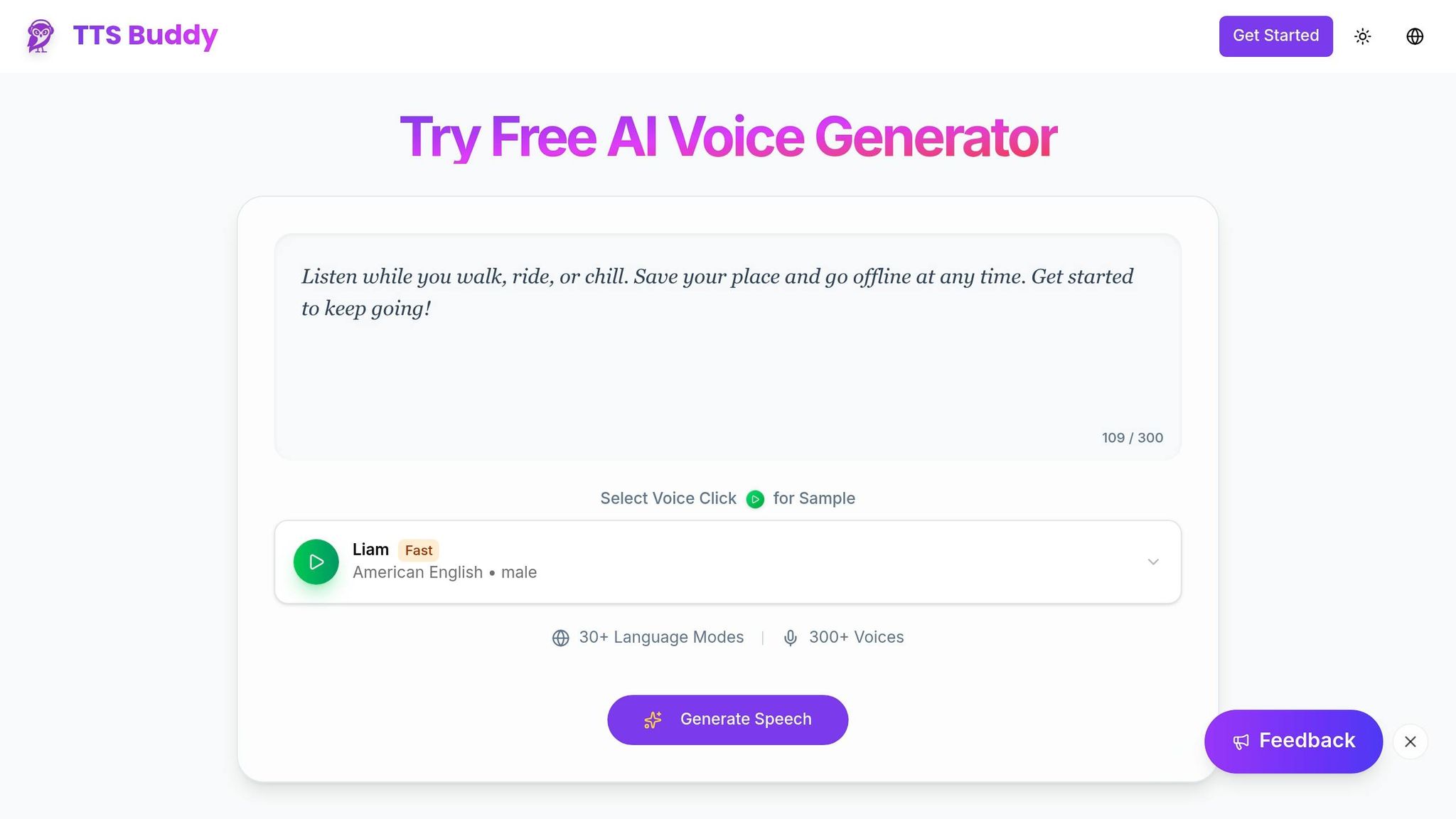
Head over to ttsbuddy.com to create an account. Once registered, you’ll get instant API access with 120 free minutes of TTS per month. In your dashboard, go to the API Keys section and generate a new key.
The API key format looks like this: ttsb_<public_id>_<secret>. Copy the key immediately because it won’t be shown again. TTSBuddy secures your key using SHA-256 hashing on their servers, so the raw key is never stored.
For full access to MCP tools, ensure your key includes these four permissions during creation: tts:generate, tts:status, usage:read, and voices:list [2]. Missing any permissions will cause specific features to break during integration.
After generating the key, set it as an environment variable for automatic authentication with the CLI and API:
export TTSBUDDY_API_KEY="ttsb_your_public_id_your_secret"
Installing the TTSBuddy CLI
You can install the CLI using one of the following methods based on your operating system:
| Operating System | Installation Command | Verification Command |
|---|---|---|
| macOS | brew install ttsbuddy | ttsbuddy --version |
| Linux | wget binary + tar -xzf ttsbuddy_linux_amd64.tar.gz && sudo mv ttsbuddy /usr/local/bin/ | ttsbuddy --version |
| Windows | Download .zip, extract ttsbuddy.exe, add folder to PATH | .\ttsbuddy.exe --version |
| Universal | go install github.com/ttsbuddy/cli@latest | ttsbuddy --version |
Once installed, run ttsbuddy --version to confirm it’s working. If the version number displays correctly, your setup is good to go. Keep in mind that the REST API has rate limits: 1 POST request per minute for submissions and 30 GET requests per minute for status checks [1]. These limits are important to remember as you begin testing your integration.
Step-by-Step TTS Integration Using MCP
Once your environment is set up and you’ve got your API key ready, it’s time to integrate TTSBuddy into your MCP AI agent. You can go with either the REST API for server-side integration or the CLI for local scripts. Both approaches share a common starting point: defining an MCP tool.
Defining the MCP Tool for TTS
The MCP tool schema is like a blueprint that tells your AI agent how to interact with TTSBuddy. It outlines the inputs required and the outputs expected. Below is the speak_text tool definition you’ll need for your MCP server:
{
  "name": "speak_text",
  "description": "Convert text to speech audio",
  "parameters": {
    "type": "object",
    "properties": {
      "text": {
        "type": "string",
        "description": "Text to convert (1–500,000 characters)"
      },
      "voice": {
        "type": "string",
        "description": "Voice ID (e.g., st_m1, st_f1, af_heart)"
      },
      "speed": {
        "type": "number",
        "description": "Playback rate between 0.5 and 1.5"
      },
      "language": {
        "type": "string",
        "description": "ISO language code, e.g., en, fr, de"
      }
    },
    "required": ["text"]
  }
}
The only field you must include is text. If you don’t specify a voice, it defaults to st_m1. For real-time interactions, it’s recommended to use a Supertonic Fast voice (e.g., st_f1–st_f5 for female voices or st_m1–st_m5 for male voices). These voices generate audio 5 to 10 times faster than standard ones [1].
Once you’ve defined the tool, you can move on to generating audio using either the REST API or CLI.
Using the TTSBuddy REST API
With the MCP framework in place, your agent can make a POST request to:
POST https://www.ttsbuddy.com/v1/agent-tts
Include your API key in the Authorization header and provide the parameters in JSON format. Here’s an example using curl:
curl -X POST https://www.ttsbuddy.com/v1/agent-tts \
  -H "Authorization: Bearer ttsb_your_public_id_your_secret" \
  -H "Content-Type: application/json" \
  -H "Idempotency-Key: unique-key-based-on-request-hash" \
  -d '{
    "text": "Your appointment is confirmed for 3 PM today.",
    "voice": "st_f1",
    "speed": 1.2
  }'
For short text, you’ll get an immediate 200 response with an audio_url. For longer text, the server responds with a 202 Processing status, along with a job_id and status_url. In this case, your agent should poll the status using:
GET /v1/agent-tts?id=<job_id>
Repeat the request until the status changes to completed [1].
To avoid duplicate jobs caused by network issues, always include a unique Idempotency-Key header in your requests.
Integrating the TTSBuddy CLI
If you prefer working in a local environment where audio files are saved directly to disk, the CLI is a great option. This method is particularly useful for local scripts, desktop AI applications, or when you need to store audio locally instead of retrieving it from the cloud. Assuming you’ve already exported your TTSBUDDY_API_KEY, the process is simple:
echo "Your package has shipped and will arrive by Friday." | ttsbuddy - output.mp3
For MCP servers using stdio transport, your agent can write text to stdin, and the CLI will handle the API call and save the resulting MP3 to the specified path [2]. If you need structured output for logging or debugging, add the --json flag. This provides details like file path, character count, and processing time in JSON format.
Both the REST API and CLI approaches align with MCP standards, so you can integrate voice functionality smoothly, no matter your setup.
| Feature | CLI Method | REST API Method |
|---|---|---|
| Best for | Local scripts and desktop apps | Server-side agents and web apps |
| Input | Files (.md, .txt) or stdin | JSON payload |
| Output | Local audio file (MP3, WAV) | Signed audio_url (cloud storage) |
| Transport | stdio | Stateless Streamable HTTP |
Preparing the Integration for Production and Accessibility
Error Handling and Performance Tuning
To ensure your integration is ready for production, focus on safe retries and respect rate limits.
TTSBuddy's API allows 1 POST submission per minute and 30 GET status checks per minute per API key [1][2]. Polling for job status doesn’t affect your submission quota, so you can safely run asynchronous polling as often as needed. To avoid duplicate processing, generate a unique Idempotency-Key based on the text, voice, and speed settings [1].
For workflows where timing is critical, enable streaming mode to start playback as audio chunks are received. When choosing an audio format, wav or pcm provides the lowest latency, while mp3 serves as a reliable default for most scenarios [2].
By fine-tuning these settings, you can achieve smoother, more efficient operations that are ready for production use.
Accessibility Best Practices
Once your integration is production-ready, focus on making it accessible to a wide range of users.
- Give users control over playback: Incorporate a
tts_stopfeature or anAbortSignalso users can stop audio immediately if it becomes overwhelming or irrelevant [3]. - Prevent overlapping audio: Queue TTS calls to avoid simultaneous streams, which can create a confusing mix of sounds. This is especially important for users with cognitive challenges [5].
- Make playback speed adjustable: TTSBuddy supports playback rates between 0.5 and 1.5. Allowing users to adjust this can help those with auditory processing differences [1].
- Sync text with audio: If your interface displays text alongside audio, consider highlighting words as they are spoken. A "karaoke-style" feature can provide additional support for users who benefit from visual reinforcement [4].
- Clean input text: Before sending text to the API, remove or escape characters that could lead to mispronunciations. Avoid using ALL CAPS, as some TTS engines may spell out capitalized words letter by letter rather than reading them as full words [6].
These steps not only improve accessibility but also enhance the overall user experience.
US Localization Settings
For deployments in the United States, it’s crucial to adjust settings and content for local preferences.
Set the language parameter to en-US explicitly. Leaving this unset might result in a fallback to other English variants, such as en-GB, which can lead to pronunciation and rhythm that feels unfamiliar to American users [3][11].
For a natural American accent, opt for voices like af_heart or am_michael and use a playback speed between 1.0 and 1.2 [1][3]. Format text for US pronunciation - for example, write "nine dollars and ninety-nine cents" instead of "$9.99." Additionally, split long text inputs at sentence boundaries (e.g., periods, exclamation points, or question marks) to maintain smooth prosody and avoid awkward cutoffs mid-sentence [12].
Conclusion: Your AI Agent Now Has a Voice
This guide walked you through the entire process - from setting up your TTSBuddy account and API key to creating the speak_text MCP tool and refining your integration for reliability and compliance with US accessibility standards. The end result? A smooth, conversational workflow that simplifies text-to-speech (TTS) operations. Each step, from initial setup to production adjustments, plays a role in creating an effortless TTS experience.
"The real power of MCP is that it turns multi-step workflows into single conversations." - AI TTS Microservice Team [2]
With these integrations, the benefits become clear. You gain real-time, accessible voice responses powered by features like idempotency keys, proper en-US configurations, and sequential audio queuing. This system not only performs well but also scales effectively, ensuring accessibility for all users. Plus, the free plan offers 120 minutes of TTS per month with full API and CLI access, making it easy to start right away. As your needs grow, the Pro plan at $9.99/month provides 1,200 minutes and unlimited downloads, offering flexibility for expanding projects.
FAQs
How do I handle long texts with MCP TTS without hitting rate limits?
To manage rate limits effectively, break long texts into smaller sections at natural sentence boundaries before submitting them. If the text exceeds 500,000 characters, it must be divided into segments. In case you hit a rate limit error, refer to the Retry-After header to determine how long you need to wait before trying again. Additionally, use distinct buckets for read and write operations, as checking job status doesn’t impact your submission quota.
What’s the best way to stop or cancel speech mid-playback?
To interrupt speech playback when using your MCP-integrated agent, you can use the tts_stop command. If you're interacting through natural language, simply say, "Stop talking."
For additional control, try these options:
- Use the
voice_mutecommand to immediately silence all voice output. - Execute the
cancel_requestfunction to stop any ongoing synthesis tasks.
How can I keep different AI agents using distinct, consistent voices?
To keep your AI agents sounding consistent and unique, you can use profile-based configurations. These allow you to assign specific voice IDs, languages, and models to each agent. Another option is to directly adjust voice parameters - like IDs, styles, or pacing - on the fly during conversations. For automated workflows, you can rely on command-line flags (such as --voice) to make sure the same settings are applied every time the agent handles a speech task.