Markdown to Audio via Command Line

Markdown files are a popular format for technical documentation, study notes, and blogs. But did you know you can convert them into audio using command-line tools? This is perfect for listening while commuting, exercising, or for those with visual impairments. Here's how you can do it:
-
Why Convert Markdown to Audio: Accessibility for users with visual impairments, hands-free productivity, and automation for developers.
-
Tool to Use: Install TTSBuddy CLI, a command-line tool that transforms Markdown into natural-sounding audio.
-
Setup Steps:
- Install TTSBuddy CLI (macOS, Linux, Windows, or Go).
- Get an API key from ttsbuddy.com.
- Configure the API key in your environment.
-
Basic Usage: Convert a Markdown file with a simple command:
ttsbuddy input.md output.mp3 -
Customization Options: Choose from 300+ AI voices across 30+ language modes, adjust playback speed, and process large files up to 500,000 characters.
-
Advanced Features: Batch processing, JSON output for automation, and REST API integration for large-scale projects.
This guide will walk you through everything, from installation to advanced workflows, so you can start converting your Markdown files into audio today.
Setting Up TTSBuddy CLI
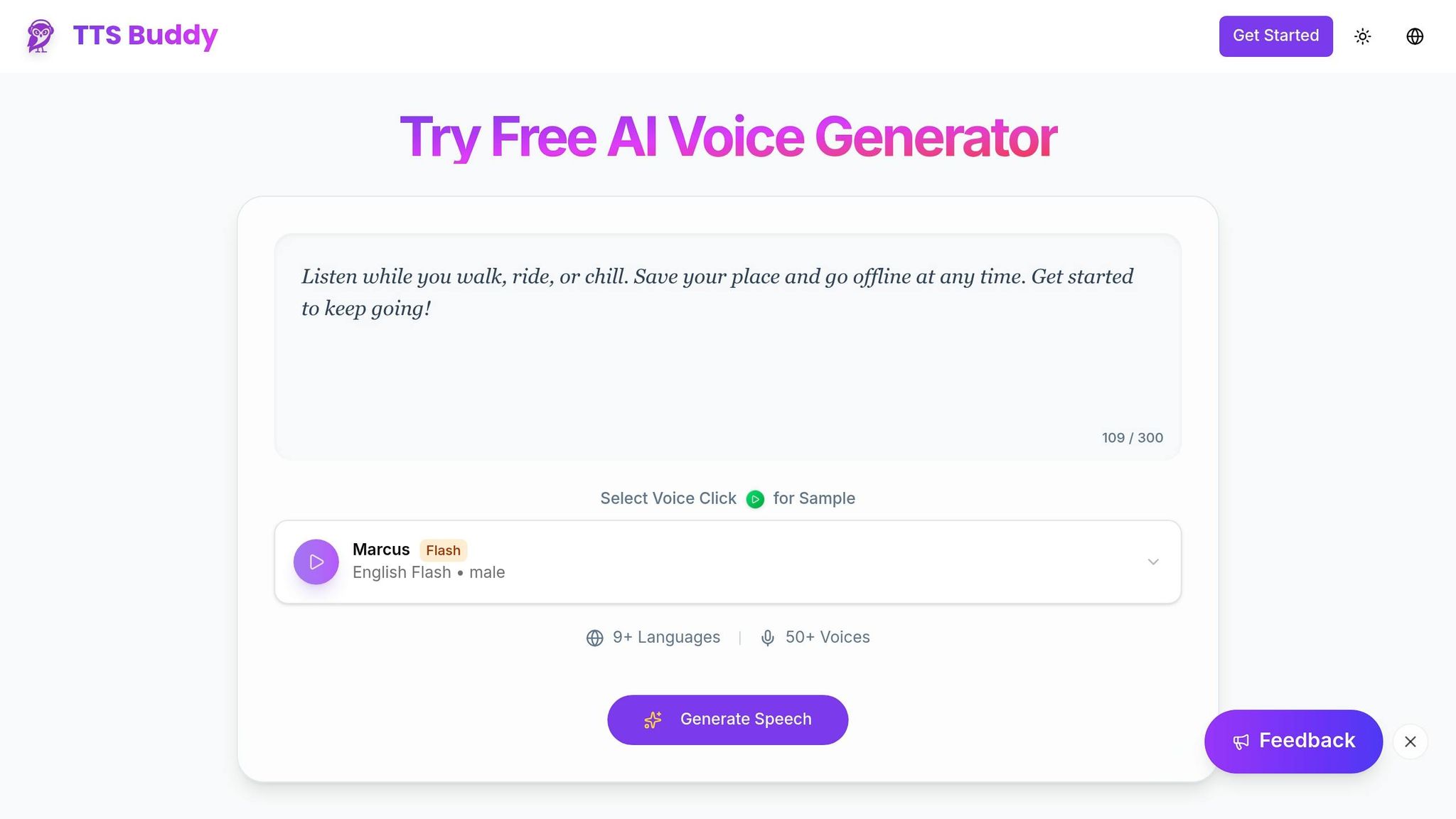
To convert Markdown files into audio, you'll first need to install the TTSBuddy CLI and configure your API key. The setup process is simple and works across macOS, Linux, and Windows. In just a few steps, you'll be ready to create your first audio file.
How to Install TTSBuddy CLI
The installation process varies depending on your operating system:
-
macOS: The easiest method is using Homebrew. Open your terminal and run:
brew install ttsbuddyIf you don’t have Homebrew installed, run:
/bin/bash -c "$(curl -fsSL https://raw.githubusercontent.com/Homebrew/install/HEAD/install.sh)"After installation, verify it by typing:
ttsbuddy --versionYou should see something like
v1.2.0displayed. -
Linux (Ubuntu/Debian): Download the binary directly using:
wget https://github.com/ttsbuddy/cli/releases/latest/download/ttsbuddy_linux_amd64.tar.gzExtract and install it with:
tar -xzf ttsbuddy_linux_amd64.tar.gz && sudo mv ttsbuddy /usr/local/bin/Make it executable:
sudo chmod +x /usr/local/bin/ttsbuddyConfirm the installation with:
ttsbuddy --version -
Windows: Download the binary from:
https://github.com/ttsbuddy/cli/releases/latest/download/ttsbuddy_windows_amd64.zipExtract the file and place the executable in a folder like
C:\ttsbuddy\. Add this folder to your system PATH by navigating to System Properties > Environment Variables. Ensure the file is namedttsbuddy.exe. Then, open PowerShell and run:.\ttsbuddy.exe --version
For a more universal approach, you can use Go. If Go 1.21 or later is installed, simply run:
go install github.com/ttsbuddy/cli@latest
This method works across all platforms and automatically handles updates and dependencies - perfect for those who prefer a streamlined setup.
Getting Your API Key
Once TTSBuddy CLI is installed, you'll need an API key to enable audio conversion. Follow these steps:
-
Create an Account: Go to ttsbuddy.com and sign up using your email and password, or log in with Google or GitHub. Verify your email if prompted.
-
Generate an API Key: Navigate to Dashboard > API Keys > Generate New Key. Your key will look something like
tts_xxxxxxxxxxxxxxxx. Copy it for the next step. -
Set the API Key as an Environment Variable:
-
On macOS/Linux, add the following line to your
~/.bashrcor~/.zshrcfile:export TTSBUDDY_API_KEY=your_key_hereApply the changes with:
source ~/.bashrcOr, if you’re using Zsh:
source ~/.zshrc -
On Windows, use PowerShell:
[Environment]::SetEnvironmentVariable("TTSBUDDY_API_KEY", "your_key", "User")Restart your terminal for the changes to take effect.
-
-
Test Your Setup: Run the following command to confirm your API key is valid:
ttsbuddy --check-apiThis will display your quota. Free accounts include 10,000 characters per month. If you encounter errors:
- A "401 Invalid API Key" means you should regenerate the key and ensure it's entered correctly.
- A "429 Quota Exceeded" indicates you've reached your monthly limit. You can monitor usage in the dashboard.
For better security in production environments, consider rotating your API keys monthly. You can also use a .env file with a dotenv loader for automated workflows.
Converting Markdown Files to Audio: Basic Steps
With TTSBuddy CLI installed, you can turn your Markdown file into audio using a single command that adjusts formatting for smoother narration.
How TTSBuddy Prepares Markdown for Narration
Before the conversion begins, TTSBuddy automatically tweaks your Markdown file to make it suitable for audio playback.
The AI engine simplifies Markdown formatting for natural-sounding speech. It converts headers into pauses, reformats bullet points into flowing sentences, describes tables, and either handles or skips code blocks. It also simplifies URLs and other special formatting elements for better readability during narration [2].
As noted in the TTSBuddy documentation: "This happens automatically - you don't need to manually clean up your text."
Running Your First Conversion Command
To get started, open your terminal, navigate to the folder with your Markdown file, and enter the following command:
ttsbuddy input.md output.mp3
Replace input.md with your file name and output.mp3 with the desired name for your audio file. TTSBuddy can handle up to 500,000 characters per request, which is enough for a lengthy chapter. Most conversions are done within 10–30 seconds, though files exceeding 100,000 characters may take longer. If your document is especially large, splitting it into sections can speed things up [2].
Once the conversion is complete, you can further enhance the output by selecting specific voices and adjusting playback speed.
Choosing Voices and Languages
After running the conversion, customize the audio by selecting from a variety of voices and languages.
TTSBuddy offers 300+ AI voices across 30+ language modes, including different English accents, Spanish, French, and others [2]. Voices are categorized into three tiers: Flash (ultra-fast), Premium (more natural intonation), and Standard.
To select a specific voice, use the --voice flag in your command:
ttsbuddy input.md output.mp3 --voice madison
You can also adjust playback speed, ranging from 0.5× to 1.5×, with 1.2× as the default. Free plan users can access three languages and standard voices, along with 120 minutes of TTS each month [4]. TTSBuddy even remembers your last-used voice and speed settings for added convenience.
Advanced Features for Power Users
Once you've mastered basic conversions, these advanced features can take your command-line workflow to the next level. TTSBuddy's specialized tools make automation smoother and processing more efficient.
Using Flash Voices for Faster Processing
Flash voices are designed to speed up audio processing, delivering results 5–10x faster than standard voices. TTSBuddy offers four English Flash voices: Felicity and Fiona (female), and Marcus and Michael (male) [6].
These voices are perfect for tasks like batch processing multiple Markdown files or when you need quick results. To use a Flash voice, simply include the --voice flag in your command:
ttsbuddy input.md output.mp3 --voice Marcus
Flash voices produce WAV files with natural-sounding intonation [2][6]. You can also adjust playback speed between 0.5× and 1.5×, relative to the optimized base speed of the Flash voice [6].
Setting Up Environment Variables and Configuration Files
Managing your API key and settings as environment variables or through a configuration file simplifies your workflow while keeping things secure.
To set an environment variable in your terminal, use the export command like this:
export TTSBUDDY_API_KEY="your_key"
You can also define variables such as TTSBUDDY_VOICE to set a default voice for all conversions [7][8]. TTSBuddy follows a priority system: command-line flags take precedence, followed by environment variables, and then configuration files [7][9]. This setup lets you establish defaults while still allowing for quick adjustments on a per-command basis, ensuring your workflow remains flexible and efficient.
Enabling JSON Output for Scripts
JSON output mode is a powerful tool for automation, providing structured data like file paths, character counts, and processing times [8].
This format integrates well with tools like jq, letting you filter and extract only the details you need. For instance, you could pipe the JSON output to isolate the file path and pass it directly to a cloud upload script or video editor. JSON also enhances error handling by enabling your scripts to detect specific error codes and apply retry logic for batch processing. This structured approach makes it easier to scale your audio conversion tasks.
Batch Processing and API Integration
When dealing with dozens or even hundreds of Markdown files, manually processing them one by one is far from practical. TTSBuddy streamlines this task with its CLI tools for batch workflows and REST API for programmatic access. This setup allows you to scale your audio generation efficiently, integrating seamlessly into automated workflows.
Processing Multiple Files with Scripts
Using the CLI, you can batch-process Markdown files with standard shell scripting techniques. For example, a simple bash script can loop through all .md files in a directory, converting each into an audio file and saving it to a specific folder:
for file in *.md; do
  ttsbuddy "$file" "audio/${file%.md}.mp3" --voice Felicity
done
TTSBuddy supports requests of up to 500,000 characters [3][2], making it suitable for lengthy content like novel chapters or detailed study guides. For larger documents, break them into smaller chunks - ideally between 30,000 and 50,000 characters - to avoid timeouts and speed up processing [5]. You can also dynamically preprocess text using tools like sed or awk and stream it via stdin.
To save time and avoid redundant work, skip files that already have audio outputs. This idempotent strategy minimizes unnecessary API calls and billing.
Using the REST API for Large-Scale Jobs
For larger workloads that go beyond what batch scripts can handle, the REST API offers a scalable solution. The /v1/agent-tts endpoint allows full API access, available to all TTSBuddy accounts, including free plans [3]. Authenticate using your ttsb_ API key, which you can find in your Dashboard.
While batch scripts work well for smaller tasks, the REST API is designed for enterprise-level automation. Like the CLI, it supports up to 500,000 characters per request and provides a job ID for asynchronous polling [3][2]. Keep in mind the rate limits: 1 submission per minute and 30 status checks per minute. Most files are processed in 10 to 30 seconds, but larger documents (over 100,000 characters) may take several minutes [3][2].
For high-volume needs, upgrading to Pro or Ultimate plans unlocks priority processing and higher rate limits [5]. To ensure smooth operation, store your API key securely in an environment variable (e.g., TTSBUDDY_API_KEY) and implement checkpoint logic to resume any interrupted jobs. This setup ensures a reliable and cost-effective pipeline for audio conversion.
Troubleshooting and Tips
Fixing API Key and Authentication Errors
Authentication issues during Markdown file conversion often result in HTTP 401 (Unauthorized) or 403 (Forbidden) errors. These errors may stem from problems like MISSING_API_KEY, INVALID_API_KEY, API_KEY_EXPIRED, API_KEY_REVOKED, or API_KEY_DISABLED [11]. To resolve this, ensure your API key is included in the X-API-Key header. You can test your API key's validity by running the following command:
curl -s -H "X-API-Key: your_key" https://yourvoic.com/api/v1/usage | jq
If your key isn’t valid, check your TTSBuddy dashboard to confirm its status. Keep in mind that authentication errors cannot be retried until the credential issue is resolved. Also, make a note of the request_id from any error response - this will help support teams diagnose the issue more effectively.
Once authentication is sorted, you can focus on handling interruptions and retries.
Managing Interrupted Jobs and Retries
Processing large Markdown files can sometimes be interrupted due to network instability or server load. To reduce the need for reprocessing, consider splitting lengthy files into smaller chunks of 30,000 to 50,000 characters [5]. This way, if a segment fails, you only need to reprocess that specific part.
For server-side errors, such as HTTP 500 or 503, use a retry strategy with exponential backoff. For example, wait 1 second before the first retry, 2 seconds before the second, and so on. This approach helps prevent overloading the service. If you encounter a 429 (Too Many Requests) error, follow the duration specified in the Retry-After header before attempting again. Users on Pro and Ultimate plans enjoy priority processing, which can be particularly helpful during peak usage times.
These practices also help you make the most of your free plan quota.
Getting the Most from the Free Plan
The free plan includes 120 minutes of audio generation per month [10]. To make the most of this limit, use the AI sanitizer tool to clean your Markdown files before processing. This tool removes unnecessary whitespace and unusual characters that could cause errors or waste your quota. Most files convert in 10 to 30 seconds, though larger files may take a few minutes [2][5]. By optimizing your files, you can ensure smoother processing and better use of your monthly allocation.
Conclusion
What You've Learned
You now know how to transform Markdown files into audio directly from your terminal. With TTSBuddy CLI, Markdown content like tables, bullet lists, and code blocks is automatically reformatted for smooth, natural narration. The tool handles up to 500,000 characters per request and processes most audio files in just 10 to 30 seconds [3][2].
You’ve explored how to set up API keys, select from 300+ voices across 30+ language modes (including faster Flash voices), and use the REST API for larger-scale automation. TTSBuddy integrates effortlessly into developer workflows, making tasks more efficient and accessible.
Getting Started with TTSBuddy
Now it’s time to put what you’ve learned into action. The free plan offers 120 minutes of audio generation per month, giving you plenty of room to experiment and incorporate TTSBuddy into your workflow - without spending a dime. As the documentation highlights:
"TTS Buddy is built for accessibility - everything you need is free" [3].
To begin, run tts --configure to set up your API key. From there, try different voices and formats to fine-tune your workflow.
For more extensive use, consider upgrading to Pro for $9.99/month (1,200 minutes) or Ultimate for $49.99/month (unlimited conversions, downloads, and priority support). The CLI tool supports multiple audio formats like MP3, WAV, FLAC, OGG, and OPUS [1][12], ensuring compatibility with a variety of platforms and accessibility needs.
FAQs
How do I handle code blocks so they don’t sound awkward in the audio?
TTSBuddy uses AI to refine how code blocks are handled during text-to-speech conversion. It preprocesses and adjusts complex formatting, deciding whether to describe or skip code blocks depending on the context. This approach ensures the narration flows naturally, avoiding awkward pauses or mispronunciations. The result? Audio that's smoother and easier to follow.
What’s the best way to split a huge Markdown file to avoid timeouts?
When dealing with a large Markdown file, breaking it into smaller sections can make things much easier. You can split the file at headings or specific tokens using tools built for the job. Another option is to use scripts like gcsplit, which can divide files based on patterns you define.
If you're editing a large document, consider turning off automatic preview refresh in your editor. This can help boost performance and make the editing process smoother.
How can I automate batch conversions and upload the results in a script?
To streamline the process of converting Markdown files to audio and uploading the results, you can use a command-line tool like Podvoice and automate the workflow with a script. Here's how you can approach it:
-
Convert Markdown to audio: Write a script that loops through your Markdown files and processes each one into an audio format like MP3. Tools like Podvoice make this step straightforward.
-
Automate uploads: Enhance the script to automatically upload the generated audio files using tools such as
curloraws cli. These tools allow you to send files to a server or cloud storage efficiently.
By automating these steps, you can handle large batches of files with minimal manual effort.