Cloud Audio Storage for TTS Libraries

If you're tired of managing endless TTS audio files across devices, cloud storage is the solution. It eliminates storage limits, syncs your files automatically, and ensures access from anywhere. Here's why it's a better choice:
- No storage headaches: Cloud platforms like Google Drive and AWS S3 free up your device memory.
- Access anytime, anywhere: Sync audio libraries across devices with tools like TTSBuddy's "Listen Link."
- Automatic backups: Protect your files from loss with cloud-based backups and security measures.
With cloud storage, you can centralize your TTS library, avoid manual file management, and enjoy seamless access on any device. Whether you're commuting, working, or studying, your audio files are always ready.
Problems with Local Storage for TTS Audio
Running Out of Device Storage Space
Using TTS to generate audio consistently can quickly overwhelm your device's storage. Just one hour of narrated content can take up a significant amount of space, and MP3 files can pile up fast. Once your phone or laptop runs out of space, downloading new files becomes impossible - leaving you without offline access during activities like commuting or working out.
To make matters worse, many TTS services charge for each synthesis rather than playback. So, if you delete a file to free up space, you'll need to regenerate it later, which adds extra costs. This creates a tedious cycle of manually organizing files and even trimming content to keep sizes under control. On top of that, local storage limits your ability to access files across multiple devices, making the problem even more frustrating.
Difficulty Accessing Files on Different Devices
Storage limits aren't the only issue - accessing files across various devices is another headache. When files are stored locally, they're tied to a single device. If you want to use them elsewhere, you're stuck transferring them manually. This is especially problematic on mobile devices, which often lack the space for large audio libraries. Without automatic syncing, your TTS files become scattered, and there's no centralized system to help you track what's been generated or where it's stored.
Manual File Management and Backup Work
Unlike cloud-based solutions, local storage requires you to handle everything manually - there's no syncing or automatic backup to rely on. This becomes overwhelming when you're dealing with large volumes of audio. For example, converting a 70,000-word manuscript or creating 100 e-learning clips in minutes can leave you with a mountain of files to organize. If you're using raw APIs, the audio often comes as base64-encoded data, which you'll need to convert into formats like MP3 or WAV before it's usable.
Keeping track of updates adds another layer of complexity. Every time you revise your text, you're left figuring out which audio version matches the latest changes - all without any automated version control. These challenges underscore why a centralized, cloud-based system would make life much easier.
How Cloud Audio Storage Fixes TTS File Management
Cloud storage solutions tackle the limitations of local storage head-on, offering a more efficient way to manage TTS (text-to-speech) audio files.
Expandable Storage Without Device Limits
By shifting TTS audio files to platforms like Google Cloud Storage or Amazon S3, cloud storage removes the constraints of device memory. You won't need to delete older files or avoid creating new ones just because your device is running out of space.
Cloud-based asynchronous synthesis makes it possible to generate up to 200,000 characters and upload the resulting audio directly to the cloud, completely bypassing your device's storage limits. Services like simpleTTS.ai offer a generous 365-day retention period for paid users, allowing you to maintain an extensive audio library without the hassle of manual archiving. Free users typically enjoy a 24-hour retention window.
This not only boosts storage capacity but also ensures you can access your files effortlessly, no matter where you are.
Access Files from Any Device, Anytime
One of the biggest perks of cloud storage is the ability to access your TTS audio library from anywhere. Tools like Listen Link provide centralized dashboards that sync files across devices. For example, you can convert PDFs or text on your laptop and instantly play it on your phone - no need for tedious manual transfers. You can even use a Chrome extension to capture web content directly into your cloud library.
This feature is particularly valuable for professionals who need quick access to audio files, such as voiceovers or intro segments, across multiple workstations. With synced libraries, you can download files on any device for offline use.
Automatic Backups and Data Protection
Cloud storage simplifies file protection by automating backups. With TTS plugins, you can configure audio files to be sent directly to Google Cloud Storage, ensuring instant and automatic backups.
Security measures like time-limited signed URLs and ownership validation keep your files private and accessible only to you. Many platforms also offer two-factor authentication (2FA) to add an extra layer of security. Additionally, hosting files on global CDNs ensures quick downloads and protects against localized data loss. This level of protection far surpasses what a single device can offer, making your TTS library much safer in the cloud.
Using TTSBuddy with Cloud Audio Storage
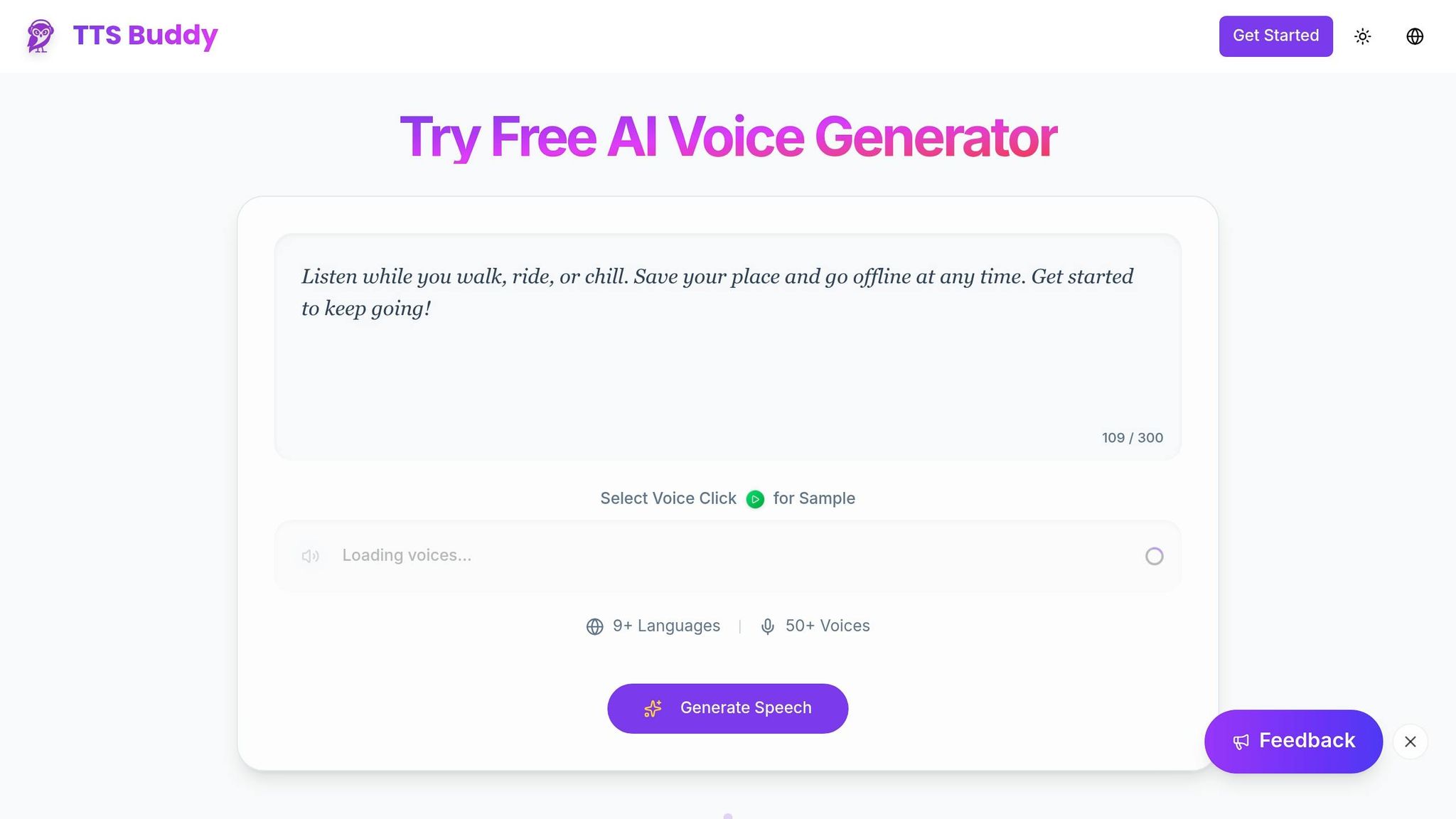
TTSBuddy works seamlessly with cloud storage, creating a portable and easily accessible audio library. This combination simplifies audio creation and management, tackling storage challenges head-on.
Create Natural-Sounding Audio Files
TTSBuddy offers 300+ voices in 30+ language modes, producing audio that sounds lifelike. You can input up to 500,000 characters per request or pull text directly from uploaded PDF files. For better efficiency, it's a good idea to break large texts into chunks of 30,000 to 50,000 characters. This helps avoid extended processing times. To ensure high-quality audio, clean up your text by fixing formatting issues and removing any odd characters.
Download Files for Cloud Upload
Once your audio is ready, downloading it is easy. Use the "History" tab on the Text-to-Speech page or the "Listen Link" dashboard, both of which provide one-click MP3 download options. The Listen Link dashboard also stores helpful metadata, such as the source website, page title, creation date, and audio duration. This can be handy for organizing files when uploading them to platforms like Google Drive or Dropbox. Be sure to download your files promptly to avoid any retention issues. If the download button doesn't work due to browser settings, you can right-click and select "Save link as..." instead.
Offline Access Across Your Devices
After uploading your audio files to cloud storage, you can download them to any device for offline use. Whether you're commuting, exercising, or just away from Wi-Fi, your files will be ready to go. The Listen Link dashboard syncs your audio across desktops, phones, and tablets. For instance, you can convert an article on your laptop using the TTS Buddy Chrome extension and then access it later on your phone through the dashboard.
The free plan includes 120 minutes of TTS and 30 downloads per month, while upgrading to the Pro plan for $9.99/month gives you 1,200 minutes and unlimited downloads.
Cloud Storage Providers for TTS Audio Files
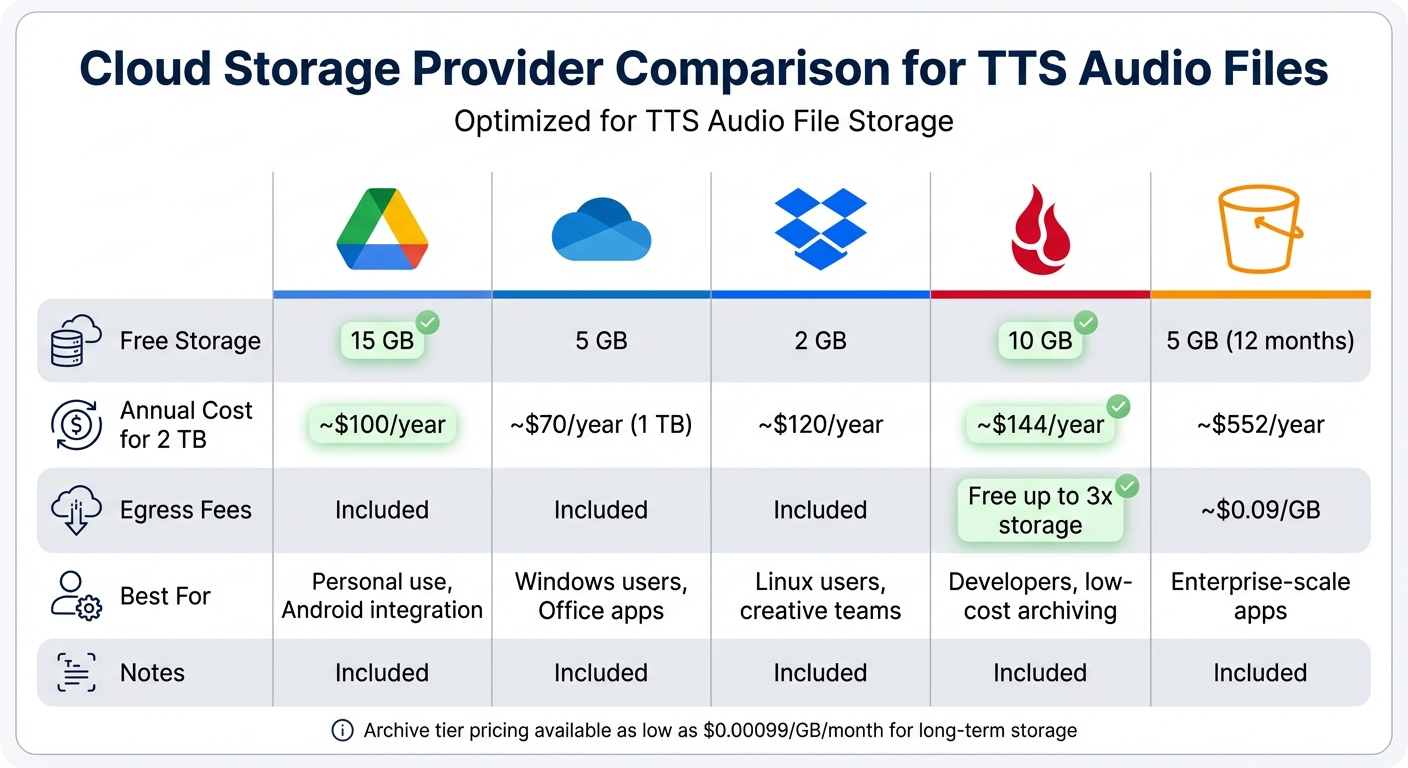
When it comes to storing TTS audio files, selecting the right cloud storage provider can make a big difference. Google Drive and Dropbox are great for personal use and straightforward file sharing. However, object storage platforms like AWS S3 and Backblaze B2 are better suited for developers who need automated TTS workflows.
Most major providers support standard audio formats, but they vary in storage capacity, pricing, and file access methods. For example, Google Drive offers a generous 15 GB of free storage, while OneDrive provides 5 GB, and Dropbox trails with just 2 GB.
If you plan to download or stream files frequently, data egress costs should be a key consideration. Oracle Cloud Infrastructure (OCI) stands out by offering 10 TB of free monthly data transfer, making it significantly cheaper for high-traffic needs compared to AWS or Google Cloud. Backblaze B2 also provides free egress up to three times your average monthly storage usage, which is ideal for developers managing large amounts of data.
"From a cost of goods sold perspective, AWS pricing wasn't a great fit. Backblaze was a drop-in API replacement with a much better cost structure." - Rory Petty, Co-Founder & CTO, Tribute
Cloud Storage Provider Comparison Table
| Provider | Free Storage | Approximate Annual Cost for 2 TB | Egress Fees | Best For |
|---|---|---|---|---|
| Google Drive | 15 GB | ~$100/year | Included | Personal use, Android integration |
| Microsoft OneDrive | 5 GB | ~$70/year (1 TB) | Included | Windows users, Office apps |
| Dropbox | 2 GB | ~$120/year | Included | Linux users, creative teams |
| Backblaze B2 | 10 GB | ~$144/year | Free up to 3x storage | Developers, low-cost archiving |
| AWS S3 | 5 GB (12 months) | ~$552/year | ~$0.09/GB | Enterprise-scale apps |
For long-term storage of older audio files, many providers offer affordable archive tiers. Prices can be as low as $0.00099 per GB per month, making it easy to keep frequently accessed files in standard storage while moving older recordings to these cost-saving options.
These storage solutions integrate effortlessly with TTSBuddy's workflow, allowing you to generate your first audio file in minutes, ensuring smooth and efficient file management for your projects.
How to Use TTSBuddy with Cloud Storage
Here's a step-by-step guide to managing your audio files with TTSBuddy and integrating them with cloud storage for easy access.
Create and Download Audio Files with TTSBuddy
TTSBuddy offers two ways to generate audio files:
- The Text-to-Speech dashboard, where you can manually input text or upload PDFs (handling up to 500,000 characters per request).
- The TTS Buddy Chrome Extension, which allows you to convert any webpage into audio with a single click. The resulting audio is automatically saved to your "Listen Link" library.
After creating your audio, head to the History tab (for dashboard-generated files) or the Listen Link dashboard (for Chrome Extension files). From there, click the Download button to save the MP3 file to your device. Before downloading, double-check the file's duration and size for accuracy. This straightforward process ensures your audio is ready for cloud storage in no time.
Upload and Sync Files Across Devices
Once you've downloaded your audio files, upload them to your favorite cloud storage service, whether that's Google Drive, Dropbox, OneDrive, or another option. To keep things organized, create a dedicated folder like "TTSBuddy Audio" or "Podcast Library" and place your MP3 files there.
Your cloud storage provider will handle syncing these files across all your connected devices. For example, you can generate audio on your laptop, upload it to Google Drive, and then access it instantly on your phone or tablet.
"Convert articles on your laptop with the Chrome extension, then listen from the dashboard on your phone - Listen Link keeps everything synced across devices."
With syncing in place, you can easily access your files even when switching between devices.
Download and Play Files Offline
For offline listening, use your cloud storage app's "available offline" or "make available offline" feature. On Google Drive, tap the three-dot menu next to a file and choose "Make available offline." Dropbox users can toggle the "Make available offline" option. This downloads the file to your device's local storage while keeping it synced with the cloud.
Once the file is saved locally, you can use any media player to listen - whether that's your phone's default music app, VLC, or Windows Media Player. TTSBuddy defaults to 1.2x for efficient listening, and you can lower it to 1.0x anytime for a more relaxed pace. Free accounts allow up to 30 downloads per month, while Pro and Ultimate plans unlock unlimited downloads for uninterrupted offline use.
Conclusion
Cloud audio storage simplifies managing your TTS files by centralizing them, removing device restrictions, and eliminating the hassle of scattered files. Instead of dealing with manual transfers or storage limits, you get a system that syncs automatically and grows alongside your audio library.
With TTSBuddy's Listen Link feature, every converted webpage is saved directly to a single, accessible audio library. You can create audio files on your laptop during the day and listen to them on your phone during your evening commute - no extra steps required.
"Cloud-based file sharing allows you to maintain a single, accessible source of truth for your critical content." - Box, Inc.
This statement highlights the convenience and efficiency of such systems. TTSBuddy also gives you flexibility: stream your files online or download them for offline listening. The Free plan includes 120 minutes per month, while the Pro plan, priced at $9.99/month, offers unlimited downloads.
FAQs
How do I organize a large TTS audio library in cloud storage?
Keeping a large text-to-speech (TTS) audio library organized in cloud storage can feel overwhelming, but a few smart strategies can make it manageable and efficient.
- Organize with a folder hierarchy: Create a clear structure by grouping files based on projects, dates, or file types. This makes it easier to locate specific files without sifting through chaos.
- Use consistent naming conventions: Naming files with timestamps, unique content identifiers, or descriptive labels ensures quick and accurate searches. For example, a file might be named
ProjectX_20231015_Intro.mp3. - Automate uploads and backups: Save time and reduce human error by using APIs or scripts to handle uploads and backups. Automation keeps your library updated and secure without constant manual intervention.
- Set strict access controls: Protect sensitive data by applying permissions for different users or groups. This ensures only authorized individuals can access or modify files.
- Regularly review and archive old files: Periodically go through your library to archive or delete outdated files. This not only frees up storage but also keeps your library clean and easy to navigate.
With these steps, your TTS audio library can remain secure, accessible, and well-organized, saving you time and effort in the long run.
Will cloud-stored TTS audio play offline on my phone?
No, cloud-stored TTS (text-to-speech) audio won't work offline on your phone unless you've downloaded and saved the files directly to your device. Since cloud storage depends on an internet connection, you'll need to be connected to access those files.
How can I keep my cloud TTS audio private and secure?
To keep your cloud-based TTS audio safe, start with secure storage solutions that are designed to protect sensitive data. Make sure to encrypt your files so they remain unreadable to anyone without proper access. On top of that, use strong access controls by carefully managing permissions - this ensures only authorized individuals can view or modify the files.
Another important step is to rely on secure authentication methods, such as using restricted service accounts. These add an extra layer of security, making it harder for unauthorized users to gain access. By following these steps, you not only protect your audio files but also stay aligned with privacy standards.