TTSBuddy CLI for AI Agent Audio

If I need spoken output from an AI agent right away, this CLI does the job from the terminal. I can send text as inline input, stdin, or a file, then get audio back as an MP3, a stream, JSON, or a URL. For short jobs, audio can come back in about 10 seconds, and the API can take requests up to 500,000 characters.
Here’s the short version:
- I can plug TTSBuddy CLI into scripts, schedulers, CI/CD jobs, and agent flows
- I can use Flash voices for speech that is 5x to 10x faster than standard voices
- I can keep retries safe with idempotency keys
- I can resume interrupted jobs with a saved
job_id - I can turn Markdown into speech without reading raw links, images, or code out loud
- I can keep terminal logs clean with
--quietand machine-friendly output with--json
A few details stand out. The CLI checks settings in this order: flags first, then environment variables, then config file values. Exit codes are simple: 0 for success, 1 for runtime or API errors, and 2 for config or usage mistakes. If I stop a job with Ctrl+C, it exits with 130 and prints the job ID so I can continue later.
This means I can move from agent text to spoken output with very little glue code, while still keeping retries, playback, and storage under control.
What TTSBuddy CLI Does in an AI Agent Workflow
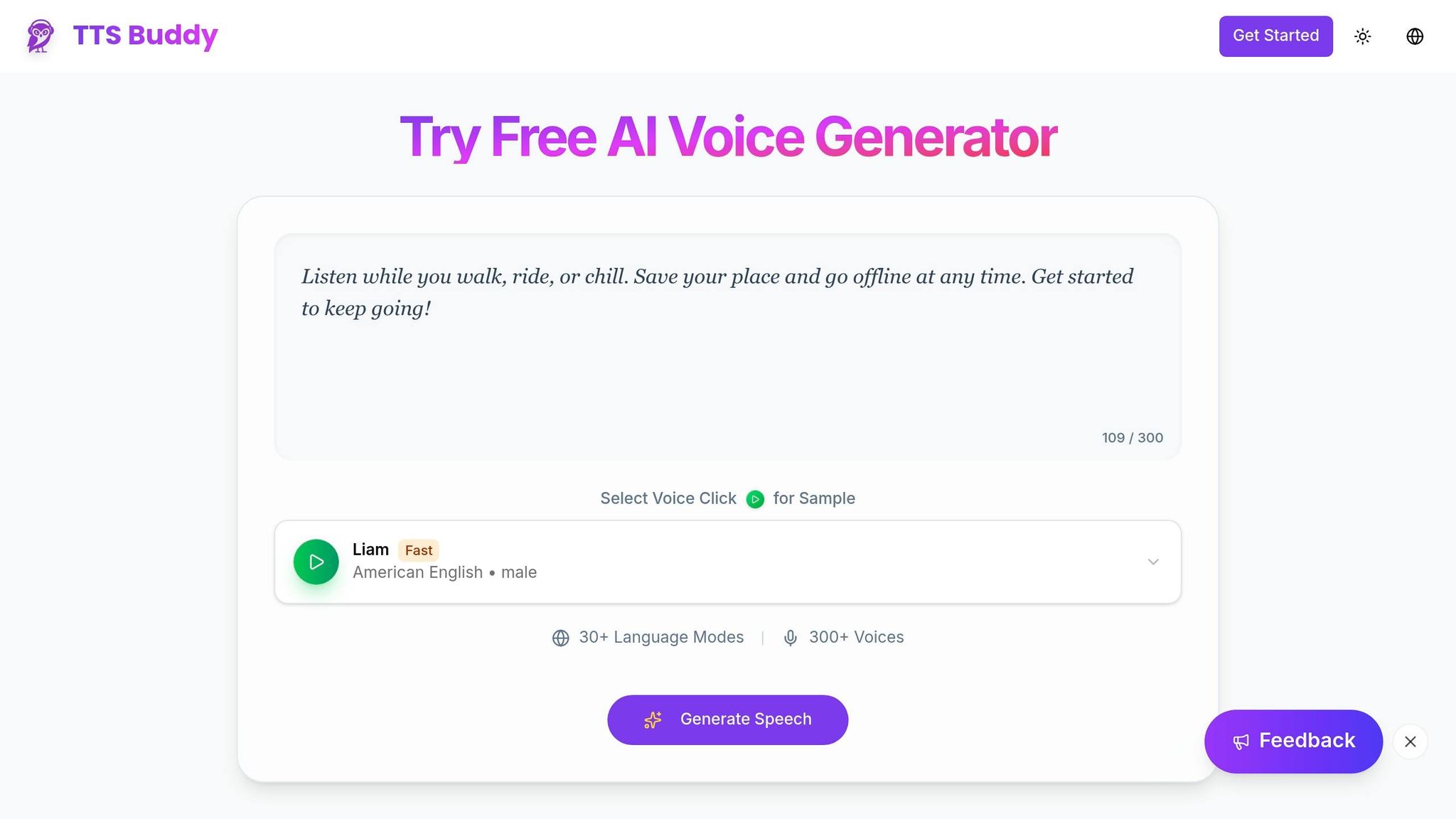
TTSBuddy CLI turns agent-generated text into audio. An agent can send alerts, summaries, or Markdown to the API and get audio back for playback, storage, or the next step in a workflow. That same text can come back as a file, a stream, a JSON payload, or a URL, depending on what the agent needs to do next.
For Markdown input, TTSBuddy strips out formatting and adds pauses at headings. That means raw LLM output can be narrated directly without extra cleanup.
How Agents Pass Text for Immediate Audio
An agent can pass text to the CLI in three main ways:
- Inline text
stdinor pipes- A local file, such as a Markdown document
For example, a monitoring script can pipe an incident summary straight into the CLI and stream the audio to a player for instant playback.
Different agent tasks call for different return formats.
| Output Mode | Command Flag | Best Use Case |
|---|---|---|
| MP3 File | -o output.mp3 | Save audio for later playback or delivery |
| Raw Stream | -o - | Immediate playback through pipes or a player command |
| JSON Payload | --json | Scripts and pipelines |
| Audio URL | --no-download | Sharing links or embedding in apps |
Where Command-Line Speech Works Best
The CLI works best when audio needs to happen right away, right after something happens. Incident alerts and on-call handoff notes are a natural fit because an agent can turn them into spoken context as soon as they're generated.
It also fits terminal-native accessibility workflows well. Developers can have agent responses or Markdown summaries read aloud without leaving the command line. Next, install the CLI and pass text through inline input, stdin, or files.
Prerequisites and CLI Setup for Terminal Automation
Before you use TTSBuddy CLI, install it and add your ttsb_ API key. Every account comes with API and CLI access, so you can start testing without a credit card. Once the key is in place, the CLI is ready for agent-driven speech.
Install TTSBuddy and Authenticate the CLI
TTSBuddy CLI is a single binary. You can install it in a few ways:
- Homebrew (macOS/Linux):
brew install ngelik/tap/ttsbuddy - Go:
go install github.com/ngelik/ttsbuddy-cli@latest - Direct binary download: Prebuilt binaries are available for macOS, Linux, and Windows from the TTSBuddy releases page.
After install, set your API key in a way that keeps it out of shell history. For local work, use the config command. For CI/CD, use TTSBUDDY_API_KEY:
# Recommended for local dev
ttsbuddy config set key ttsb_<public_id>_<secret>

# Recommended for CI/CD
export TTSBUDDY_API_KEY=ttsb_<public_id>_<secret>
The config file lives at ~/.ttsbuddy/config.json and uses 0600 permissions [2]. After that, you can start sending agent output into the CLI.
Pass Text by Inline Input, Stdin, or Markdown File
Pick the input style that fits the text your agent already gives you. Inline text is a good fit for short replies, like alerts or status updates:
ttsbuddy speak "Deployment to production succeeded."
Piped stdin works well when another tool generates the text:
cat incident-summary.txt | ttsbuddy speak -
Use -f for Markdown files. Add --raw only if you need literal formatting.
If you want to play audio in another tool without saving a file first, use -o -.
Set Voice, Output Mode, and Config Precedence
The CLI checks settings in a strict order: flags beat environment variables, environment variables beat config file values, and config file values beat system defaults [2].
For alerts and agent responses, use Supertonic Flash voices (st_m1–st_f5). They produce audio 5–10x faster than standard voices [2][1], which helps keep spoken alerts snappy. Set output mode with the -o flag: use a filename to save the file, or - to stream it. The default is st_m1 at 1.2x speed.
| Setting | Environment Variable | CLI Flag | Default |
|---|---|---|---|
| API Key | TTSBUDDY_API_KEY | -k, --key | - |
| Voice | TTSBUDDY_VOICE | -v, --voice | st_m1 |
| Language | TTSBUDDY_LANGUAGE | -l, --language | en |
| Speed | TTSBUDDY_SPEED | -s, --speed | 1.2 |
| Poll Timeout | TTSBUDDY_TIMEOUT | --timeout | 10m |
A simple way to handle this: set voice and language in config, then use flags only for one-off jobs. The next section shows how scripts, agents, and schedulers call the CLI.
Connect AI Agents to Speech Generation
Call the CLI from Scripts, Agents, and Schedulers
Once you're getting started with TTS Buddy and the text is ready, agents can pass it to TTSBuddy without breaking the automation flow. An agent or script can trigger TTSBuddy any time it needs audio. A deployment workflow can kick off audio after a job finishes, and a scheduler can pipe logs into the CLI for narration.
You can also have a scheduler turn a finished summary file into speech on its own. And if you're working with coding agents, Stop hooks can trigger TTSBuddy right after a task wraps up.
Use MCP-Compatible and API-Driven Workflows
TTSBuddy works with the Model Context Protocol (MCP), which means AI agents can find and call the ttsbuddy_speak tool with structured parameters such as text, voice, speed, and language [1][3]. If an agent needs tighter control, use MCP or the REST API.
There are two connection modes:
- Local stdio uses the
@theproductivepixel/aittsmpackage for desktop agents. - Remote HTTP sends requests to
/api/v1/mcpfor server-side agents.
For bigger payloads, the /v1/agent-tts REST endpoint accepts up to 500,000 characters per request [1]. Short text can finish inline in about 10 seconds. Bigger requests return 202 Processing with a job_id, and you poll until the job is done.
Use Idempotency-Key on POST requests to avoid duplicate processing. For file inputs, hash the content, voice, and speed together to make a deterministic key [1].
Return Audio as File, Stream, JSON, or URL
Pick the return format based on what happens next. Use a file for storage, a stream for playback, JSON for metadata, or a URL when another step needs to fetch the audio.
Use --json with jq to pull the audio_url or job_id into a variable for the next step [2]:
url=$(ttsbuddy speak "Build complete." --json | jq -r '.audio_url')
If you stop a job with Ctrl+C, the CLI exits with code 130 and prints the job_id. You can then resume from that job_id and keep the interrupted job moving.
Build Reliable Accessibility-First Audio Workflows
Real-Time Patterns for Alerts, Logs, and Markdown Summaries
Once the CLI is connected, the next move is to choose workflows that need immediate, retry-safe speech.
Use TTSBuddy for alerts, logs, and Markdown summaries that need audio right away. For users with dyslexia or ADHD, playback speeds between 0.8x and 1.2x are recommended for maximum comfort [2].
For Markdown files, TTSBuddy has built-in preprocessing that strips headings, links, images, and code blocks on its own. So instead of reading raw syntax out loud, the narration sounds natural. That makes README playback much smoother.
After that, match the output format to the next step in the workflow. You can use file, stream, JSON, or URL output based on what the system needs next.
Handle Retries, Interrupts, and Faster Generation
Production workflows also need clear failure handling. Structured exit codes make it easier for automation to respond in a predictable way:
| Code | Meaning | Agent Action |
|---|---|---|
| 0 | Success | Proceed to next task |
| 1 | Runtime/API error | Retry with exponential backoff |
| 2 | Usage/config error | Check flags or API key configuration |
If an agent job fails or pauses, run ttsbuddy status <job_id> --watch to resume polling without starting generation again from scratch [2].
For safe retries, pass --idempotency-key with a deterministic value, such as a hash of the file content, voice ID, and speed setting. If you submit the same key twice, the CLI returns the existing job instead of making a duplicate [1].
Flash voices like st_m1 and st_f1 produce audio 5–10x faster than standard voices for alerting pipelines. In CI/CD environments, add --quiet to suppress progress spinners and keep build logs clean [2].
Conclusion: Where TTSBuddy CLI Fits in AI Voice Pipelines
TTSBuddy CLI gives AI agents a fast, terminal-native path from text to accessible speech.
FAQs
How do I play audio instantly without saving a file?
Use -o - to send raw MP3 audio to standard output, then pipe it straight to your audio player.
ttsbuddy speak "Your text here" -o - | afplay -
This plays the audio right away without saving a file to disk.
When should I use Flash voices instead of standard voices?
Use Flash voices when speed and efficiency matter most. They generate audio 5 to 10 times faster than standard voices, which makes them a strong fit for low-latency CLI workflows, automation, CI/CD pipelines, and AI agent integration.
In plain English: if you need audio fast and at scale, Flash voices are the way to go.
They offer the best speed-to-quality ratio for real-time use and high-volume batch processing. Run ttsbuddy voices to view the available options, then pick a voice with the -v flag using its st_ voice ID.
How do I resume a TTS job after it is interrupted?
If a text-to-speech job gets interrupted or doesn’t finish during the first wait window, check where it stands with the job ID:
ttsbuddy status <job_id>
If you want to keep an eye on it until it’s done, use:
ttsbuddy status <job_id> --watch
That command keeps polling the service until the job reaches completed, so you can move on with your workflow and come back when the audio is ready.