Text-to-Speech CLI: Natural AI Audio

TTSBuddy CLI is a command-line tool that converts text into natural-sounding audio. Designed for developers, content creators, and accessibility advocates, it supports up to 500,000 characters per request and works on macOS, Linux, and Windows. With 300+ voices across 30+ language modes, it processes audio in 10–30 seconds and includes features like Markdown sanitization, batch processing, and multiple audio formats (MP3, WAV, FLAC, etc.). The free plan provides 120 minutes/month with full API access and no credit card required.
Key Features:
- Text-to-speech conversion for plain text, Markdown, and stdin input.
- AI sanitization for smooth narration of Markdown elements (tables, bullet points, etc.).
- Voice and language options: 300+ voices across 30+ language modes.
- Customization: Adjust playback speed, select voice types (Flash, Premium, etc.).
- Automation: JSON output, batch processing, and CI/CD integration.
- Free plan: 120 minutes/month, full API access.
How to Start:
-
Install via Homebrew,
go install, or direct download. -
Sign up for a free account at ttsbuddy.com.
-
Configure your API key and run:
ttsbuddy -f input.md -o output.mp3
TTSBuddy CLI simplifies audio generation for developers and anyone needing quick, high-quality text-to-speech solutions.
Installing TTSBuddy CLI
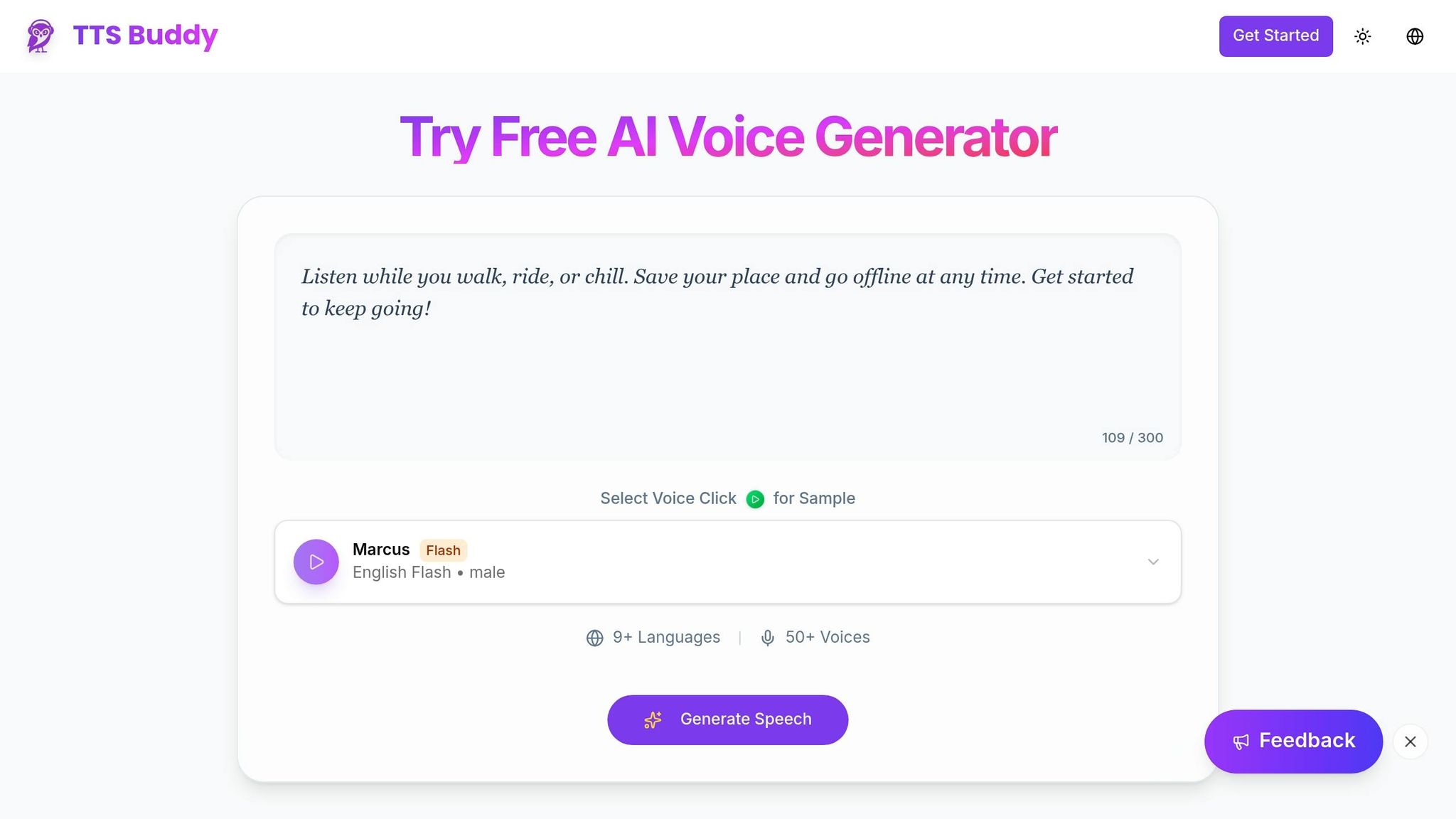
How to Install TTSBuddy CLI
Getting started with TTSBuddy CLI is quick and straightforward. This tool is a single binary with no extra dependencies, meaning you won’t need to worry about installing additional runtime libraries or frameworks.
For macOS and Linux users, installation options include Homebrew, go install, or downloading the binary manually. Windows users can directly download the binary and add it to their system path. To confirm everything is set up correctly, run tts --version.
Once installed, you’ll need to configure your account to start converting text into audio.
Requirements and API Key Setup
You’ll need a free TTSBuddy account to generate audio. Visit ttsbuddy.com to sign up with your email, or log in using Google or GitHub. No payment details are required to start - the free plan gives you 120 minutes of text-to-speech processing per month, along with full API access.
After activating your account, grab your API key from the dashboard. The first time you run the CLI, it will prompt you to enter this key. If you ever need to update it later, just use the command tts --configure to re-enter your details.
To ensure everything is working, try running: tts -f input.md -o output.mp3. If the CLI authenticates and starts processing, you’re good to go. With your API key in place, you’re ready to use TTSBuddy CLI to streamline your text-to-speech projects.
Using TTSBuddy CLI for Text-to-Speech
Basic Commands and Syntax
TTSBuddy CLI keeps things straightforward with its core command structure: ttsbuddy [flags] <text|file>. You can either input text directly or reference a file for conversion.
For quick inline conversion, just include your text in quotes. For example:
ttsbuddy "Welcome to the tutorial" -o welcome.mp3
This command generates an audio file named welcome.mp3, with the quoted text as the spoken content. The -o flag specifies the output file's name and location.
Need to update your API key? Use the ttsbuddy --configure command to make adjustments.
TTSBuddy CLI is designed to handle a variety of input types, making it adaptable to different workflows.
Working with Different Input Types
The tool supports plain text files, Markdown documents, and stdin input. For file-based conversions, try:
ttsbuddy -f filename -o output.mp3
This will process the specified file and save the audio output as output.mp3.
One standout feature of TTSBuddy CLI is its AI-powered sanitization. This ensures raw Markdown formatting is seamlessly converted into natural-sounding narration. For instance, if your Markdown file includes tables, bullet points, or code blocks, the tool doesn’t just read these elements verbatim. Instead, it transforms them into clean, conversational descriptions. This makes the final audio easy to follow and more engaging.
For automation enthusiasts, TTSBuddy CLI supports stdin input. You can pipe text from other commands directly into it. Here’s an example:
echo "Processing complete" | ttsbuddy -o status.mp3
This feature is perfect for integrating TTSBuddy into scripts and automation pipelines, simplifying your workflows even further.
Advanced Options and Customization
Selecting Voices and Languages
TTSBuddy offers access to 300+ neural voices across 30+ language modes [4]. These voices are divided into four categories: Fast (ultra-fast), Premium (ideal for natural, long-form content), Standard (everyday use), and Basic. For American English alone, there are 20 Kokoro voices plus 10 Fast voices, making it the most extensive selection available [4].
To pick a specific voice, use the -v flag followed by the voice's name. For example, Premium voices like Madison or Sophia work well for extended narrations, while Flash voices such as Felicity or Marcus are optimized for speed, generating audio 5–10× faster - perfect for quick tasks or high-volume conversions.
Playback speed can also be adjusted. Preconfigured speeds range from 0.5× (Very Slow) to 1.5× (Very Fast) [4]. For precise control, use the -s flag to set a custom speed anywhere between 0.25× and 4.0× [3].
Output Formats and Export Options
The TTSBuddy CLI supports multiple audio formats, including MP3, WAV, Opus, AAC, FLAC, and PCM [3]. By default, it exports files in MP3 format, but you can switch to another format using the -fmt flag. For instance, to save a file in FLAC format, you’d use:
ttsbuddy -f document.txt -o archive.flac -fmt flac
Besides saving files locally, TTSBuddy provides flexible export options. You can stream raw MP3 data directly to stdout for use with other tools, generate JSON output containing the audio URL and metadata, or simply display the audio URL without downloading the file.
Automation Features for Development Workflows
TTSBuddy CLI stands out with its automation features, making it a great fit for development workflows. Its JSON output mode delivers machine-readable responses, perfect for scripting or integrating into larger toolchains [2]. Additionally, the CLI uses structured status codes, ensuring smooth integration with CI/CD pipelines [3][5].
The -c flag allows batch processing, letting you merge multiple files into one audio output. To maintain API stability, you can use the -r flag to limit API calls [3]. The tool handles requests up to 500,000 characters - enough for an entire novel chapter - with most tasks completing within 10 to 30 seconds [1][2].
For even greater scalability, TTSBuddy's REST API enables developers to convert millions of words programmatically. Every account, even those on the free plan, includes API access [2]. This makes it easy to incorporate text-to-speech functionality into your applications without the hassle of extra authentication steps.
Examples and Use Cases
Let’s look at how TTSBuddy CLI can be put to work, showcasing its ability to handle advanced features and automation.
Converting Markdown Files to Audio
TTSBuddy CLI can transform Markdown files - complete with tables, bullet points, and code blocks - into natural-sounding audio descriptions[1]. This makes it a great tool for turning technical documents or blog posts into accessible audio formats.
For example, to convert a Markdown file, you’d use this command:
ttsbuddy -f input.md -o output.mp3
The tool automatically handles headers with pauses and converts tables into conversational descriptions, eliminating the need for manual adjustments[1]. If you want to customize the voice, simply add the -v flag and specify the preferred voice, like this:
ttsbuddy -f input.md -o output.mp3 -v nova
Need to convert multiple documents at once? Batch processing simplifies this task, making it easy to handle large volumes of content.
Batch Processing Multiple Files
With the -c flag, you can combine multiple text files into one seamless audio output[3]. This is especially handy for projects like creating an audiobook from a series of chapters or compiling meeting notes into a single narration.
Here’s an example shell command:
ttsbuddy -c chapter1.txt chapter2.txt chapter3.txt -o complete-book.mp3
Most conversions are completed in 10 to 30 seconds, though larger files - those over 100,000 characters - may take a bit longer[1].
Integrating with Other Command-Line Tools
TTSBuddy CLI also supports standard input (stdin), enabling you to pipe text directly from other tools without creating temporary files. For instance:
cat document.txt | ttsbuddy -o narration.mp3
This direct approach simplifies the workflow significantly. Additionally, TTSBuddy’s JSON output mode is perfect for integration into larger automation scripts[2]. You can programmatically access generation IDs and file paths, which can then be passed to audio processing tools.
Moreover, TTSBuddy supports a range of audio formats, including WAV, FLAC, and MP3, allowing you to tailor your audio pipeline to your specific requirements. This flexibility makes it a powerful choice for anyone looking to streamline text-to-speech workflows.
Conclusion
Why Use TTSBuddy CLI?
TTSBuddy CLI brings natural-sounding AI-generated audio straight to your terminal, eliminating the hassle of manual text cleanup. Its AI-powered sanitization ensures Markdown structures are seamlessly converted into smooth narration [1]. With 300+ voices across 30+ language modes and the ability to process up to 500,000 characters in one go, it's equipped to handle everything from brief excerpts to lengthy documents. Plus, it generates audio in just 10–30 seconds, making it ideal for workflows that demand speed and quality. Whether you're a developer, student, or accessibility advocate, TTSBuddy CLI fits effortlessly into your workflow.
How to Get Started
Getting started is straightforward. The free plan offers 120 minutes of audio per month, full API access, and requires no credit card. To begin, install TTSBuddy CLI using Homebrew, Go, or a direct download. Then, grab your API key from your account dashboard, and you're all set to convert your first text file.
Here’s a quick example to get started:
ttsbuddy -f document.md -o output.mp3
Once you're up and running, you can dive into batch processing, customize voices, or integrate TTSBuddy CLI into your pipelines to streamline productivity and improve accessibility. For more advanced features and ideas, check out the documentation.
FAQs
How do I list available voices and languages?
To check out the available voices and languages in TTSBuddy, simply head to the Voice dropdown menu on the dashboard. Here, you'll find voices neatly organized by language, making navigation a breeze. You can even preview each voice before making a choice.
The platform boasts 300+ voices across 30+ language modes, including options like English (with multiple variations), British English, Spanish, French, and Hindi. Each voice listing provides key details such as the name, gender, and tier, helping you quickly identify the perfect match for your needs.
What happens if my text is over 500,000 characters?
If your text is longer than 500,000 characters, it's a good idea to break it into smaller chunks, ideally between 30,000 and 50,000 characters. This makes processing easier and reduces the chances of running into any problems.
Can I use TTSBuddy CLI in CI/CD without saving audio files?
TTSBuddy CLI lets you convert text or Markdown directly into audio, making it a perfect fit for CI/CD workflows. With this tool, audio can be streamed or handled in-memory, eliminating the need to save files. This ensures smooth integration into automated pipelines without extra steps.