CLI TTS: Terminal Text-to-Speech Tools

Developers often rely on the command line for tasks, but for those with visual impairments or anyone who benefits from audio feedback, traditional workflows can be challenging. Command-line text-to-speech (TTS) tools bridge this gap by converting terminal output into audio, offering a practical solution for accessibility and productivity.
Key takeaways:
- Why CLI TTS matters: GUI-based TTS tools disrupt workflows and lack automation. CLI TTS tools integrate directly into terminal workflows, offering real-time audio feedback without leaving the command line.
- How it works: Tools like TTSBuddy convert text, Markdown files, or terminal outputs into audio with simple commands. They support local processing for privacy and faster performance.
- Use cases: From reading documentation aloud to automating audio notifications in CI/CD pipelines, CLI TTS tools improve efficiency for developers, especially those with accessibility needs.
- Setup and features: TTSBuddy is easy to install, supports 300+ voices, multiple languages, and offers flexible configuration options for playback speed and output formats.
CLI TTS tools are transforming how developers interact with terminal outputs, making workflows more accessible and efficient.
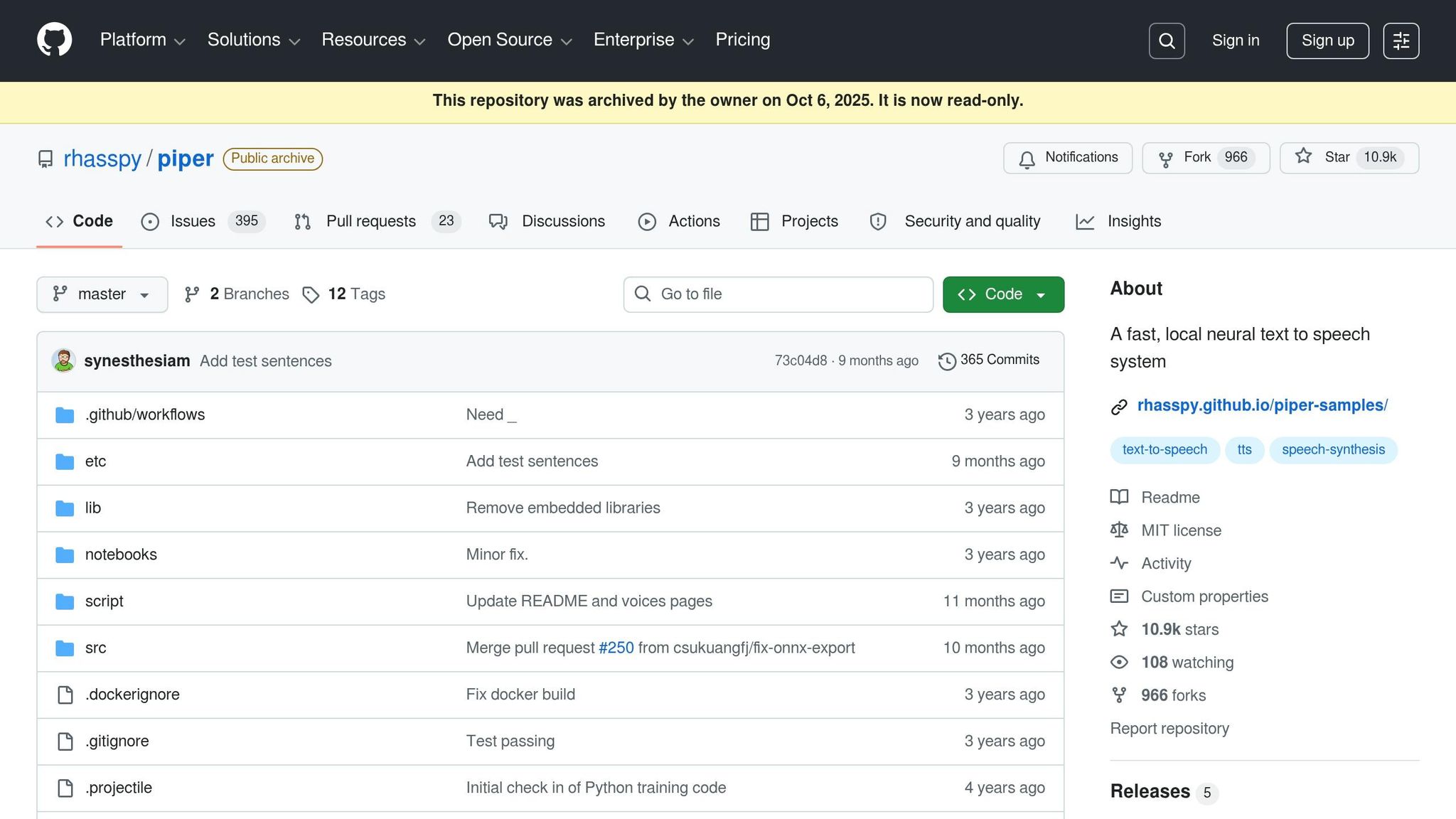
Better Text to Speech on Linux with Piper
Why Developers Need Command-Line TTS
Developers spend most of their time working in the terminal. It’s where the magic happens. But GUI-based TTS tools can throw a wrench into that seamless workflow, forcing developers to switch contexts. For those with visual impairments or anyone who benefits from audio feedback, this disruption can be a real productivity killer. The limitations of traditional GUI tools become glaring in such scenarios.
Problems with GUI-Based TTS Tools
GUI-based TTS tools often feel like a square peg in a round hole when it comes to technical workflows. They demand that you step out of the terminal, copy text into a separate interface, and configure settings manually - all of which break the natural, keyboard-driven rhythm of coding. As Ryan Hecht and Andrew Feller from GitHub aptly put it:
"The terminal is fundamentally different from a web browser or a graphical user interface, with a lineage that predates the web itself." [4]
These tools also fall short when it comes to automation. You can’t easily pipe terminal output into them, and APIs for scripting are often nonexistent. On top of that, many GUI-based solutions rely on cloud servers, which raises privacy concerns - especially when dealing with proprietary code or sensitive documentation.
How CLI TTS Improves Developer Workflows
Command-line TTS fits right into the developer’s natural environment. It allows you to pipe output from commands like grep, error messages, or even entire documentation files directly into audio - without ever leaving the terminal. This seamless integration also opens the door for automation in CI/CD pipelines. Plus, because processing happens locally, you avoid latency issues and keep sensitive data secure.
Modern Rust-based TTS binaries, for instance, can start in as little as 100 milliseconds. That means you can get real-time audio feedback during debugging - perfect for catching errors on the fly [5].
For accessibility, CLI TTS tackles challenges that screen readers might struggle with. Terminal elements like ASCII art, braille-based progress spinners, or constantly redrawing screens can confuse traditional speech synthesis tools [3][4]. CLI TTS simplifies these outputs into clean, static text or direct audio cues, making them more reliable for assistive technologies. This combination of automation and local processing not only boosts efficiency but also makes development more inclusive for all.
Common Use Cases for CLI TTS
Command-line TTS shines in a variety of scenarios. Want to turn Markdown documentation into audio? You can listen to README files or API guides during a break or even on your commute. Need help navigating terminal commands? Pipe man pages or help flags directly into TTS to have the syntax read aloud.
It’s also great for announcing test results or deployment statuses in pipelines. Audible alerts provide instant feedback, letting you know when critical tasks are done. For developers with visual impairments, CLI TTS offers hands-free navigation through complex terminal outputs - something that would otherwise require painstaking, line-by-line screen reader scanning [6].
GitHub has even started rolling out accessibility features in their CLI. In May 2025, they introduced the gh a11y command, designed to make outputs more screen-reader-friendly [4]. This kind of innovation is a testament to how CLI TTS is reshaping accessibility in development workflows.
Setting Up TTS in Your Terminal
TTSBuddy is a standalone Go binary that runs independently, making installation quick and hassle-free - typically under a minute.
Installing on macOS, Linux, and Windows
For macOS users, the easiest installation method is through Homebrew. Just run:
brew install ttsbuddy
On Linux and Windows, you can either use go install or download the binary directly. Since TTSBuddy is a single executable, you can simply place it in your PATH and start using it right away. This simplicity is a huge plus, especially in CI/CD workflows where consistency and reliability are critical.
Once installed, you’ll need to configure TTSBuddy to fit your specific needs.
Configuring TTSBuddy for Your Workflow
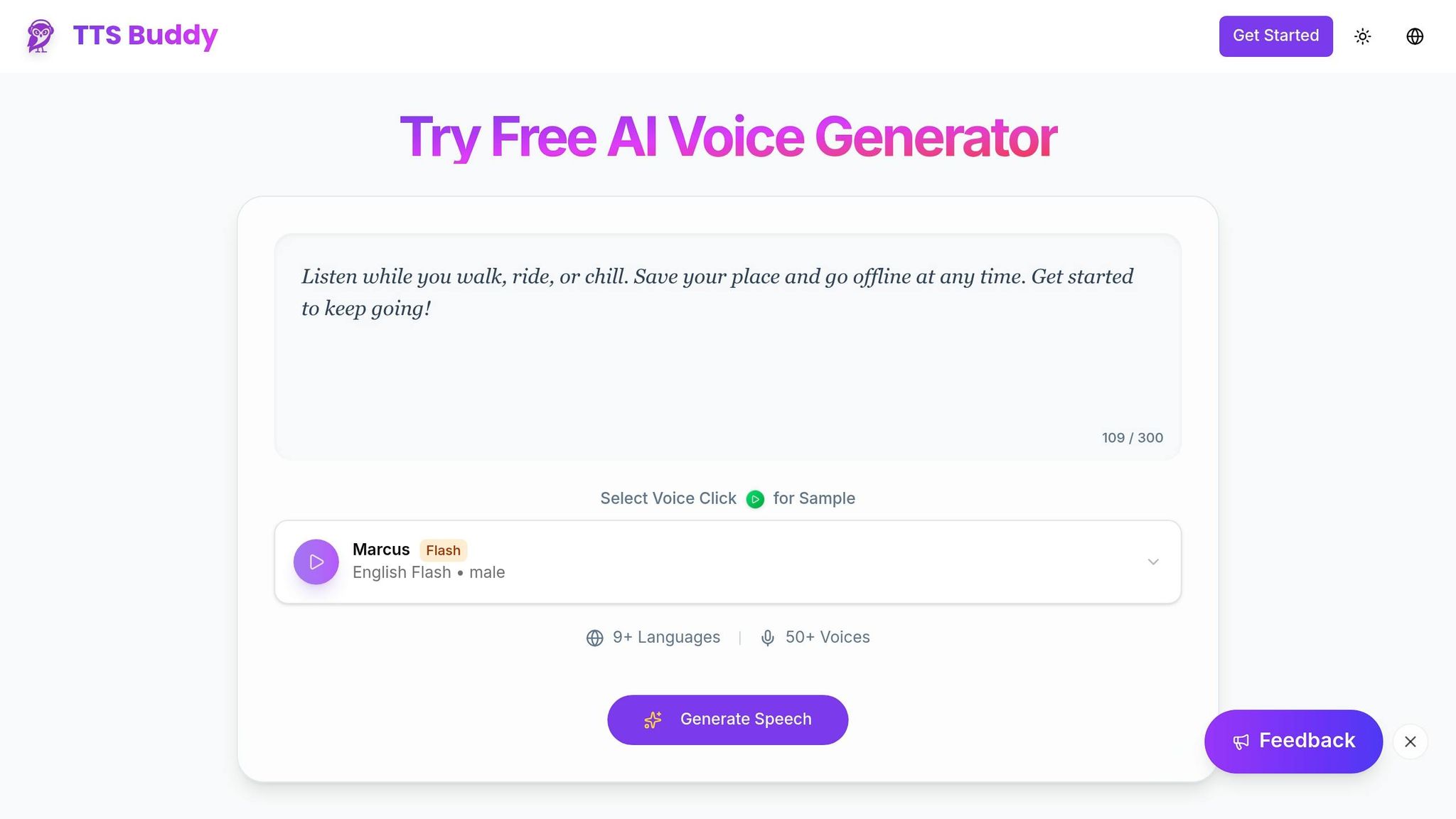
TTSBuddy offers flexible configuration options, including flags, environment variables, or a config file. To get started, use the --configure flag to set your API key. The key is securely hashed with SHA-256 for added security. You can also customize audio settings:
- Choose from 300+ voices using the
-vflag. - Adjust playback speed (ranges from 0.25× to 4.0×) with
-s. - Pick your preferred output format - options include MP3, WAV, FLAC, AAC, and OPUS [1].
If you’re working with Markdown files, TTSBuddy’s AI-powered sanitization ensures tables, bullet points, and code blocks are read naturally, making it perfect for converting documentation into audio format [7].
This level of customization helps TTSBuddy integrate seamlessly into various workflows, improving both accessibility and productivity.
Testing Your Setup
Once installed and configured, it’s time to test. Start by converting a simple text snippet:
ttsbuddy "Hello from the terminal" -o test.mp3
This should generate an audio file quickly. To test with a Markdown file, try:
ttsbuddy -f README.md -o readme.mp3
This will confirm that AI sanitization handles headers, links, and code blocks effectively. For additional testing, enable JSON output mode to check job IDs and status updates. TTSBuddy supports requests up to 500,000 characters, so if you’re working with larger documents, test a longer file to see how processing time scales. Keep in mind that files exceeding 100,000 characters may take a few minutes to process [7].
Using TTS in Development Workflows
Integrating TTSBuddy into your development setup can improve accessibility and automate repetitive tasks. From converting documentation to audio to streamlining CI/CD processes, TTSBuddy brings powerful tools directly to your terminal.
Converting Markdown Documentation to Audio
One of the easiest ways to use TTSBuddy is by turning Markdown files, like project READMEs, into audio. With just a simple command - ttsbuddy -f README.md -o readme.mp3 - you can create audio files that sound natural, even with complex formatting. No need for manual adjustments; the tool handles it all.
This is a great option for teams sharing documentation, offering an audio alternative that developers can listen to on the go. With support for up to 500,000 characters per request [7], you can convert extensive technical guides or multi-chapter manuals in one go, making it easier to digest information away from a screen.
Adding TTS to CI/CD Pipelines
TTSBuddy can also automate audio generation within your CI/CD pipelines. For example, you can configure it to generate audio versions of changelogs or incident reports whenever documentation is updated. Since audio generation takes just 10 to 30 seconds [7], it won't disrupt your build process. Plus, TTSBuddy’s structured exit codes and JSON output ensure smooth automation.
For especially long documents (over 100,000 characters), splitting them into smaller sections can help maintain predictable processing times [7]. This is particularly important as municipalities in the U.S. with populations over 50,000 must meet WCAG 2.1 Level AA compliance by April 24, 2026 [8]. Automating TTS in your workflow ensures you're ahead of these accessibility requirements.
TTSBuddy’s JSON output also opens doors for custom scripting and better asset management.
Using JSON Output for Scripting
The JSON output feature in TTSBuddy enables deeper integration with development tools. It provides word boundary metadata - such as offsets, durations, and text strings - which can be used to build interactive interfaces where text highlights in sync with audio [9]. This is especially helpful for creating accessible documentation sites or training resources.
You can also leverage JSON output for automating asset management. Information like file size, format, and estimated duration can update manifest files or databases automatically [9]. In serverless setups, the Base64 export option makes embedding audio directly into web applications seamless [9].
Accessibility Best Practices for CLI TTS
TTSBuddy's integration into development workflows is designed to enhance accessibility, making it easier for users with diverse needs to interact with content effectively.
Adjusting Voice Output for Different Needs
TTSBuddy allows users to adjust playback speeds from 0.5x to 4.5x, making it versatile for various purposes like language learning, detailed analysis, or quick scanning. For individuals with dyslexia or ADHD, speeds between 0.8x and 1.2x are often the most comfortable. Additionally, choosing the right voice is crucial: warm, conversational tones like Madison or Sophia are great for long-form content, while clear, authoritative voices suit reports or technical documents. The AI also simplifies complex Markdown into natural speech, ensuring clarity and smooth integration into terminal workflows [7].
Supporting Multiple Languages and Accents
With access to 300+ neural voices across 30+ language modes, TTSBuddy is equipped to handle a wide range of linguistic needs [12]. For non-English content, models like eleven_multilingual_v2 are specifically designed for optimal performance [2]. While the Free plan supports up to three languages, Pro and Ultimate plans unlock all 10, making TTSBuddy an excellent choice for global teams working across different regions [12].
Testing TTS for Accessibility Compliance
Meeting accessibility standards is a priority. For CLI TTS, this includes features like audio controls (pause, stop, volume adjustments) and ensuring the language of the content is programmatically identifiable [11]. Keep speech rates under 180 words per minute - about three words per second - for better clarity and to support captioning [10].
Real-world testing is key. Go beyond automated tools and collaborate with accessibility users to confirm that the audio is clear, paced appropriately, and logically organized. As the World Bank notes, "Accessibility technology can make website navigation possible or easier for 57% of all computer users" [11]. Regular testing with actual users ensures these best practices remain effective in practical applications.
Conclusion
Command-line TTS tools like TTSBuddy make audio generation easier and more accessible for developers by integrating directly into the terminal. Instead of juggling between GUI applications and disrupting your workflow, you can convert code or documentation into audio with a single command. This allows developers to listen while on the move, making workflows more efficient and accessible.
TTSBuddy prioritizes privacy and security, ensuring that your content is never used to train AI models. API keys are hashed with SHA-256, offering peace of mind for those working with sensitive documentation or proprietary code. Plus, the tool supports up to 500,000 characters per request - about the length of a novel chapter - and processes most audio files in just 10-30 seconds.
The integration features, like .md endpoints and llms.txt files, make it easy to programmatically feed documentation into AI tools like Claude, ChatGPT, or Cursor. For example, running curl https://ttsbuddy.com/docs/llms-full.txt lets you pull documentation directly into your IDE or AI assistant, saving time and eliminating the need for manual copy-pasting [13]. This transforms static documentation into actionable insights.
With flexible pricing options, TTSBuddy caters to a wide range of needs. The free plan offers 120 minutes per month, while the Pro plan, priced at $9.99/month, provides 1,200 minutes along with full API and CLI access. You can get started without a credit card. Whether you're aiming to reduce screen time, support visually impaired teammates, or simply work more efficiently, TTSBuddy integrates seamlessly into your workflow.
Give it a try in your terminal and see how it can simplify your development process while enhancing accessibility.
FAQs
Can TTSBuddy read piped terminal output?
TTSBuddy is capable of reading piped terminal output. It works seamlessly with various input formats, including text from command pipelines. With its AI-powered sanitization, it can handle complex formatting, ensuring the narration remains clear and accurate. This makes it especially useful for converting structured or formatted text into accessible audio.
How do I keep sensitive text private with TTSBuddy?
When working with sensitive text, it's best to stick with local or on-device TTS options whenever you can. TTSBuddy integrates with local CLI TTS providers like espeak, piper, and mlx-audio, ensuring that your data stays right on your device. This approach minimizes the risk of exposing your information compared to cloud-based services, which often process data externally.
Another helpful feature of TTSBuddy is its ability to use AI for sanitizing formatting. This ensures your text is securely prepared for clear and effective narration.
What’s the best way to split very large Markdown files?
To break down large Markdown files, consider using tools like mdsplit, a Python-based command-line tool that divides files into chapters based on specified heading levels. Another option is writing your own script using tools like gcsplit or a custom Python solution, giving you more control over where the splits occur. For a more structured approach, the langchain library can create well-organized chunks by headers, making it perfect for additional processing.