How to Listen to Articles Offline on Any Device

Tired of staring at screens to read articles? With tools like TTSBuddy, you can convert written content into audio and listen offline on any device. This means you can stay informed while commuting, exercising, or handling chores — no internet required.
Here's how it works:
- Convert Text to Audio: Paste text, upload files, or use a browser extension to generate MP3s.
- Choose Voices: Pick from 300+ voices in 30+ language modes for a personalized listening experience.
- Download for Offline Use: Save MP3 files to your device for playback anytime, anywhere.
Whether you're looking to save time, reduce eye strain, or make content more accessible, TTSBuddy makes it simple to turn articles into audio you can take on the go.
How to Convert Articles to Audio with TTSBuddy
Setting Up Your TTSBuddy Account
Head to ttsbuddy.com and click on Sign Up. Simply enter your email, create a password, and confirm your email address to get started.
You'll have two options for your account:
- The Free Plan, which includes 120 TTS minutes per month, 30 downloads, and core offline features.
- The Pro and Ultimate Plans, which add higher monthly limits, API and CLI access, full document conversion through Doc Buddy, and the Web Buddy Chrome extension.
Once your account is ready, you're all set to start converting articles into audio.
Turning Text into Audio
After setting up your account, converting text is quick and easy.
You can:
- Paste your text directly into the platform.
- Upload files in supported formats like PDF, DOCX, TXT, EPUB, or XLSX.
- Use the Web Buddy Chrome extension to convert content from web pages.
Once your text is loaded, hit the convert button. The process only takes a few seconds, and you'll see the playback interface, where you can listen to or download the audio.
Choosing Voices and Languages
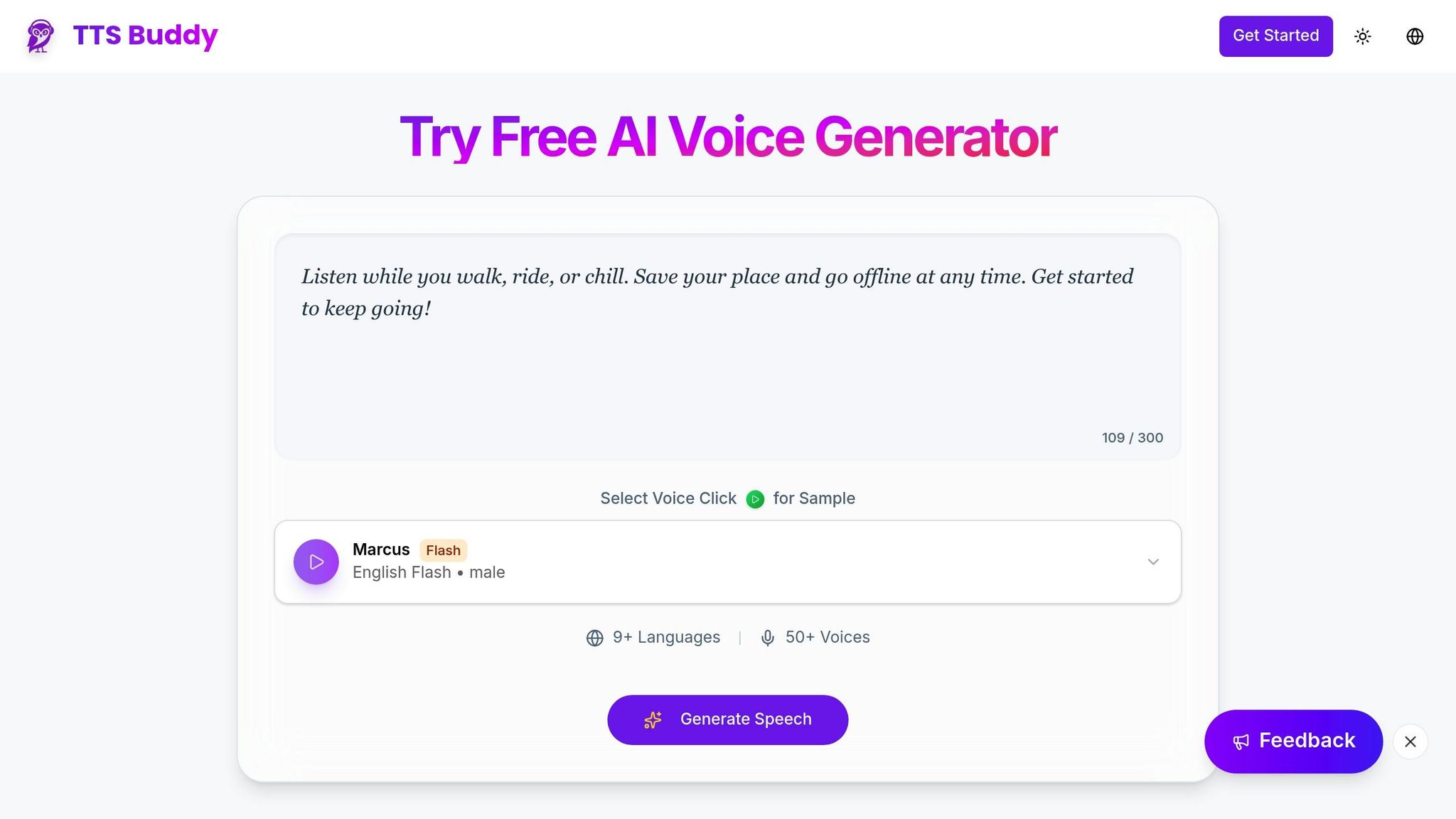
TTSBuddy offers 300+ voice options in 30+ language modes. Use the "Click for Sample" feature to preview each voice. Pick a professional tone for formal content like news articles or go for a conversational voice to suit blog posts or casual writing.
Downloading and Organizing Audio Files
Saving Audio Files for Offline Use
After TTSBuddy converts your text, you'll find a Download button in the bottom right corner of the playback interface. Clicking it will save the audio file directly to your device. The file is downloaded as an MP3, a universal format that works seamlessly on iPhones, Android devices, Macs, and PCs.
If you want to revisit a previously converted file, the History tab has you covered. It stores all your past conversions, letting you re-download them whenever needed — no need to reprocess the text. This is especially helpful when you're preparing for offline moments like flights or long commutes and want to have multiple articles ready.
TTSBuddy's MP3 files are optimized for both quality and storage, using a bitrate of 128kbps to 192kbps. This ensures clear and natural audio playback without hogging too much space. For standard articles, 128kbps works well, but for professional presentations or detailed instructional content, consider using the higher bitrate for better voice clarity.
Once you've downloaded your files, take a moment to organize them. A little effort upfront can make offline listening much smoother.
Managing Your Audio Library
TTSBuddy simplifies file management with its centralized Library. Instead of sifting through random folders on your device, you can quickly find what you need. Whether you're using the web app, Chrome extension, or your mobile device, your library syncs across platforms as long as you're signed in.
To keep things tidy, create folders to group your files by topic or project. For instance, you might have folders for work-related articles, research materials, or personal reading. Adding a new folder in the web app is easy — hover over 'My Library' and click the '+' icon. Then, simply drag and drop files into the appropriate folder. A well-organized library means less time searching and more time enjoying your audio content.
Playing Audio Offline on Different Devices
Using the TTSBuddy Chrome Extension
The TTSBuddy Chrome Extension makes saving articles for offline listening a breeze, no matter what device you're using. After adding the extension from the Chrome Web Store, just open an article, click the TTSBuddy icon, and hit "Save." This action sends the article straight to your cloud library, where it syncs automatically with the TTSBuddy mobile app on both iOS and Android.
With automatic syncing, you can switch between devices without losing your place. For heavier offline workflows, the Pro and Ultimate plans provide higher limits and more room for MP3 downloads. These files can be played anytime, anywhere, without requiring an internet connection.
Once saved, your articles are ready to go on any device — keep reading to learn how to access them effortlessly.
Accessing Audio Across Multiple Devices
TTSBuddy ensures your audio library stays in sync across your smartphone, tablet, and computer. Whether you're using the iOS app, Android app, or the desktop version for Mac, your saved articles and downloaded files will appear in the same neatly organized folders you've set up. Any folder structure created on your computer will mirror perfectly on your phone.
To access offline files on a new device, simply download the TTSBuddy app, log in with your account, and tap the Library icon. Any MP3 files you've downloaded will be ready to play immediately — even in airplane mode or areas without cellular coverage.
TTSBuddy Plans and Pricing
TTSBuddy offers three distinct plans designed to meet the needs of casual users, professionals, and businesses. The Free Plan provides 120 TTS minutes per month, 30 downloads, 30 STT minutes, and access to 300+ voices across 30+ language modes. The Pro Plan adds 1,200 TTS minutes, unlimited downloads, API and CLI access, and email support. The Ultimate Plan is built for teams and power users who need unlimited TTS, STT, downloads, summaries, language modes, custom voices, and priority support.
For businesses and developers with large-scale needs, API and CLI access are available on paid plans, making TTSBuddy practical for integrating text-to-speech technology into products or services.
This range of options ensures flexibility and convenience, especially for those who value offline access.
Plan Comparison Table
Here's a breakdown of the key features across all plans, including offline accessibility:
| Feature | Free Plan | Pro Plan | Ultimate Plan |
|---|---|---|---|
| Price | $0 | $9.99/month | $49.99/month |
| Offline MP3 Downloads | 30/month | Unlimited | Unlimited |
| Voice Options | 300+ voices, 30+ language modes | 300+ voices, 30+ language modes | 300+ voices, 30+ language modes |
| Chrome Extension (Web Buddy) | Included | Included | Included |
| Document Conversion (Doc Buddy) | Included | Higher limits | Unlimited |
| Device Sync | Yes | Yes | Yes |
| API Access | Included | Included | Included |
For full offline capabilities and access to advanced features, the Pro or Ultimate plan is an excellent choice. Whether you're a casual user or a business, there's a plan tailored to your needs, ensuring you can enjoy seamless access to articles and content anytime, anywhere.
Tips for Better Offline Listening
Improving Audio Quality
The voice you choose plays a big role in your offline listening experience. TTSBuddy offers various voice categories, and picking the right one can make a difference. AI-powered voices provide natural intonation and human-like rhythm, making it easier to follow long articles. If the content includes regional references, selecting a voice with the appropriate accent — like British English or American English — can make the narration feel more relatable.
Before converting your content, double-check your voice and speed settings. These preferences are locked into the downloaded file, so you'll need to re-convert if you want to make changes later. For technical terms or unique names, the Pronunciation Editor is a handy tool to ensure they sound correct every time they come up in your offline files.
For content with dialogue or varied tones, try using Secondary Readers. Alternating voices can make conversational pieces more engaging and easier to follow.
By fine-tuning these settings, you'll create a smoother playback experience, making your offline listening both enjoyable and efficient.
Adjusting Playback Settings
Once you've optimized the audio quality, tweak playback settings to fit your listening habits. Playback speed, for instance, can impact how much you absorb. The default speed is 1x (around 180 words per minute), but you can adjust it with a slider to match your pace. For dense or complex material, consider adding up to five seconds of pause between sentences or paragraphs to give yourself more time to process.
If you're using the content for learning, the Repeat function can help reinforce key points. To save time in the future, pin your favorite voices and settings so they're ready to go whenever you need them.
Conclusion
Offline audio transforms how we engage with content. Whether you're on a commute, hitting the gym, or in an area with limited internet, TTSBuddy ensures you can access written material anytime, anywhere.
Getting started is simple: sign up, convert text into audio using lifelike AI voices, download the MP3, and listen on the go. With 300+ voices in 30+ language modes, you can tailor the experience to fit your preferences.
This technology isn't just about convenience — it plays a crucial role in accessibility, making content available to users who rely on text-to-speech tools. And with TTSBuddy's offline capabilities, you're no longer tied to an internet connection.
Features like voice selection, pronunciation editing, playback speed control, and device synchronization give you the flexibility to personalize your listening. By downloading your audio library ahead of time, you can turn idle moments into productive ones — no Wi-Fi required.
To begin, try TTSBuddy's Free Plan to explore offline access. When you're ready for higher limits and advanced features, upgrading to Pro or Ultimate unlocks the full potential of your audio library. Take your content anywhere with TTSBuddy!
FAQs
Can I batch-convert multiple articles at once?
Yes, there are tools available that let you convert multiple articles at the same time. Some of these tools come with advanced batch processing features and support for multiple languages. They allow you to turn several documents into audio files offline. Once set up, they work efficiently without needing an internet connection, making it easier to process large numbers of articles all at once.
How much storage do offline MP3s typically use?
MP3 files stored offline typically require 1 to 5 MB of storage per hour of audio. The exact file size varies based on factors like audio quality and compression settings. Higher-quality audio uses more storage, while lower-quality settings help conserve space.
Will my downloads still play if I log out or uninstall the app?
Yes, your downloaded audio files will still be available even if you log out or uninstall the app. Since they are stored locally on your device, you can enjoy offline listening anytime without needing an internet connection.