Text-to-Speech in CI/CD Pipelines

Add text-to-speech (TTS) automation to your CI/CD pipeline to generate audio files instantly whenever your content updates. This ensures your audio stays synced with your written content without manual effort. With tools like TTSBuddy, you can simplify this process in just a few steps:
- Why do this? Automating TTS improves accessibility and keeps audio versions of release notes, documentation, or other materials current.
- What you'll need: A TTSBuddy account, API key, source control repository, and a CI/CD platform like GitHub Actions, GitLab CI, or Jenkins.
- How it works: Install the TTSBuddy CLI, configure it with your API key, and set up TTS jobs in your pipeline.
Use the CLI for Markdown files or the REST API for larger tasks. TTSBuddy processes audio in seconds, making it a fast, reliable tool for your workflow. The free plan offers 120 minutes of audio generation per month, perfect for testing and small projects.
Ready to streamline your audio workflow? Start integrating TTS into your pipeline today.
Getting Started: Prerequisites and Setup
What You Need Before You Begin
To set up your pipeline, you'll need a few things in place: a free TTSBuddy account from ttsbuddy.com, an active API key available in your TTSBuddy developer dashboard, a source control repository, and a CI/CD platform like GitHub Actions or GitLab CI. Additionally, make sure your network allows outbound access to https://www.ttsbuddy.com/v1/agent-tts, which is the API endpoint.
"TTS Buddy is built for accessibility - everything you need is free" - TTSBuddy Documentation [1]
The free plan provides 120 minutes of audio generation per month, along with full API and CLI access. This is more than sufficient to set up and test your pipeline.
Installing the TTSBuddy CLI
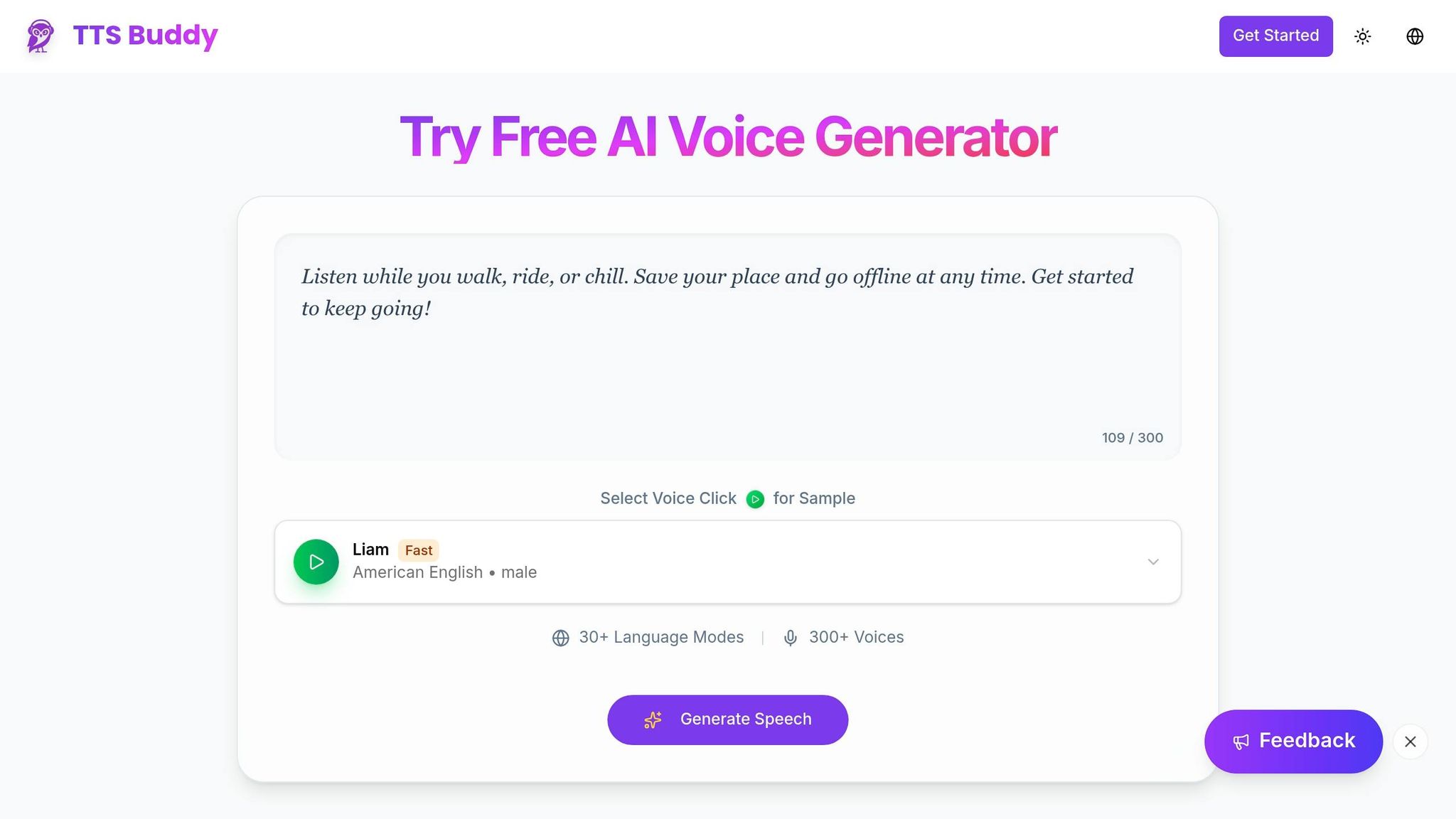
With everything ready, the next step is installing the CLI. TTSBuddy is distributed as a single binary, requiring no additional dependencies:
| OS | Method | Command |
|---|---|---|
| macOS | Homebrew | brew install ttsbuddy |
| Linux / Windows | Go | go install github.com/ttsbuddy/cli@latest |
| All platforms | Direct download | Download the binary from ttsbuddy.com and add it to your system's PATH |
After installation, confirm it's working by running:
ttsbuddy --version
Next, set your API key as an environment variable for persistence across terminal sessions. Add this line to your ~/.zshrc or ~/.bashrc:
export TTSBUDDY_API_KEY=your_key_here
For CI/CD pipelines, store your API key securely using your platform's secret manager.
Testing TTSBuddy Locally
Once the CLI is installed and configured, test it locally to ensure everything is set up correctly. Start by checking your API connection and available character quota:
ttsbuddy --check-api
Then, try a basic text-to-speech conversion. You can either pipe text directly from the terminal or use a Markdown file:
# Inline text
echo "Deployment complete. All checks passed." | ttsbuddy -o test.mp3

# Markdown file
ttsbuddy -f release-notes.md -o release-notes.mp3
The CLI automatically removes Markdown formatting (like headers, links, and code blocks) for smooth narration. Most conversions take 10 to 30 seconds [2], and the tool supports files up to 500,000 characters per request [2]. For larger documents, break them into chunks of 30,000–50,000 characters to ensure quick processing and avoid timeouts.
If you need structured output for further automation, use the --json flag. This outputs details like audio URLs, durations, and character counts, which you can parse with tools like jq. This approach will be especially helpful once your pipeline is fully operational.
Integrating TTSBuddy into Your CI/CD Pipeline
You can integrate TTSBuddy into your CI/CD pipeline to automate audio generation entirely.
Adding a TTS Job to Your Pipeline
The process is simple: install the CLI, add your API key using a secret, and run a TTSBuddy command on your target file. To avoid interruptions in your CI/CD pipeline, use quiet mode flags to bypass interactive prompts.
If your pipeline commits the generated audio files back to the repository, include [skip ci] in the commit message. This prevents an endless loop where each commit triggers a new build, which then generates another commit.
TTSBuddy's structured exit codes simplify error handling and ensure your workflow runs smoothly:
| Exit Code | Meaning |
|---|---|
0 | Success |
1 | Configuration or network issue |
2 | Invalid arguments |
These codes let you immediately halt a build when errors occur. Once this is set up, adjust configurations to suit your CI/CD platform.
Platform-Specific Integrations
With the job logic in place, you can adapt it to your CI/CD platform. While the core pattern remains consistent, secret management and job syntax vary slightly.
GitHub Actions (.github/workflows/tts.yml):
jobs:
  generate-audio:
    runs-on: ubuntu-latest
    steps:
      - uses: actions/checkout@v4
      - name: Install TTSBuddy
        run: go install github.com/ttsbuddy/cli@latest
      - name: Generate release audio
        env:
          TTSBUDDY_API_KEY: ${{ secrets.TTSBUDDY_API_KEY }}
        run: ttsbuddy -f release-notes.md -o release-notes.mp3
GitLab CI (.gitlab-ci.yml):
generate-audio:
  stage: deploy
  script:
    - go install github.com/ttsbuddy/cli@latest
    - ttsbuddy -f release-notes.md -o release-notes.mp3
  variables:
    TTSBUDDY_API_KEY: $TTSBUDDY_API_KEY
Jenkins (declarative Jenkinsfile):
stage('Generate Audio') {
  steps {
    withCredentials([string(credentialsId: 'ttsbuddy-api-key', variable: 'TTSBUDDY_API_KEY')]) {
      sh 'go install github.com/ttsbuddy/cli@latest'
      sh 'ttsbuddy -f release-notes.md -o release-notes.mp3'
    }
  }
}
CircleCI (.circleci/config.yml):
jobs:
  generate-audio:
    docker:
      - image: cimg/go:1.22
    steps:
      - checkout
      - run:
          name: Install TTSBuddy
          command: go install github.com/ttsbuddy/cli@latest
      - run:
          name: Generate audio
          command: ttsbuddy -f release-notes.md -o release-notes.mp3
Be aware of the API's rate limit of 1 submission per minute per key [2]. If your pipeline runs multiple TTS jobs at the same time, either stagger them or use the -c flag to combine multiple inputs into one request.
How to Manage API Keys Securely
Never hardcode your API key. Instead, rely on your CI/CD platform's encrypted secret management tools. Options like GitHub Actions Secrets, GitLab CI/CD Variables, and the Jenkins Credentials Provider allow you to store secrets securely and inject them as environment variables during runtime. TTSBuddy automatically reads the key from TTSBUDDY_API_KEY, so no extra setup is needed once the secret is configured.
For higher security needs, consider using an external secret manager like AWS Secrets Manager or HashiCorp Vault. These tools can integrate with your CI/CD pipeline using OpenID Connect (OIDC), exchanging short-lived tokens for credentials at runtime. This eliminates the need for static, long-term keys and adds another layer of security. Proper API key management ensures your automated TTS workflow runs smoothly and securely.
Advanced Features for Scaling and Automation
Once your pipeline is up and running, TTSBuddy offers some powerful tools to help you handle bigger workloads and cut down on build times. These features work seamlessly with your existing setup, making it easier to scale without adding unnecessary complexity.
Using Flash Voices to Speed Up Audio Generation
One way to speed things up is by switching to Flash voices. TTSBuddy's Supertonic voices - identified by IDs starting with st_ - can generate audio 5–10 times faster than standard voices while still delivering high-quality output [2]. As the TTSBuddy documentation explains:
"Fast voices generate 5-10x faster than standard voices with excellent quality. For API and CLI workflows... we strongly recommend using Supertonic Fast voices." - TTSBuddy Documentation [2]
These voices are available in 30+ languages, making them a great choice for multilingual projects. To use them, simply set your voice flag to a Supertonic ID in any speed-sensitive task:
ttsbuddy -f release-notes.md -o release-notes.mp3 --voice st_f1
Here's a quick rundown of the available voice options:
| Voice IDs | Gender | Characteristics |
|---|---|---|
st_f1 – st_f5 | Female | Ultra-fast, 30+ languages |
st_m1 – st_m5 | Male | Low latency, rapid iteration |
Using the REST API in Deployment Pipelines
For handling high-volume workloads or large documents, the TTSBuddy REST API offers more flexibility than the CLI. It can process up to 500,000 characters per request and works asynchronously. After submitting a POST request, you’ll receive a job_id to track progress via a status URL [2].
The API uses separate rate limits: 1 POST request per minute for submissions and 30 GET requests per minute for polling job statuses [2]. This separation ensures that checking a job's progress doesn’t interfere with starting new ones.
To prevent duplicate jobs caused by network issues, include an Idempotency-Key header in your requests [2]. A good practice is to create a hash using the input file content, voice ID, and speed setting. This way, retries become completely safe since the same input will always produce the same key.
CLI vs REST API: Which One to Use
While both the CLI and REST API use the same backend, they’re designed for different use cases. Here’s a comparison to help you decide:
| Feature | TTSBuddy CLI | TTSBuddy REST API |
|---|---|---|
| Best For | Shell scripts and CI/CD jobs | Large-scale automation |
| Complexity | Low - single binary, no setup | Moderate - requires HTTP logic |
| Markdown Handling | Built-in AI cleanup for tables | Raw text input; pre-cleaning needed |
| Job Management | Synchronous by default | Asynchronous with job_id |
| Error Handling | Exit codes (e.g., 0, 1) | HTTP status codes + JSON errors |
| Safe Retries | Manual script logic | Built-in Idempotency-Key |
For most CI/CD tasks, especially converting Markdown files like release notes, the CLI is the simpler and faster option. On the other hand, the REST API is better suited for asynchronous job management, web app integrations, or processing massive text volumes across multiple jobs.
Conclusion: Adding TTS to Your Pipeline with TTSBuddy
Adding text-to-speech functionality to your CI/CD pipeline is a straightforward process. With TTSBuddy, you can automate audio generation in just a few steps: install the CLI, securely store your API key, configure a TTS job in your pipeline, and decide between using the CLI for Markdown conversion or the REST API for handling larger workloads or asynchronous tasks. This allows you to generate audio files alongside your code updates without hassle.
To keep things running smoothly, focus on a few best practices: choose efficient voice options to reduce build times, avoid build loops to prevent repeated pipeline runs, and set timeouts for processing large documents to avoid silent errors.
TTSBuddy simplifies the process by automatically handling Markdown cleanup, processing code blocks, and managing retries. Audio files are typically processed in just 10–30 seconds [2], making TTS steps quick and unlikely to slow down your pipeline.
For those just starting, the Free plan offers enough resources for initial testing and integration. If your needs grow, the Pro plan is available for $9.99/month. Begin by testing locally, then validate the integration within your pipeline to ensure everything works as expected.
FAQs
How do I avoid CI loops when committing generated MP3s?
When committing generated MP3 files to your repository, you can avoid triggering endless build loops in your CI/CD pipeline by including [skip ci] or [ci skip] in your commit message. This simple addition tells your CI/CD provider to bypass the build process for that specific commit. Incorporating this step into your automated scripts or post-processing routines ensures that generated assets are handled efficiently without setting off unnecessary workflows.
What’s the best way to handle large files without timeouts?
When working with large files, it's a good idea to break your text into smaller chunks of 30,000–50,000 characters. While TTSBuddy can handle requests up to 500,000 characters, splitting the text helps ensure smoother processing and reduces the risk of timeouts, especially in your CI/CD pipeline.
For texts exceeding 100,000 characters, processing might take several minutes. To handle this, make sure to set appropriate timeout values in your configuration to accommodate these longer processing times. This way, you can maintain reliability and avoid interruptions during execution.
How can I run TTS jobs without hitting rate limits?
To keep your CI/CD pipeline running smoothly and avoid rate limits, stick to your API key's restrictions: 1 POST request per minute and 30 GET requests per minute. If you encounter a 429 status code, check the Retry-After header to see how long you need to wait before trying again. For automated retries, consider using an exponential backoff strategy. One important thing to note: GET requests used to check job status don't count toward your POST request quota.