Terminal TTS: CLI Text-to-Speech for Devs

Developers spend a lot of time in the terminal. Adding a text-to-speech (TTS) tool directly into this environment can save time, reduce distractions, and improve accessibility. Unlike GUI-based TTS tools, terminal-native solutions let you:
- Convert large text files (like documentation) into audio without leaving the terminal.
- Automate notifications for tasks like errors, CI/CD updates, or AI agent feedback.
- Provide better support for visually impaired developers by simplifying terminal outputs into speech.
Problems with GUI-based tools:
- They disrupt workflows by forcing you to switch between apps.
- They’re harder to automate and often require internet access, raising privacy concerns.
- Encoding errors and delays are common, especially for large-scale tasks.
Enter TTSBuddy CLI:
This tool solves these issues by offering a local, fast, and secure text-to-speech engine that integrates directly into your terminal. With features like AI-driven formatting, support for 300+ voices across 30+ language modes, and privacy-focused design, TTSBuddy helps developers stay focused and productive while addressing accessibility needs.
Want to try it? Start with:
ttsbuddy -f README.md -o readme.mp3
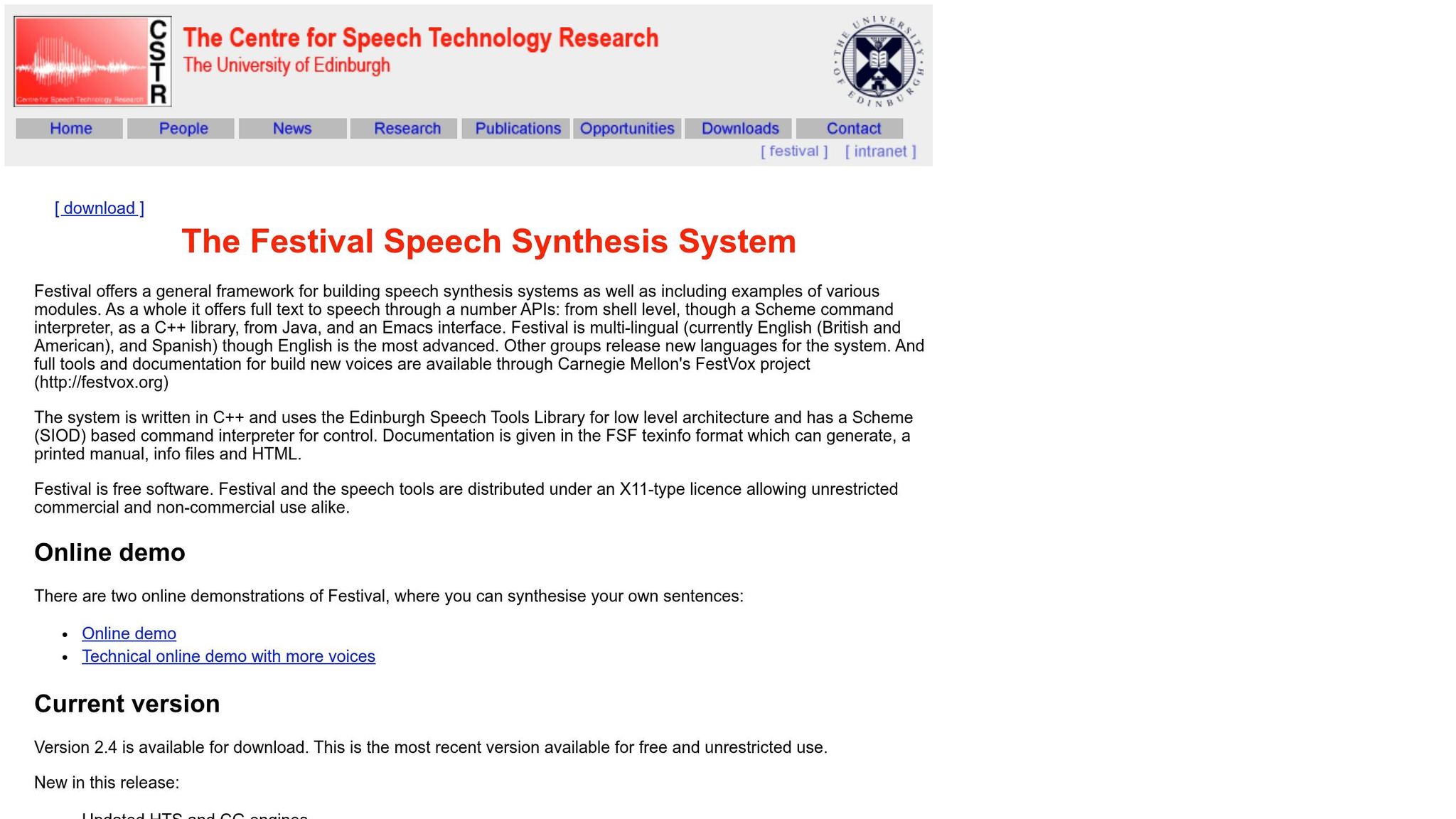
Festival Text To Speech: The Better Linux TTS
Problems Developers Face Without Terminal TTS
Switching Between Tools Wastes Time
Jumping between the terminal and GUI applications to use TTS features can seriously slow developers down. This constant back-and-forth pulls them out of their workflow, especially when dealing with complex files or real-time AI coding agents. This disruption, often called production friction, delays the smooth transition from thought to output [1][2].
The issue gets even trickier with technical details. For example, piping text from a terminal to external GUI or cloud-based TTS tools can lead to encoding errors, particularly on Windows. Characters like em dashes often get misinterpreted [1]. These interruptions make it harder for developers to stay focused [3].
Interestingly, developers who use voice-integrated workflows for tasks like writing pull request descriptions or documentation save significant time - around 30 to 45 minutes a day, which adds up to 2.5 to 4 hours per week [3]. Without terminal-native TTS, automating these tasks becomes a major hurdle.
Difficulty Automating TTS Tasks
GUI-based TTS tools are inherently tough to automate, as they don’t integrate smoothly with terminal workflows. This limitation means developers often miss critical updates during long-running background processes. For instance, they might not notice when an AI agent requests permission, when an error pops up, or when a lengthy task finishes [8].
"When running [a] CLI in the background, you miss important moments: When the agent needs your permission... When an error occurs... When a long task completes." - Hainan Zhao [8]
Automation also gets complicated by cross-platform compatibility issues. Developers must juggle OS-specific audio playback commands [5][8] and build custom solutions to connect coding agents with audio output. This includes managing audio file lifecycles, adding another layer of complexity [4][5][6].
In March 2026, developer Zhijing Eu tackled this gap by creating "talkback-win", a Python-based TTS utility designed for Windows. Integrated with Anthropic's Claude Code CLI, it uses "Stop hooks" in .claude/settings.local.json to automatically trigger audio responses directly from the terminal. This eliminates the need to switch to a browser or mobile app for AI feedback [1]. However, such solutions highlight how these barriers also worsen accessibility challenges.
Accessibility Barriers for Visually Impaired Developers
For visually impaired developers, the lack of terminal-native TTS tools creates significant accessibility challenges. Screen readers interpret terminal environments as a flat grid of characters, making it impossible to distinguish logical sections, panes, or pop-up dialogs in complex Terminal User Interfaces (TUIs) like Lazygit [7]. Editors like Vim or Helix, which rely on modal states, become especially frustrating since screen readers don’t announce state changes [7].
Another issue is the overwhelming amount of non-essential content in terminal outputs. Screen readers often read this as long, distracting strings, forcing users to sift through unnecessary details [7]. Commands like ls -la are particularly problematic, as users have to listen to every file and permission string before getting to the information they need [7].
To make matters worse, many popular terminal emulators, such as Kitty and Gnome Console, don’t integrate with system screen readers like Orca or VoiceOver. This results in no audio feedback for command outputs [7]. These limitations often push visually impaired developers away from the efficiency of CLI workflows, making graphical IDEs with structured feedback their only viable option.
How TTSBuddy CLI Addresses These Problems
Core Features of TTSBuddy CLI
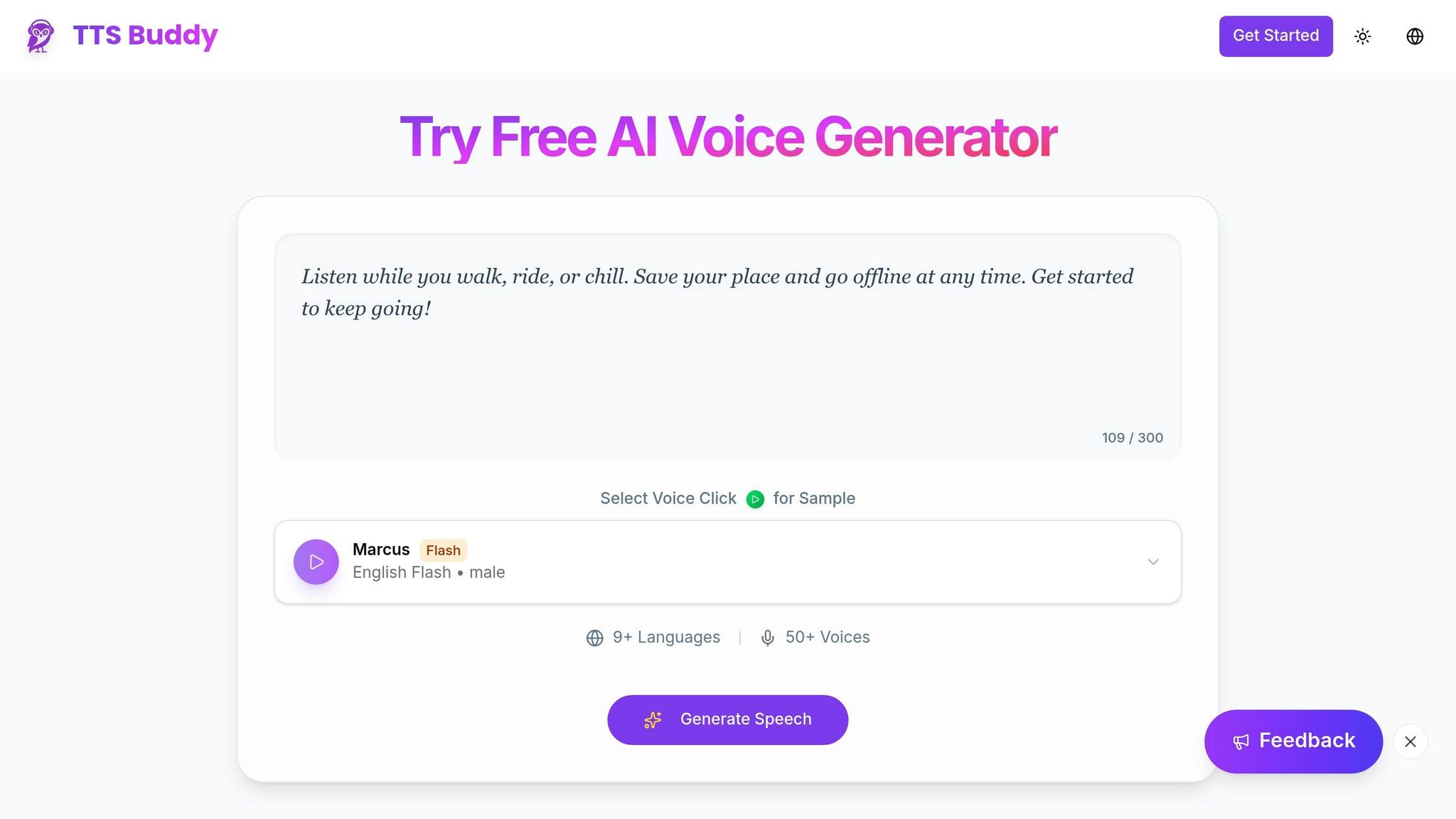
TTSBuddy CLI simplifies text-to-speech tasks for developers by doing away with the hassle of GUI-based tools. Its single-binary installation works seamlessly on Windows, Linux, and macOS without requiring additional dependencies. The tool can handle up to 500,000 characters per request, making it perfect for converting large documentation sets in one go - no need for manual splitting [9].
Its AI-powered sanitization feature transforms complex formatting into natural speech. For instance, Markdown tables are converted into spoken descriptions, bullet points become smooth sentences, code blocks are summarized or skipped, URLs are simplified, and headers are given appropriate pauses [9]. With 300+ voices across 30+ language modes and audio generated in 10 to 30 seconds for most requests, TTSBuddy CLI is both fast and versatile. It also supports a variety of audio formats, including MP3, WAV, AAC, FLAC, OPUS, and PCM, with playback speeds ranging from 0.25x to 4x [10].
Using TTSBuddy in Daily Development Work
TTSBuddy’s features fit seamlessly into a developer’s workflow. For example, converting a Markdown file to audio is as simple as running:
ttsbuddy -f README.md -o readme.mp3 -v alloy
The AI-driven sanitization takes care of formatting, so there’s no need to manually clean up Markdown syntax beforehand [9]. For larger documents over 100,000 characters, splitting them into chapters can make processing quicker and the audio files easier to manage [9].
Developers can also use TTSBuddy to turn build outputs or error logs into audio notifications. The CLI includes helpful features like the -c flag to combine multiple text files into a single audio output, JSON output mode for integration into scripts, and a -r flag to control API call limits during batch processing. The -b flag even adds buffer words at the start and end of the narration for smoother playback. To top it off, the --configure flag allows developers to securely set up API keys [10]. These options make TTSBuddy both efficient and adaptable for various use cases.
Privacy and Security Features
TTSBuddy prioritizes privacy with a strict no-data collection policy and encrypted API key management. API keys are hashed using SHA-256, ensuring that the full key is never stored on its servers. All data - whether in transit or at rest - is fully encrypted [11]. Additionally, its retry mechanism uses idempotent API calls with deterministic keys, preventing duplicate charges while ensuring reliable processing [12]. Importantly, text inputs and generated audio files are not stored beyond the processing window, addressing concerns about data confidentiality [13].
Real-World Applications for Developers
TTSBuddy CLI's features open up a variety of practical uses for developers. Here are some ways it can be applied effectively.
Adding Audio to Build Pipelines
You can integrate TTS tools into CI/CD workflows to turn build reports and release notes into audio files. For instance, running ttsbuddy -f CHANGELOG.md -o release.mp3 in your pipeline generates an audio version of each new release[10]. This makes it easier for team members to stay updated by listening to changes while commuting or multitasking, instead of poring over lengthy text files.
Adjust playback speeds - such as using 1.5x or 2.0x for quick notifications - while keeping detailed documentation at normal speed for clarity[10]. Storing these audio files in cloud services like AWS S3 or Google Drive allows easy sharing across teams[14]. For sensitive information, a local TTS engine ensures data stays on-premises[1].
Supporting Visually Impaired Team Members
Developers with visual impairments often favor command-line interfaces because they rely on text and keyboard navigation. However, raw terminal outputs can overwhelm screen readers, significantly slowing down tasks. Research shows that activities estimated to take 21 minutes can stretch to 129 minutes due to such barriers[15].
By converting terminal outputs, code comments, and documentation into audio, TTSBuddy CLI makes navigation smoother. This helps visually impaired developers work more efficiently with tools like Git and SSH[15]. Beyond accessibility, the tool also benefits AI-driven workflows by providing real-time audio feedback.
Adding Voice to AI Applications
TTS integration can enhance AI applications by delivering real-time audio updates. For example, an AI agent could announce when it needs permissions, encounters an error, or completes a task[16]. This allows the agent to keep working while providing timely feedback through audio.
Developers can opt for local models like Kokoro for offline use and privacy or cloud APIs for more natural-sounding voices[19, 30]. Tools with speaker tag support (e.g., [S1] and [S2]) make it easier to distinguish between multiple AI agents in a single interaction[5]. With GPU acceleration, TTS generation times can drop to just 2–5 seconds per response[5], making it feasible for real-time scenarios.
Conclusion
Main Benefits of TTSBuddy CLI
TTSBuddy CLI allows you to stay entirely within your terminal environment, eliminating the need to juggle between GUI tools - a common productivity killer[17][18]. With just a single command, you can transform documentation, code comments, or even build logs into audio files. This streamlined approach integrates text-to-speech (TTS) capabilities directly into your workflow, making it easy to automate tasks within scripts, CI/CD pipelines, or AI-driven processes without disrupting your focus.
Beyond productivity, TTSBuddy CLI also addresses accessibility challenges, especially for visually impaired developers, while offering practical benefits for entire teams. With support for 300+ neural voices across 30+ language modes and adjustable playback speeds ranging from 0.5x to 1.5x[9], the tool adapts to various use cases - whether you need quick updates at faster speeds or detailed audio for in-depth content. For developers concerned about privacy, local engine options ensure sensitive data remains on-premises, while cloud APIs deliver high-quality, natural-sounding audio when required[1].
These features make TTSBuddy CLI a valuable addition to any developer's toolkit, offering both convenience and flexibility.
Getting Started with Terminal TTS
Getting started with TTSBuddy is simple and hassle-free. The free tier provides 120 minutes of text-to-speech per month - no credit card required - making it easy to experiment with terminal-based TTS in your day-to-day tasks. The tool efficiently handles large text inputs and even processes complex formatting automatically for smooth audio conversion[9]. Plus, audio files are generated in as little as 10–30 seconds[9], ensuring minimal downtime during development.
To try it out, start by converting a README or CHANGELOG file using a command like:
ttsbuddy -f CHANGELOG.md -o release.mp3
From there, you can dive deeper by automating TTS in your build scripts or setting up stop hooks with AI coding agents for automatic narration. Whether you're working with Git, SSH, or custom tools, TTSBuddy seamlessly integrates into your existing workflow[1].
FAQs
When should I use terminal TTS instead of a screen reader?
Use terminal TTS when you need offline, private, and instant speech synthesis that integrates directly into your workflows or development scripts. It's perfect for scenarios demanding privacy, automation, or immediate responses, particularly in setups where a screen reader might not blend effortlessly into the workflow.
How do I trigger TTSBuddy automatically from scripts or CI?
You can integrate TTSBuddy into your scripts or CI pipelines effortlessly using its CLI or API. For instance, you can execute a command like ttsbuddy --text "Your text here" within your script to produce speech directly. Alternatively, you can write scripts to send HTTP requests to TTSBuddy's API endpoints. These options make it easy to incorporate text-to-speech functionality into automated workflows or continuous integration setups.
What text is stored or sent when I run TTSBuddy?
When you use TTSBuddy, the text you provide is processed to create audio output. How your data is handled depends on the service's privacy policies. Typically, the text is used temporarily for speech synthesis and managed in line with established privacy and security standards.