Webpages to Audio: Convert Articles Fast

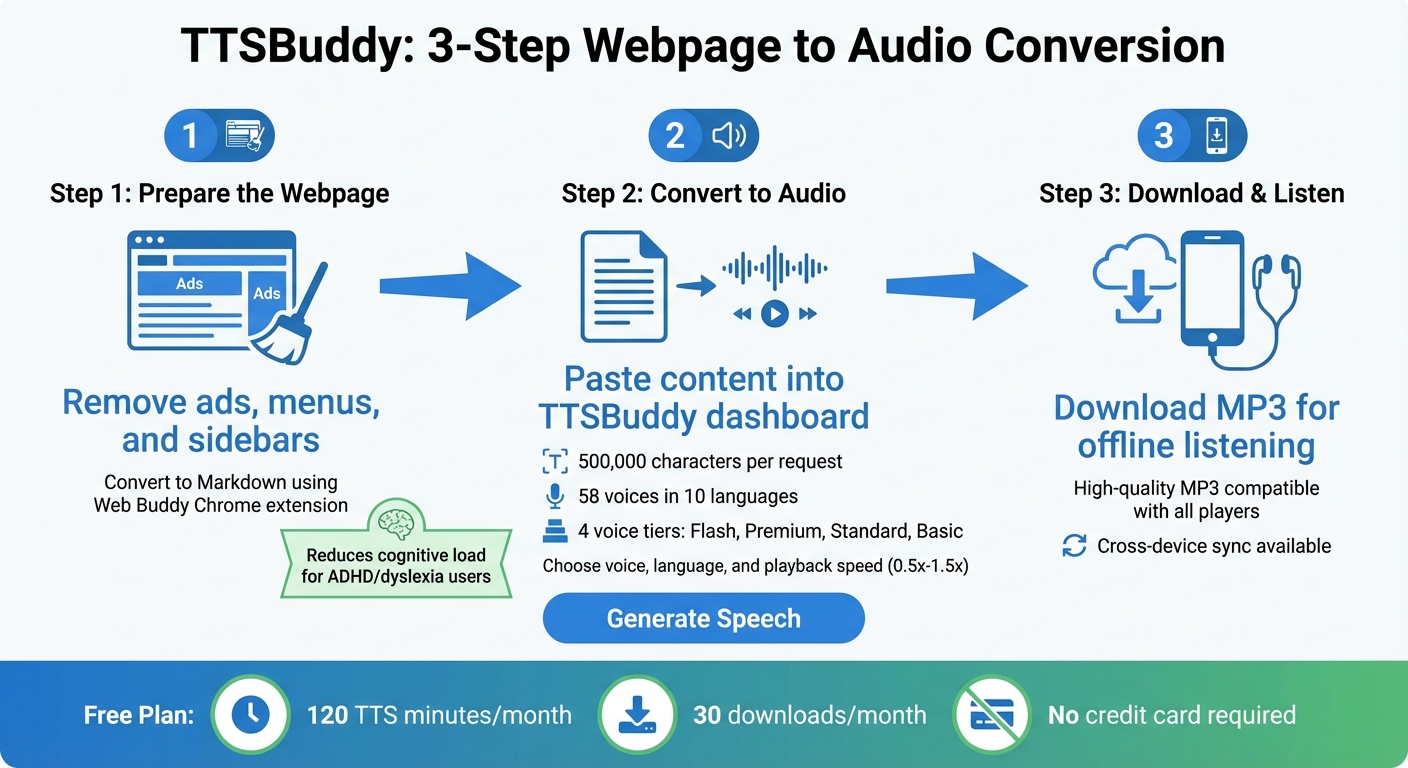
Transforming webpages into audio is a simple way to save time, improve accessibility, and make learning more convenient. Whether you're commuting, multitasking, or need an alternative to reading, tools like TTSBuddy allow you to convert articles into high-quality audio files. Here's how it works:
- Prepare the Webpage: Remove ads, menus, and sidebars for a cleaner narration experience.
- Convert to Markdown: Use TTSBuddy's Chrome extension to extract the main content and format it into Markdown.
- Generate Audio: Paste the text into TTSBuddy, choose a voice and language, and convert it into an MP3 file.
- Download and Listen: Save the audio for offline use and sync it across devices.
TTSBuddy supports 300+ voices across 30+ language modes and handles up to 500,000 characters per request, making it ideal for long articles or study materials. The Free plan offers 120 minutes of text-to-speech conversion and 30 downloads monthly, with no credit card required.
This tool is especially useful for individuals with ADHD, dyslexia, or visual impairments, as it reduces cognitive strain and allows for flexible learning. Whether you're catching up on news, reviewing reports, or studying, converting webpages into audio has never been easier.
How to Listen to Web Pages (Text-to-Speech)
Step 1: Prepare Your Webpage for Conversion
Start by cleaning up your webpage - remove ads, menus, and sidebars. These elements can disrupt the flow of narration and waste your monthly processing quota. By focusing solely on the main text, you ensure the AI narrator delivers a smooth listening experience, whether you're catching up on news or studying for exams during a busy commute. Once your page is clean, the next step is converting the content into Markdown.
For individuals with ADHD or dyslexia, this clutter-free approach significantly reduces cognitive load and helps prevent narration issues. For more on how TTS tools support ADHD learners, see our guide to the 10 best text-to-speech tools for ADHD study.
Copy Webpage Content to Clean Markdown
After cleaning your content, use TTSBuddy's Web Buddy Chrome extension to extract and format it into Markdown. This tool simplifies the process with one click, automatically stripping out non-essential elements like ads, sidebars, and navigation menus while retaining the core content. Just install the extension, click its icon on any webpage, and it converts the article into clean Markdown - a lightweight format ideal for text-to-speech (TTS) conversion.
TTSBuddy also includes an AI sanitizer, enabled by default, which polishes the extracted text by removing unnecessary whitespace and fixing formatting issues. This ensures the resulting audio sounds smooth and natural. For pages with complex layouts - like those featuring multiple columns or embedded media - you can manually highlight the text you want to hear, right-click, and copy it. This lets you bypass any tricky formatting problems. The result? Markdown content that's ready for seamless voice conversion in TTSBuddy's TTS process.
Step 2: Convert Your Webpage to Audio with TTSBuddy
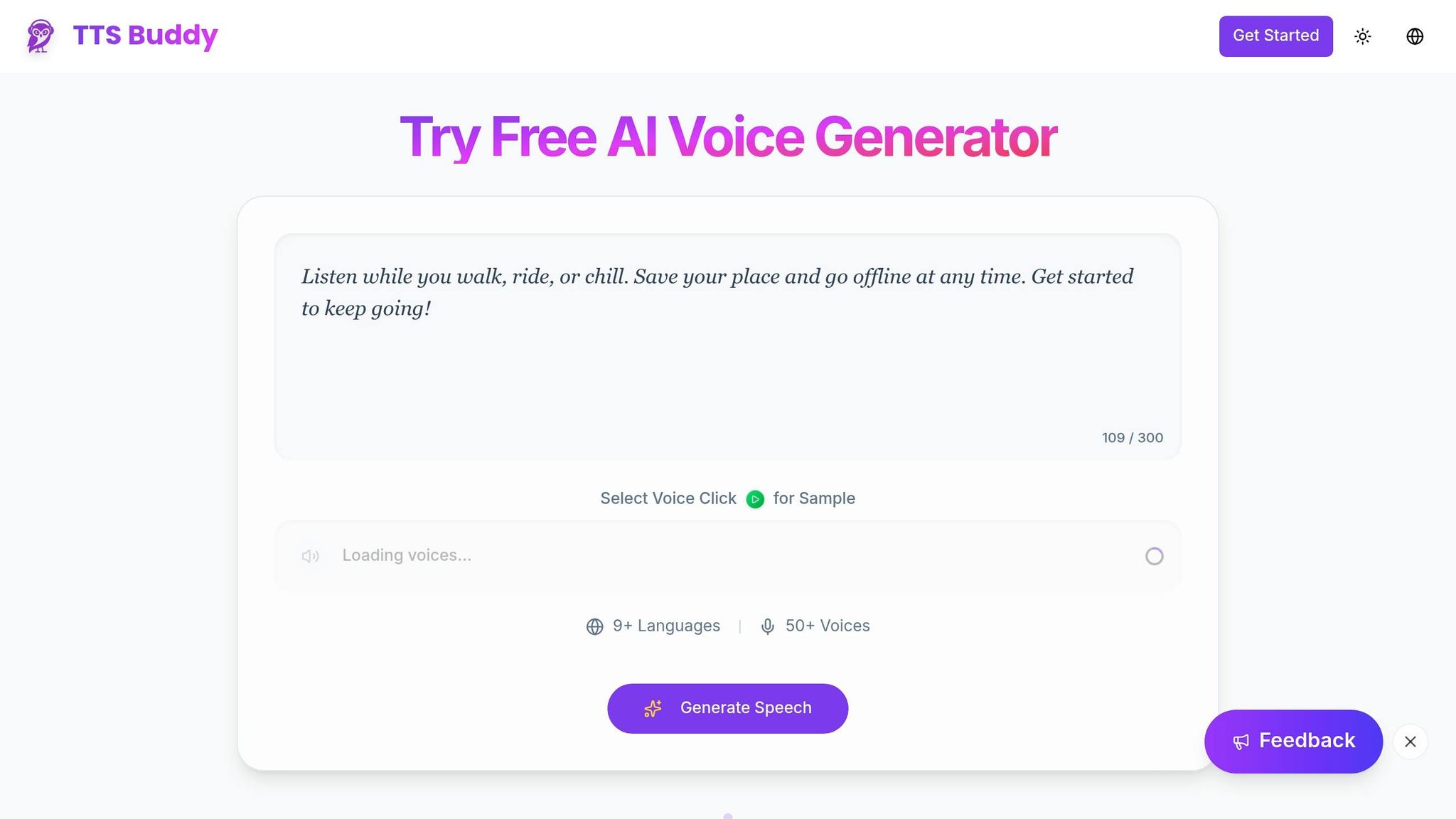
This step transforms your streamlined text into audio, making it perfect for studying, commuting, or improving accessibility. Once your Markdown content is ready, head over to the TTSBuddy dashboard to convert it. The platform can process up to 500,000 characters in one go, making it a great choice for students handling dense academic material or professionals reviewing lengthy reports on the move. Simply paste your Markdown content into the Text-to-Speech page to get started.
Access TTSBuddy and Paste Your Content
On the Text-to-Speech page of the TTSBuddy dashboard, paste your Markdown text directly into the input field. If you're working with a PDF, use the Upload PDF feature instead. For longer texts, you can enable Full screen mode to make editing easier.
Choose Your Voice, Language, and Settings
TTSBuddy provides 300+ voices across 30+ language modes, organized into four tiers: Fast (ultra-fast), Premium (natural intonation), Standard (high quality), and Basic (functional). You can preview the voices before committing to one for your conversion. For long-form content like news articles or study guides, Premium voices such as Madison or Sophia are ideal for a more conversational and smooth listening experience. If you're learning a new language, try the 0.5x or 0.8x playback speed to focus on pronunciation. The platform also remembers your last-used voice and speed settings, so you don't have to reset them every time.
Generate and Preview Your Audio
Once you've fine-tuned your settings, click the "Generate Speech" button to begin the conversion process. You can track the progress in the Active tab, and when it's done, your audio will appear in the History tab. Use the Play button to preview the result. If the audio doesn't sound quite right, experiment with different voices or adjust the playback speed between 0.5x and 1.5x. For texts longer than 100,000 characters, consider breaking them into smaller chunks of 30,000-50,000 characters to speed up processing and avoid errors. Additionally, TTSBuddy's built-in AI sanitizer - enabled by default - automatically cleans up extra spaces and fixes formatting issues for a smoother narration experience.
Step 3: Download Audio for Offline Listening
Once your audio is ready, here's how you can download it for offline use.
Head to the History tab or the Listen Link page (if you're using the Chrome Extension) and click the Download button. The button will display the file size, making it easy to know what you're saving to your device.
You'll get a high-quality MP3 file compatible with virtually any media player. If the download button doesn't work, try right-clicking the link and selecting "Save link as...". Just make sure there's enough disk space, especially for larger files.
Want a smoother experience? Use cross-device sync: generate the audio on your computer and download it straight to your mobile device. Keep in mind, the Free plan gives you 30 downloads per month, while Pro and Ultimate plans let you download as many files as you need.
For more on offline listening strategies, check out our guide on how to listen to articles offline on any device.
Save Audio for Studying, Commuting, or Accessibility
Downloading MP3 files is perfect for offline listening. Whether you're commuting, working out, or studying in areas with poor internet coverage, having audio on hand is a game-changer. It's also incredibly helpful for individuals with ADHD, dyslexia, or visual impairments, as offline audio can reduce cognitive strain.
If your download link expires, don't worry. You can regenerate the audio from the original text and check your download quota on the Billing page to stay on track.
Tips for Better Webpage-to-Audio Results
Getting smooth, natural audio from webpages isn't always automatic. By using TTSBuddy's advanced features and making a few tweaks, you can significantly improve your results. Small adjustments can have a big impact on the final audio quality.
Use Markdown Cleanup for Better Results
Before converting, clean up unnecessary elements in your content. While TTSBuddy's Markdown feature automatically removes some clutter, it's a good idea to manually delete leftover citations or footnotes that could interrupt the flow. For academic or long-form content, these elements can disrupt the narrative. If the page includes a lot of data, consider summarizing tables instead of having the AI read each cell line-by-line.
Once your content is polished, focus on selecting the right voice and speed to fit your needs.
Match the Voice to Your Content
The voice you choose should align with the tone of your content. Warm, conversational voices like Madison or Sophia work well for blog posts or articles - perfect for listening on a commute. For formal or professional documents, an authoritative voice might be a better fit. TTSBuddy offers 300+ voices across 30+ language modes, giving you plenty of options.
Pacing is just as important. Stick to 1.0x for a natural flow, slow it down to 0.8x for study material, or speed it up to 1.2x-1.5x for quick reviews. Use the Preview feature to test the voice and speed before converting the entire text.
After choosing the voice and speed, test your setup with smaller sections of text.
Test Short Sections First
Don't risk wasting your monthly quota on an untested conversion, especially with complex layouts or unusual formatting. For texts longer than 100,000 characters, divide them into smaller chunks of 30,000-50,000 characters to make the process more manageable.
Testing short sections can help you spot formatting issues and fine-tune your settings. The Free plan includes 120 TTS minutes per month, so taking advantage of the preview feature ensures you don't use up minutes on audio that may need adjustments. If the results aren't satisfactory, try lowering the playback speed or selecting a different voice tier.
Conclusion
Turning webpages into audio using TTSBuddy is simple. Just convert the webpage into clean Markdown, paste it into TTSBuddy, choose your desired voice and language, and generate the audio.
This tool does more than save time - it makes content more accessible for people with visual impairments, ADHD, or dyslexia while reducing cognitive load. The process is quick, and with the free plan offering 120 TTS minutes and 30 downloads each month, you can explore its features without spending a dime.
The Listen Link dashboard adds another layer of convenience by syncing your audio across devices. Whether you start converting articles on your laptop or phone, your audio is always ready to go.
Perfect for studying, catching up on news, or casual listening, converting webpages to audio changes how you engage with content. Start small by experimenting with different voices and speeds, and then adjust as you find your ideal setup.
FAQs
How do I get a clean, ad-free version of a webpage for narration?
TTSBuddy offers a simple way to turn any webpage into a clean, ad-free narration. Its Web Buddy feature strips away ads and other distractions, creating natural-sounding audio. You can also save the text in a streamlined format and manage audio files for offline use. This makes it perfect for a focused, clutter-free experience - whether for accessibility needs or learning on the go.
What should I do if my audio sounds choppy or reads weird formatting?
If your audio sounds uneven or has formatting issues, start by tidying up the source text. Remove unnecessary spaces and correct any formatting problems. While AI handles text processing automatically, a bit of manual cleanup can make a noticeable difference. Another tip: try lowering the playback speed to below 1.0x or breaking up lengthy texts into smaller chunks (about 30,000-50,000 characters) to prevent processing hiccups.
How can I keep my MP3s synced across my phone and computer?
To keep your MP3s synced between your phone and computer, consider using cloud storage options like Google Drive or Dropbox. These services make it easy to upload and access your audio files from multiple devices. Another helpful tool is TTSBuddy, which allows you to manage and download MP3s for offline listening. By saving your files in the cloud, you can ensure they're accessible on both your phone and computer. For smooth playback and syncing, rely on apps or platforms like TTSBuddy that support offline access, keeping your MP3 collection consistent no matter where you listen.