Study Notes to Audio from Your Terminal

Want to review study notes while multitasking? With TTSBuddy CLI, you can convert text into high-quality audio files directly from your terminal. It supports over 58 AI voices in 14+ languages and works on macOS, Linux, and Windows. Here's what you need to know:
- Why Audio Notes? Study hands-free while commuting, cooking, or exercising. It's also helpful for reducing screen time and improving accessibility.
- How It Works: Install TTSBuddy CLI, configure your API key, and convert text files or Markdown into MP3s with a single command.
- Customization Options: Choose voice types, languages, and playback speeds to suit your study needs.
- Automation: Use scripts to batch-process files or schedule conversions with cron jobs for efficiency.
This tool simplifies turning your notes into audio, making studying more flexible and accessible wherever you are.
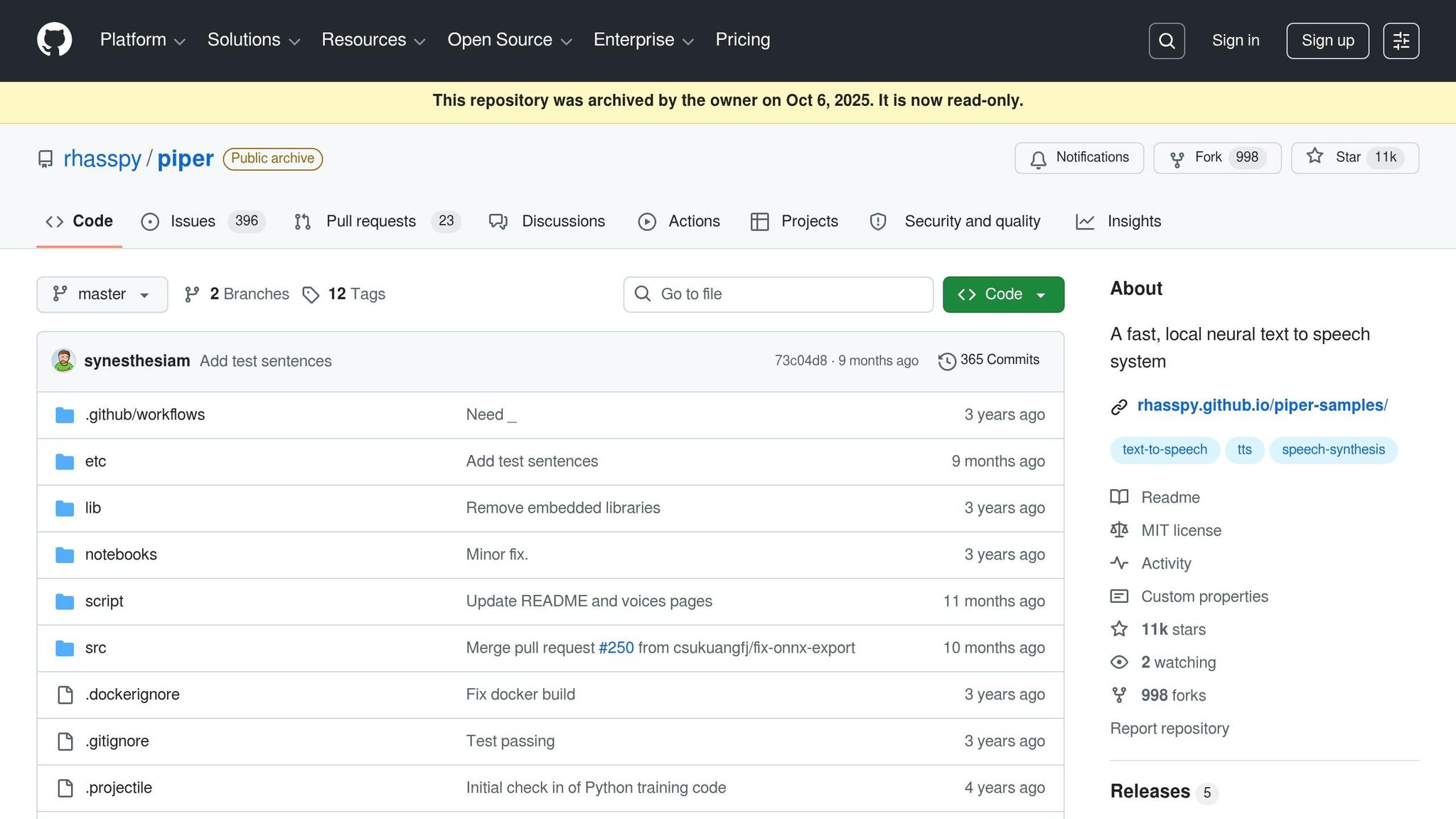
Better Text to Speech on Linux with Piper
Getting Started: Setup and Prerequisites
Before diving into your first conversion, you'll need to have TTSBuddy CLI installed and linked to your account. The setup process is straightforward and quick.
Supported Platforms and System Requirements
TTSBuddy CLI works seamlessly on macOS (x64 and ARM64), Linux (x64), and Windows (x64). Thanks to its design as a single, self-contained binary built with Go, there's no need for runtimes, package managers, or additional dependencies. If your system runs macOS, Linux, or Windows on the specified architectures, you're good to go.
How to Install TTSBuddy CLI
Here’s how you can install it based on your platform:
- macOS: The easiest way is via Homebrew. Just run
brew install ttsbuddy, and you’re all set. - Linux: Use your system's package manager if a package exists, or download the binary directly. Place it in a directory included in your
$PATH(e.g.,/usr/local/bin). - Windows: Download the
.exefile from the TTSBuddy website and move it to a folder that’s already part of your system’sPATHenvironment variable.
Once installed, verify everything is working by running the command ttsbuddy --version in your terminal. If the installation was successful, the current version number will appear.
How to Configure the CLI
TTSBuddy CLI uses an API key for authentication. These keys are easy to spot since they all start with the ttsb_ prefix. To get started, grab your key from the TTSBuddy account dashboard and set it as an environment variable:
export TTSBUDDY_API_KEY=ttsb_your_key_here
For a permanent setup, add this line to your shell profile (e.g., .zshrc, .bashrc, or similar). If you’d rather not use environment variables, TTSBuddy also supports an optional configuration file. This file lets you define your API key, along with other preferences like default voice and language settings. It’s a handy way to ensure consistent behavior without needing to pass flags for every command.
Keep in mind the order of precedence: flags > environment variables > config file. This gives you flexibility to override settings when needed.
Once installed and configured, you’re ready to turn your study materials into audio files.
Converting Study Notes to Audio
Once TTSBuddy CLI is installed and your API key is set up, you can start turning your study materials into audio. Depending on your needs, you can convert text using one of three methods: typing it directly, using a plain text file, or working with a Markdown file.
Converting Inline Text
If you're looking for a quick way to test or convert short notes, you can type them directly into the command line using the --text flag:
ttsbuddy --text "Mitochondria are the powerhouse of the cell. They produce ATP through cellular respiration." --filename cell-biology --output_dir ./audio
Here’s how it works:
- The
--filenameflag sets the name of the output MP3 file. - The
--output_dirflag specifies where the file will be saved. If you leave it out, the file will be saved in your current directory.
This method is perfect for brief definitions or key terms that you want to review quickly.
Converting Plain Text Files
For longer study materials, you can point the CLI to a .txt file and customize the output further using options for voice, language, and speaking rate:
ttsbuddy --file ./notes/chapter3.txt --voice en-US-1 --lang en-US --rate 1.1 --filename chapter3-audio --output_dir ./audio
- Adjusting
--rateabove1.0speeds up the audio, which can make review sessions faster without losing clarity. - If you have multiple
.txtfiles in a folder, the CLI can batch-process them all at once. This feature is a huge time-saver and helps you manage larger volumes of content efficiently.
If your notes include formatting or require more structure, the Markdown conversion option might be a better fit.
Converting Markdown Files
For notes organized in Markdown format, TTSBuddy CLI offers a smooth solution. Its built-in Markdown preprocessor automatically removes elements like hyperlinks, image tags, and code blocks, leaving clean text for audio conversion.
ttsbuddy --file ./notes/week5-summary.md --voice en-US-1 --filename week5-audio --output_dir ./audio
A standout feature here is how the preprocessor uses H2 headers (##) to break the content into sections. This makes it easier to navigate through the audio, especially when dealing with dense study guides or multi-chapter materials. It’s an efficient way to keep your audio organized and accessible.
Improving Your Audio Conversion Workflow
Choosing Voices and Languages
With access to over 58 neural AI voices in more than 14 languages, you can tailor your audio conversion process to suit your needs. These voices are divided into four tiers: Fast, Premium, Standard, and Basic.
- The Fast tier features Supertonic voices, designed for speed and supporting over 30 language modes.
- The Premium tier offers Kokoro voices, which excel in delivering natural intonation and expression, making them ideal for dense or intricate material.
To optimize your workflow, match the voice and playback speed to the specific phase of your study. For example:
- When learning new material, stick with a Premium Kokoro voice at 1.0x (Normal) speed for better comprehension.
- During pre-exam reviews, switch to a Fast Supertonic voice at 1.2x or 1.5x speed for quicker recaps.
- For language practice, slow things down with rates like 0.5x (Very Slow) or 0.8x (Slow) to focus on pronunciation.
Need to explore available voices? Use the command below to list them via the CLI:
ttsbuddy --list-voices
This allows you to preview voice IDs before committing to a full conversion. For Supertonic voices, you can pair a stable voice ID (e.g., st_f1) with a language code flag (like --lang fr for French), ensuring consistent voice usage across different languages.
Once you've selected the right voice, you can start automating the conversion process to handle larger workloads.
Automating Conversions With Scripts
After identifying your preferred voice, streamline your workflow by automating the conversion process. A simple shell script can process an entire folder of notes at once:
#!/bin/bash
for file in ./notes/*.md; do
  filename=$(basename "$file" .md)
  ttsbuddy --file "$file" --voice en-US-1 --lang en-US --rate 1.0 \
    --filename "$filename" --output_dir ./audio
done
This script processes every markdown file in the ./notes directory, converting them into audio files without requiring manual input. To avoid duplicate processing and manage API costs, use idempotency keys.
Want to keep your audio library up to date automatically? Schedule this script with cron. For instance, setting it to run every weekday evening ensures that any notes updated during the day are converted to audio overnight.
Organizing and Managing Audio Output
Keeping your audio files organized is key to an efficient study system. A good practice is to mirror the structure of your notes directory in your audio output folder, creating subfolders for each course or topic. For example:
ttsbuddy --file ./notes/biology/chapter4.md --filename chapter4-audio \
  --output_dir ./audio/biology
For advanced file management, use the JSON output mode by adding the --json flag. This returns structured metadata, which you can integrate into scripts for tasks like automated renaming, logging, or uploading files to the cloud.
A consistent naming convention also helps. Use a format like CourseName_Week##_Topic.mp3 (e.g., Biology_Week05_CellRespiration.mp3) to make specific files easy to locate. Pair this with a reference text file that maps each audio filename to its corresponding note, so you always know which file covers which topic.
Conclusion: Enhance Your Study Routine with TTSBuddy CLI
Key Takeaways
Turning your study notes into audio with TTSBuddy CLI is simple and efficient. With just one lightweight binary, you can convert text or Markdown files into clear, narrated audio directly from your terminal - no need to juggle windows or open a browser.
This tool adapts to your workflow. Need a quick conversion? A single command does the job. Have an entire semester's worth of notes? Automate the process overnight using a cron-scheduled shell script. Plus, the Markdown preprocessor ensures your audio stays focused on the most important content.
You can also customize playback speed to match your study style. Slow it down (0.8x) for in-depth learning or speed it up (1.2x–1.5x) for quick reviews. Pairing this feature with a Premium Kokoro voice helps minimize listening fatigue during extended study sessions.
Next Steps
Ready to take your study game even further? Try out Flash voices for faster audio generation - up to 5–10x quicker than standard voices - perfect for processing large note libraries in no time.
For even more control, consider adding narration instructions like "Speak in a calm, professional tone" to fine-tune the audio for longer study periods. You can also use punctuation cues in your Markdown files, such as ellipses for longer pauses or dashes for shifts in tone, to shape the rhythm of the narration without additional tools.
If you're interested in unlocking the full potential of TTSBuddy CLI, the Pro plan ($9.99/month) and Ultimate plan ($49.99/month) provide unlimited downloads and full language support, making it a valuable addition to your study toolkit.
FAQs
How do I convert multiple note files at once?
If you're looking to convert several note files simultaneously with TTSBuddy, batch processing is the way to go. This method allows you to process an entire directory or select multiple files as input. Many tools, including TTSBuddy, support features like recursive processing, glob patterns, or automation scripts to handle conversions efficiently.
For more control, you can use command-line loops or batch scripts. These options let you process files sequentially or even in parallel, depending on your workflow and the capabilities of the tool you're using. This approach is especially helpful if you’re managing large volumes of files or need a streamlined process.
How can I make the audio sound more natural?
To create audio that feels more lifelike with TTSBuddy, start by selecting high-quality, natural-sounding voices. Adjust key speech settings like speed, pitch, and pauses to refine the delivery. A slower pace (around 0.8x) and a warm, conversational tone can make the audio more relatable and realistic. If premium or natural voice options are available, use them to better replicate human speech patterns, ensuring the audio is clear and engaging.
What happens if my API key isn’t working?
If your API key isn’t functioning, first confirm that it’s valid and properly configured. Make sure it has the necessary permissions enabled for the text-to-speech services you’re trying to use. Small missteps in setup can lead to access issues, so reviewing your configuration carefully can often resolve the problem.