Command-Line TTS: Fast, Private Speech

Tired of the hassle of browser-based text-to-speech (TTS) tools? Command-line tools like TTSBuddy are faster, more efficient, and secure. Here's why you should make the switch:
- No Manual Copy-Pasting: Automate TTS tasks with simple commands, saving time and effort.
- Privacy Matters: Avoid sending sensitive data to cloud servers.
- Batch Processing: Convert entire folders or large files (up to 500,000 characters) in one go.
- Cost-Effective: Process 10,000 conversions for around $3.20.
- Customizable Output: Choose from 300+ voices, adjust playback speed, and output in MP3, WAV, or JSON formats.
- Easy Installation: Works on macOS, Linux, and Windows with minimal setup.
Switching to command-line TTS tools lets you automate workflows, handle large-scale tasks, and maintain privacy - all while delivering high-quality audio output. Whether you're creating audiobooks, processing documents, or improving accessibility, TTSBuddy simplifies the process and saves you hours of work.
Installing TTSBuddy on macOS, Linux, and Windows
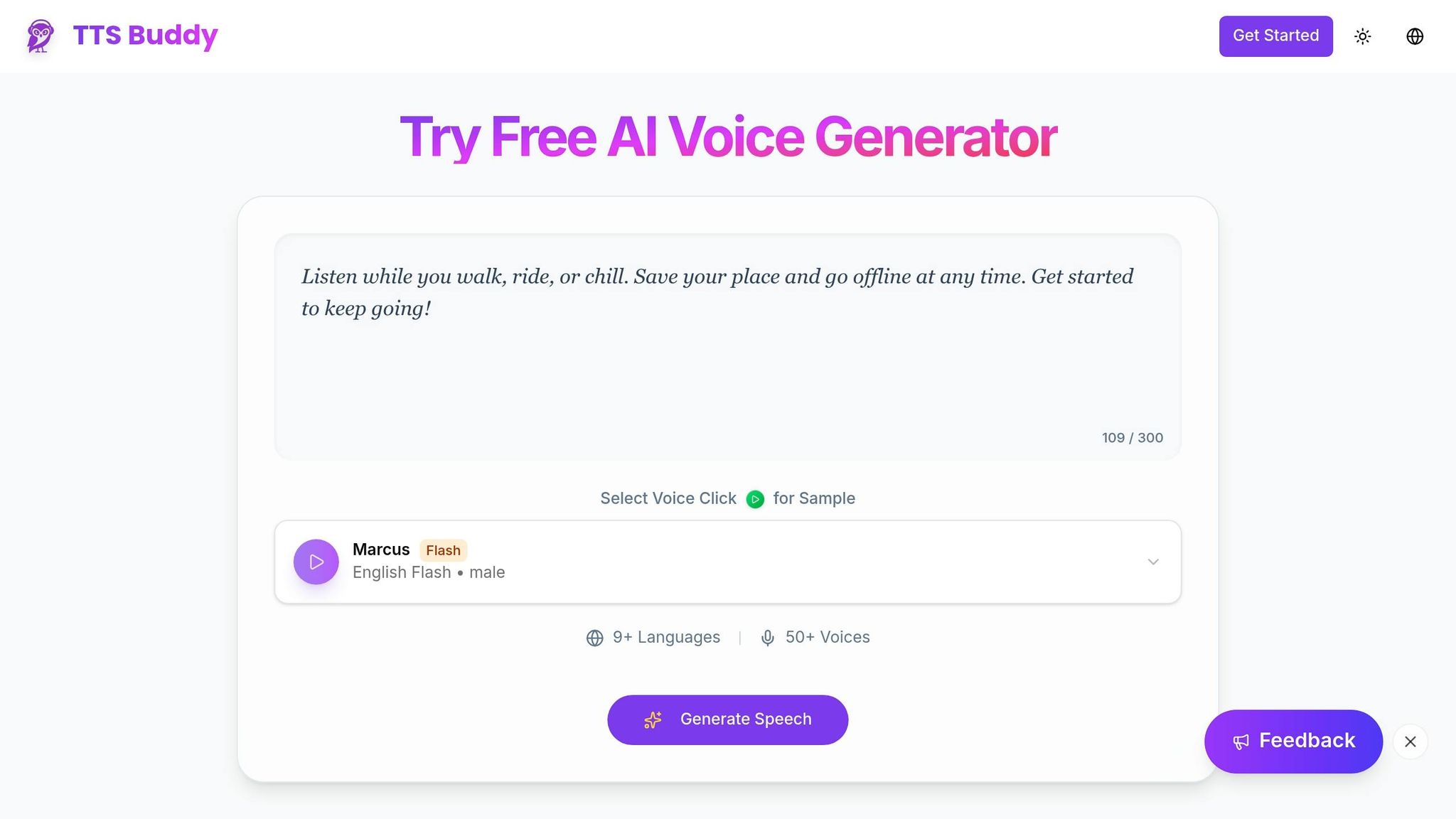
Installation Steps by Operating System
TTSBuddy is a standalone binary that doesn’t rely on Python or Node.js, making it simple to set up on macOS, Linux, and Windows.
macOS:
To install TTSBuddy on macOS, use Homebrew with this command:
brew install ttsbuddy
If you're on Apple Silicon and want to enable Metal acceleration, you can build it from source using the --features metal flag.
Linux:
Linux users can grab the binary directly or install it through a package manager. If you have an NVIDIA GPU and want hardware acceleration, build from source with the --features cuda flag. For those without dedicated graphics, it works just as well on CPU-only systems.
Windows:
For Windows, download the standalone executable and run it - no extra dependencies needed. Like Linux, NVIDIA GPU users can opt for CUDA acceleration by building with the --features cuda flag.
This uniform, dependency-free setup ensures a seamless experience across all platforms.
Installation Comparison Table
| Operating System | Installation Method | Time Required | System Requirements |
|---|---|---|---|
| macOS | Homebrew or direct download | Under 1 minute | macOS 10.15+ (optional Metal for Apple Silicon) |
| Linux | Package manager or binary | Under 1 minute | Any modern Linux (optional CUDA for NVIDIA GPUs) |
| Windows | Direct executable download | Under 1 minute | Windows 10+ (optional CUDA for NVIDIA GPUs) |
Once installed, you’re ready to dive into commands that convert text into clear, natural-sounding speech.
Basic Commands: Converting Text to Speech
Converting Text and Markdown Files
TTSBuddy simplifies text-to-speech conversion with a clear command format. To transform a Markdown file into audio, use this command:
tts -f [INPUT_FILE] -o [OUTPUT_FILE]
For instance:
tts -f article.md -o article.mp3
This will create an MP3 file from the content in your Markdown file. TTSBuddy can handle up to 500,000 characters in a single request[1], making it perfect for lengthy content like book chapters or detailed technical documents.
The tool also includes automatic text sanitization to make the narration more natural. It adjusts Markdown elements like headers, converting them into pauses with emphasis, merges bullet points into smooth sentences, and translates tables into descriptive text[1]. Code blocks are either summarized or skipped entirely. Most conversions are completed in 10 to 30 seconds, though larger files exceeding 100,000 characters may take a few minutes[1].
If you prefer inline text conversion without using files, you can pipe text directly into the command:
echo "Your text here" | tts -o output.mp3
This method works well with other command-line tools, making it easy to integrate TTSBuddy into your existing workflows without creating temporary files. Once you're familiar with the basics, you can further personalize the experience by selecting voices and adjusting language settings.
Choosing Voices and Languages
TTSBuddy provides access to 300+ AI voices across 30+ language modes, including English, Spanish, French, German, Japanese, Korean, Arabic, Portuguese, Chinese, Hindi, and Italian[1]. To select a specific voice that suits your content, use the -v flag. For example:
tts -f input.md -o output.mp3 -v Madison
This command will generate audio using the Madison voice[4].
You can also modify the playback speed using the -s flag, with options ranging from 0.25x to 4.0x. For a quicker review, try -s 1.5, or slow it down to -s 0.8 for better clarity, especially useful for language learning. Additionally, you can choose between MP3 (default) and WAV formats for your output[1][4].
Before starting your first conversion, make sure to configure your API key by running:
tts --configure
This ensures everything is set up properly for smooth operation[4].
Advanced Features: Automation and Accessibility
Using Flash Voices for Faster Audio Generation
TTSBuddy's Flash voices are designed for speed and efficiency, generating audio 5 to 10 times faster than standard options[6][7]. The platform currently offers four English Flash voices: Felicity and Fiona (female), and Marcus and Michael (male)[7]. These voices are ideal for scenarios requiring quick turnaround, such as real-time applications or batch processing workflows[6][7].
To use a Flash voice, simply include the -v flag along with the voice name in your command:
tts -f document.md -o output.mp3 -v Marcus
These voices maintain high neural audio quality while prioritizing speed, and support playback speed adjustments from 0.5x to 1.5x[2][7]. For best results, consult the documentation for guidance on text chunking and other optimizations.
Automatic Markdown Cleanup for Better Audio
TTSBuddy goes beyond basic text-to-speech by offering advanced automation features that refine your audio output. Its built-in AI sanitization engine automatically processes Markdown files, converting complex formatting into smooth, natural-sounding narration[1][10].
This system simplifies tables, lists, and code blocks, ensuring they are presented clearly in audio form. Long URLs are shortened or skipped to avoid disrupting the listening experience[1]. Additionally, headers are processed to include pauses and vocal emphasis, making it easier for listeners to follow the structure without hearing unnecessary formatting syntax[1].
The best part? This preprocessing happens automatically - just provide your Markdown file, and TTSBuddy takes care of the rest[9].
Connecting TTSBuddy to Automation Tools and AI Agents
TTSBuddy fits seamlessly into developer workflows through its structured exit codes, JSON output mode, and Model Context Protocol (MCP) compatibility[5][8]. It also includes API features designed to prevent redundant processing, saving both time and costs. For example, if a process is interrupted (e.g., via Ctrl+C), TTSBuddy provides a job ID so you can resume polling without starting over.
The /v1/agent-tts REST API supports requests of up to 500,000 characters, returning structured JSON responses that integrate seamlessly into CI/CD pipelines and automated systems[1][10]. Developers can use the --json flag to generate machine-readable output, making it easy to parse and extract data using tools like jq in shell scripts.
These features allow TTSBuddy to handle diverse audio output needs, making it a versatile choice for automation workflows.
Output Format Comparison Table
TTSBuddy supports a variety of output formats to meet different workflow requirements. Here's a quick comparison:
| Format | Command Example | Best Use Case |
|---|---|---|
| MP3 File | tts -f input.md -o output.mp3 | Everyday audio playback and file sharing |
| WAV File | tts -f input.md -o output.wav | High-quality audio for professional editing |
| JSON Output | tts -f input.md --json | Ideal for automation scripts and CI/CD pipelines |
| Raw Audio Stream | tts -f input.md --stdout > audio.mp3 | Real-time processing or piping to other tools |
| URL Only | tts -f input.md --url-only | Convenient for sharing links or embedding in apps |
These options make TTSBuddy adaptable to a wide range of use cases, from simple file generation to complex automated pipelines.
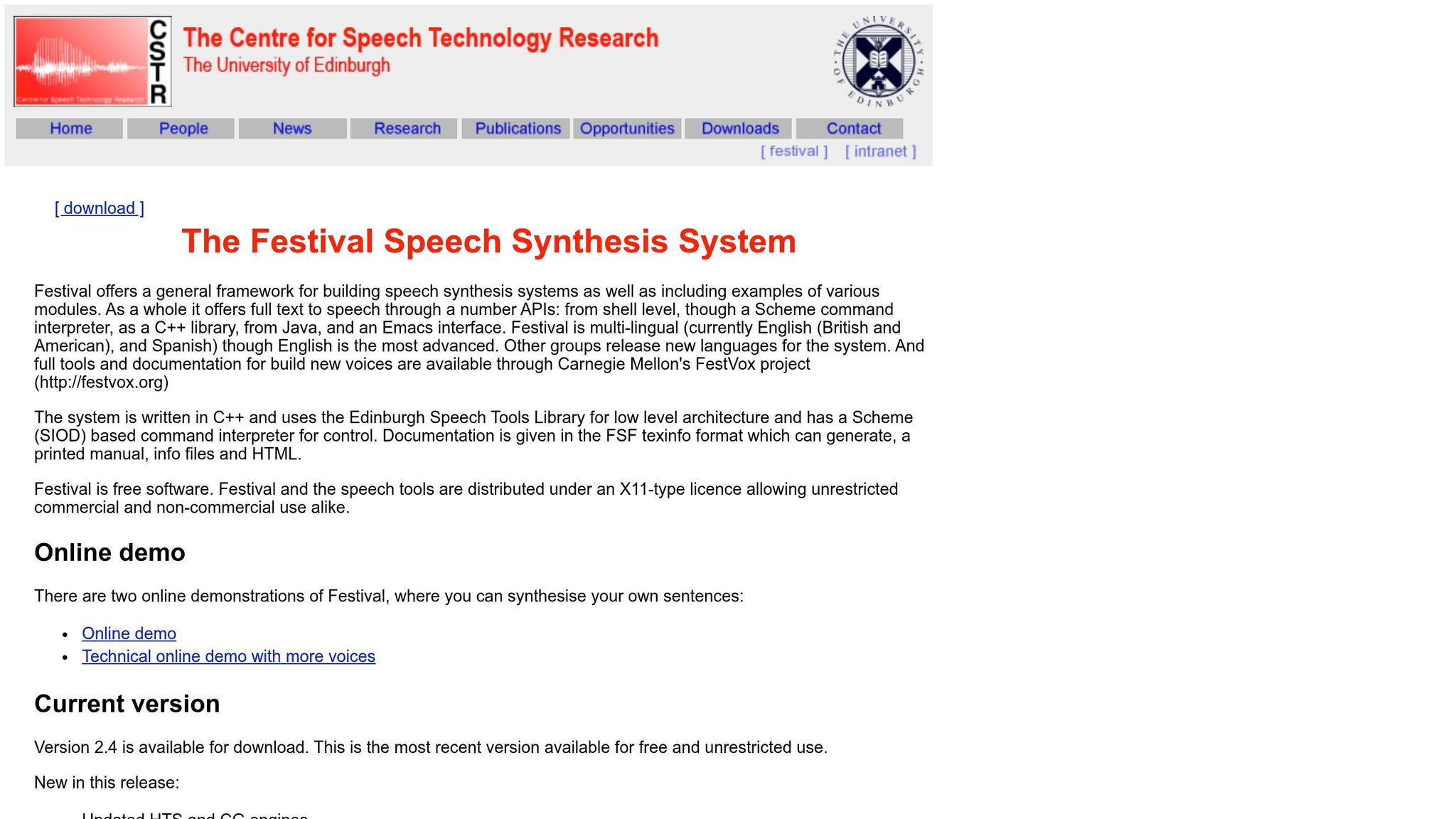
Text To Speech On Linux With Festival
Real-World Uses: How People Use TTSBuddy
TTSBuddy's command-line design is more than just efficient - it’s a tool that helps users simplify workflows and improve accessibility in practical ways.
Batch Processing for Developers and Content Creators
Developers and content creators can save time by using TTSBuddy's batch processing features. Rather than converting files one at a time through a browser, they can process entire document sets through concurrent API requests. This drastically reduces the time needed to handle large workloads. The "Batch with Merge" feature is particularly useful, allowing users to combine multiple text segments into one seamless audio file. This is perfect for producing audiobooks, podcasts, or extended presentations. With the help of glob patterns, users can even stitch together intros, main content, and outros into a polished, production-ready track[11]. TTSBuddy's ability to handle large-scale tasks efficiently not only speeds up workflows but also opens up new possibilities for creating accessible content.
Improving Accessibility for Users and Teams
TTSBuddy transforms text into natural-sounding audio, making content more accessible for individuals with visual impairments, dyslexia, or ADHD. Its AI-driven sanitization ensures that even complex Markdown files are converted into smooth, easy-to-follow narration[1]. The Listen Link Sync feature adds convenience by allowing users to convert web articles on their desktop using a Chrome extension and then listen to them later on their phone. All files are saved to a central library for easy access[3]. Teams can also integrate TTSBuddy into their workflows by using .md endpoints and llms-full.txt files, ensuring that essential documentation is available across various tools and platforms. This not only enhances accessibility for individuals but also supports team collaboration while addressing privacy concerns.
Processing Sensitive Content with Privacy Protection
For those handling confidential materials, TTSBuddy offers a secure alternative to browser-based tools. It eliminates the risks associated with web data collection, allowing users to process sensitive documents - such as legal contracts, medical records, or proprietary research - without exposing them online. There’s no need to split content into smaller parts, which further reduces the chance of accidental leaks. Additionally, TTSBuddy enhances security by hashing API keys with SHA-256 and ensuring the full key is never stored on its servers. This privacy-focused design makes it an excellent choice for securely managing sensitive information.
Conclusion: Switch to Command-Line TTS with TTSBuddy
Switching from browser-based TTS tools to a command-line solution like TTSBuddy offers a game-changing upgrade in efficiency, speed, and privacy. No more tedious copy-pasting - this approach lets you automate tasks, handle extensive text with ease, and integrate seamlessly into your workflow. Whether you're processing full chapters, study guides, or entire sets of documentation, TTSBuddy can handle it all without requiring you to break your content into smaller pieces.
Installation is simple and works across macOS, Linux, and Windows. Once it's set up, you can use commands and glob patterns to automate batch processing, saving hours of manual effort.
TTSBuddy also goes beyond speed and automation with its built-in AI sanitization. This feature restructures Markdown tables, bullet points, and code blocks into natural, spoken descriptions, so you don’t have to spend extra time cleaning up your content before conversion[1]. It’s an especially handy tool for technical documentation or content with complex formatting.
On top of all that, TTSBuddy prioritizes privacy. For individuals or teams working with sensitive materials, the command-line setup ensures your documents stay secure, avoiding the risks of web-based platforms. Whether your goal is to create audio for accessibility, streamline workflows, or produce content at scale, TTSBuddy equips you with professional-grade TTS capabilities directly from your terminal.
FAQs
How do I convert multiple files at once with TTSBuddy?
If you need to convert several files at the same time, TTSBuddy's batch processing feature has you covered. Simply upload your files - whether they're PDFs, Word documents, or Markdown files - choose your favorite voice and settings, and hit "generate." TTSBuddy will handle all the files at once, creating audio files you can download either one by one or as a single batch. This saves time and spares you from converting each file individually.
Can I run TTSBuddy without uploading sensitive text anywhere?
Yes, TTSBuddy can operate directly on your device, allowing you to process text without needing an internet connection. This means you don't have to upload sensitive information to external servers. It also includes local audio generation features, ensuring your data remains private and secure.
What’s the best output format (MP3, WAV, or JSON) for my workflow?
When choosing a format, it’s all about what you need. MP3 is a great choice if you’re looking for a smaller file size and broad compatibility, making it perfect for everyday purposes. On the other hand, WAV delivers uncompressed, high-quality audio, which is ideal when sound fidelity is your top priority. Meanwhile, JSON isn’t for audio playback - it’s designed for handling structured data.
For most situations, MP3 is the go-to option, but if audio quality is non-negotiable, WAV is the way to go.