Terminal TTS CLI — High-Quality Speech

TTSBuddy CLI is a lightweight command-line tool that converts text into high-quality speech without leaving your terminal. Here's why it stands out:
- Simple Setup: Install a standalone binary with no extra dependencies.
- Flexible Input Options: Use inline text, Markdown files, or pipe directly from other commands.
- Customizable Outputs: Choose from multiple voices, playback speeds, and audio formats like MP3 and WAV.
- Privacy-Friendly: Offers secure, offline synthesis using local models.
- Free Plan: Includes 120 TTS minutes per month, with paid plans starting at $9.99/month.
Designed for developers, power users, and accessibility needs, TTSBuddy CLI integrates easily into terminal workflows and automation pipelines. Whether you're creating audio content, automating tasks, or enhancing accessibility, this tool delivers efficient and reliable text-to-speech functionality.
Getting Started with TTSBuddy CLI
How to Install TTSBuddy CLI
TTSBuddy CLI is a standalone binary that doesn’t require any additional dependencies. You can choose from three installation methods: downloading the binary directly from GitHub, using Homebrew (macOS and Linux), or building it from source with Go.
If you’re on macOS, Homebrew offers the quickest setup. For Windows and Linux users, the easiest route is downloading the amd64 binary for your operating system from the GitHub releases page. Once downloaded, place the binary in your system’s PATH. Afterward, sign up at ttsbuddy.com to get your API key.
Creating and Configuring Your API Key
Once you’ve signed up, head to your dashboard on ttsbuddy.com to manage your account and settings. Generate your API key from the developer section - it will start with ttsb_. This key is essential for connecting the CLI to TTSBuddy's servers.
The first time you run the CLI, it will prompt you to enter your API key. If you prefer to configure it manually, use the tts --configure command. Your key is stored securely on your device, while on TTSBuddy’s servers, it’s hashed with SHA-256, ensuring the full key is never stored remotely.
Even the Free plan includes API access, so you can start automating text-to-speech tasks right away. Once your API key is set up and securely stored, you’re ready to confirm the installation.
Testing Your Installation
To confirm everything is working, run the following commands:
tts --versiontts --help
Next, test the functionality by creating a Markdown file (e.g., test.md) and running:
tts -f test.md -o test.mp3
The audio file will typically generate within 10–30 seconds, though larger files may take longer.
You can further experiment by testing different voices with the -v flag. Options include alloy, echo, fable, onyx, nova, and shimmer. Additionally, you can modify playback speed using the -s flag, which allows values between 0.25 and 4.0.
With your setup complete, TTSBuddy CLI is ready to become part of your workflow.
Core Features and Usage
TTSBuddy CLI is built to simplify terminal-based workflows, offering flexible commands and output options that allow for hands-free operation and seamless automation for developers.
Command Syntax Basics
TTSBuddy CLI uses an intuitive command structure, making it easy to convert text to audio with just one line. Start with tts, add your input method, and include any optional flags for customization.
You can tweak audio settings with a variety of flags:
-v(voice selection): Choose from voices like alloy, echo, fable, onyx, nova, or shimmer.-s(speed adjustment): Set playback speed anywhere between 0.25x and 4.0x.-m(mode): Picktts-1for faster processing ortts-1-hdfor higher-quality audio.
For output formats, use the -fmt flag to select from MP3, OPUS, AAC, FLAC, WAV, or PCM. Most conversions complete in 10–30 seconds, though larger texts (over 100,000 characters) may take a few minutes.
Next, let’s look at the various ways you can input text into TTSBuddy CLI.
3 Ways to Input Text: Inline, Markdown, and Piping
TTSBuddy CLI provides three input methods to fit different workflows:
- Inline text: Enter text directly for quick and simple conversions.
- Markdown files: Ideal for processing more complex documents. Use the
-fflag with your file name:tts -f input.md -o output.mp3. The system preprocesses Markdown files automatically and can handle up to 500,000 characters per request, making it suitable for long-form content like book chapters. - Piping via stdin: Perfect for automation. Pipe text from other commands using standard input:
echo "your text here" | tts. This method integrates smoothly into shell scripts and deployment pipelines, making it a go-to for developers.
Output Formats and Options
TTSBuddy CLI offers a variety of output modes to suit different use cases, particularly in automated workflows. Here’s what you can do:
- Stream MP3 to stdout: Use this for real-time audio processing in scripts.
- Audio URL mode: Get a link to your generated audio file, making it easy to share or embed.
- JSON mode: Receive a JSON object with the audio URL, job status, and metadata - perfect for integrating TTSBuddy into larger systems like CI/CD pipelines or other developer tools.
With the -fmt flag, you can choose from a range of audio formats:
- MP3: Great for general use and sharing.
- OPUS: Optimized for web streaming.
- WAV: Offers uncompressed audio for advanced processing.
These output options ensure TTSBuddy CLI can adapt to a variety of workflows, from simple tasks to complex automation setups.
Automation Features for Developers
TTSBuddy CLI is built to fit seamlessly into production workflows, offering JSON output, structured exit codes, and idempotent API calls to simplify automation.
JSON Output and Exit Codes
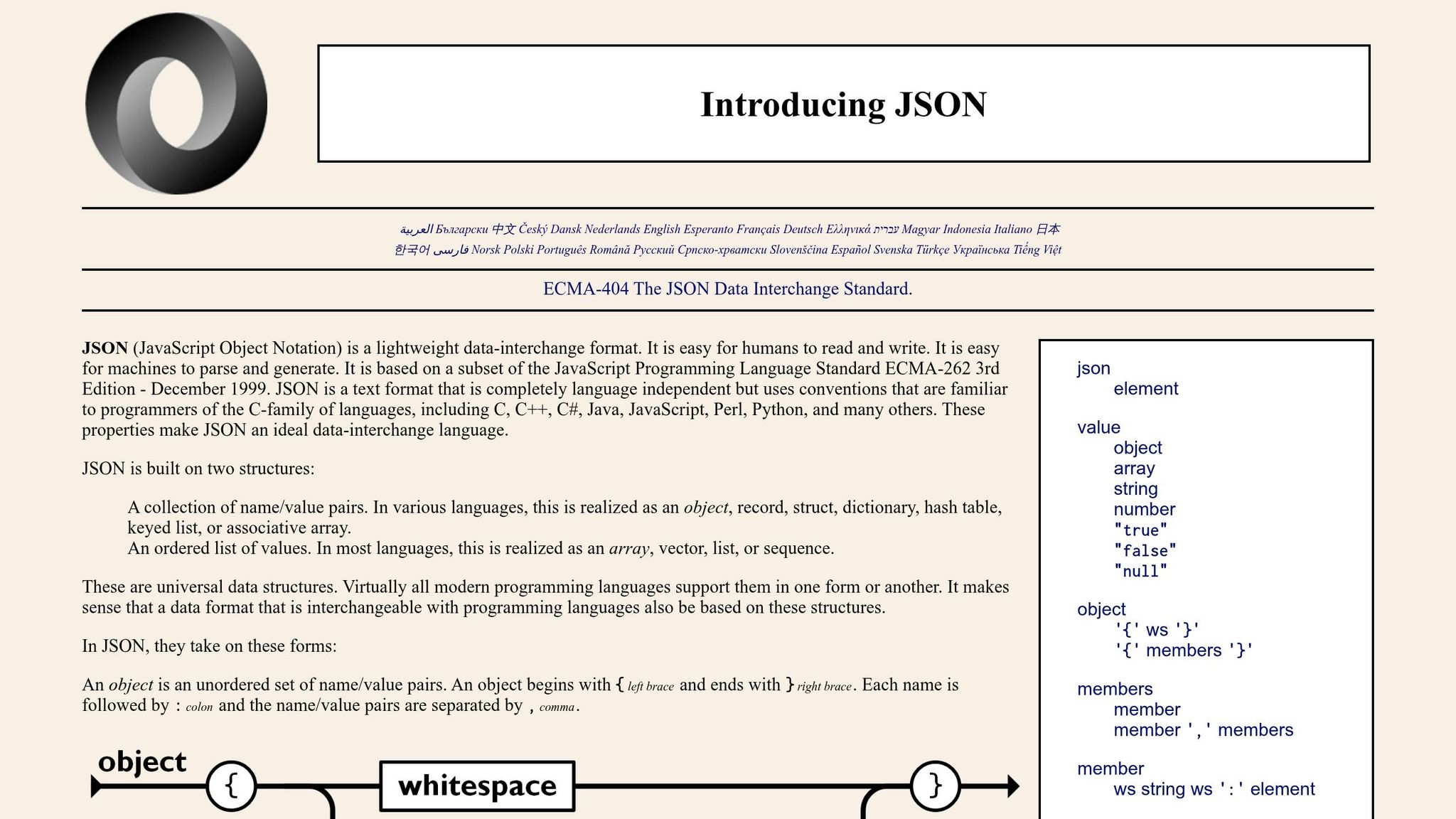
With the --json flag, you can generate structured, machine-readable data. The output includes a JSON object containing the audio URL, job status, and metadata. This format is perfect for integration with tools like jq, xargs, or custom shell scripts. By eliminating manual parsing, it ensures your automation scripts consistently receive data in the same format. Exit codes are equally straightforward: 0 signals success, while any non-zero code indicates an error. This predictable behavior allows you to incorporate reliable error handling into CI/CD pipelines or automated scripts.
Idempotent API Calls for Safe Retries
TTSBuddy employs idempotency keys to prevent duplicate processing during retries. If your script crashes or times out, you can safely resubmit the same job without worrying about duplicate charges or generating redundant audio files. The system will return the original result, ensuring workflows stay consistent and costs remain under control.
These features extend the CLI's functionality into production-ready tools, making it a reliable choice for automation-heavy environments.
REST API and MCP Integration
TTSBuddy provides REST API endpoints such as POST /speak, GET /voices, and GET /health. Even free-tier accounts can access the /v1/agent-tts endpoint, which supports large text inputs. The API enforces rate limits of 1 submission per minute and 30 status checks per minute.
For AI-driven workflows, TTSBuddy also acts as a Model Context Protocol (MCP) server, enabling integration with AI tools like Claude Desktop. To set this up, just add a configuration entry to your claude_desktop_config.json file. The CLI relies on stdio transport, enabling native text-to-speech integration for AI systems. You can streamline authentication by setting your API key as an environment variable (e.g., TTSBUDDY_API_KEY) in your shell profile (~/.zshrc or ~/.bashrc).
Some implementations leverage a worker pool architecture with asynchronous processing, ensuring the CLI remains responsive even during lengthy text-to-speech jobs.
Use Cases and Applications
Automating Text-to-Speech in Development Workflows
TTSBuddy CLI can seamlessly integrate into build pipelines and shell scripts, letting you generate audio directly from the terminal. It handles large text inputs efficiently, making it a powerful tool for developers[1][2]. For example, you can pipe text directly into the CLI with a simple command like: echo "Build complete" | tts output.mp3[4].
One standout feature is its AI-driven sanitization, which automatically restructures Markdown tables, bullet lists, and code blocks into smooth, natural narration. This eliminates the hassle of manually reformatting text for audio[1]. The CLI supports a range of output formats, such as MP3, WAV, FLAC, AAC, OPUS, and PCM, and lets you adjust playback speeds from 0.25x to 4.0x. This flexibility makes it easy to tailor audio outputs to your specific workflow needs[3]. By automating these processes, developers can create audio experiences that are both efficient and inclusive.
Accessibility and Hands-Free Audio
TTSBuddy CLI is designed with accessibility in mind, making terminal outputs audible for users with visual impairments. It converts structured data into clear, easy-to-understand audio, enhancing terminal-based workflows. The tool offers 300+ neural voices across 30+ language modes and allows playback customization with speeds ranging from 0.5x to 1.5x, ensuring a natural listening experience that can be adjusted to individual preferences[1].
For added convenience, the CLI can announce terminal feedback, such as error messages or task completions, so users can stay informed without needing to watch the screen constantly[6]. With a capacity to process up to 500,000 characters in one request, it’s also an excellent option for turning lengthy research documents or reports into audio for uninterrupted listening sessions[1][3].
Creating Audio Content for Education and Publishing
TTSBuddy CLI isn’t just for developers - it’s a game-changer for educators and content creators too. It allows you to turn study materials, blog posts, and Markdown documents into audio content effortlessly. You can even extract text directly from PDFs, like eBooks or academic papers, and convert it into narrated audio instantly[1].
Adjustable playback speeds make the tool versatile for different learning needs. For example, slow speeds (0.5x) are perfect for language learners who need to process content deliberately, while faster speeds (1.5x) are great for quick reviews[2]. The Listen Link feature adds another layer of convenience, letting you sync audio across devices - start creating on your laptop and pick up where you left off on your phone[5].
With 300+ voices across 30+ language modes, the CLI makes it easy to produce localized educational content without hiring multiple narrators. The pricing is accessible too: the free plan includes 120 TTS minutes and 30 downloads per month, while the Pro plan offers 1,200 minutes and unlimited downloads for $9.99/month[5]. This makes it a practical option for anyone looking to create engaging, on-the-go audio content.
Conclusion
What You Need to Know
TTSBuddy CLI brings text-to-speech functionality right into your terminal, making it a seamless part of your workflow. With its AI-powered sanitization, the tool transforms complex formats like Markdown tables and code blocks into smooth, natural narration - no need for manual adjustments. You can pick from cloud providers like ElevenLabs and OpenAI for a wide range of voices or opt for Kokoro ONNX for offline synthesis that eliminates API costs. Features such as the --dry-run flag for cost estimation and --normalize for improved audio quality give you full control over your workflow and output.
For accessibility, TTSBuddy CLI converts terminal outputs into clear audio and offers playback speeds from 0.5× to 1.5×. Flexible pricing plans cater to both occasional users and those who rely on daily automation.
With its blend of speed, accuracy, and ease of use, TTSBuddy CLI is a powerful tool for developers and power users alike. Its features make it simple to integrate into any workflow, saving time and effort.
Try TTSBuddy CLI Today
Curious to see it in action? Setting up is quick and easy. Start by installing the CLI, create your API key through the dashboard, and run:
tts doctor
This command verifies your setup. The free tier gives you instant access to all essential features - no credit card required.
Begin with basic commands, like piping text from stdin or converting Markdown files. As your needs grow, explore advanced options such as batch processing or integrating with AI agents. With structured JSON outputs and specific exit codes, building reliable automation is straightforward. Plus, offline support ensures you can work from anywhere, anytime.
FAQs
How can I use TTSBuddy CLI offline?
To run TTSBuddy CLI offline, start by installing the tool and all required dependencies on your local system. Follow the setup instructions carefully to configure the environment and ensure the necessary libraries are ready for offline use. Once everything is in place, you can process text or Markdown files directly on your device without needing an internet connection. The tool allows you to export the generated audio in formats such as WAV or MP3, with all text-to-speech processing handled locally on your machine.
How can I avoid extra charges when retrying a failed job?
To avoid unnecessary charges when retrying a failed job, divide your text into smaller chunks of 30,000–50,000 characters. After splitting, wait a few minutes before attempting the retry. This method helps reduce processing times, prevents added costs, and ensures the task is handled more efficiently.
What’s the best way to process very large Markdown files?
To handle large Markdown files effectively, it's best to break the content into smaller, manageable pieces such as headers, paragraphs, code blocks, and tables. This approach enables incremental rendering and streaming, which helps lower memory usage and boosts performance. By using specialized parsers or chunked processing techniques, scalability becomes more achievable - particularly for tasks like real-time rendering or converting text to speech. Segment-by-segment parsing is crucial when working with extensive documents to maintain efficiency.