AI Agent TTS: Generate Human-Like Audio

If you want an AI agent to sound human, focus on three things first: clean text, the right voice, and the right delivery path. In this guide, I’d boil it down like this: use sync calls for short replies, async jobs for long audio, and the CLI for shell-based workflows. Keep speech near 1.0x for normal use, drop to 0.75x for dense material, and use Flash voices when low delay matters.
Here’s the short version:
- I’d strip Markdown, code blocks, emojis, and raw URLs before sending text to TTS.
- I’d pick standard neural voices for richer narration and Flash voices for live back-and-forth.
- I’d use sync API for short responses, async polling for long-form jobs, and CLI for local scripts or CI.
- I’d keep in mind key limits and timings, like up to 500,000 characters per request, 200–400 ms time to first audio for Flash voices, and 800 ms–1.2 s for standard voices.
- I’d use JSON output, exit codes, and idempotency keys to make automation less fragile.
A few numbers stand out. TTSBuddy supports 58+ neural voices across 14+ languages, speed control from 0.5x to 1.5x, and rate limits of 1 job submission per minute plus 30 status checks per minute for agent TTS jobs. For spoken agent replies, delays past about 500–700 ms can start to feel off.
If I were setting this up today, I’d treat TTS as a simple pipeline: clean the text, choose the voice, generate audio, then pass the file or stream to playback.
How to Use Google Text-to-Speech API with Python on Google Cloud Platform (GCP)
Quick comparison
| Option | Best use | Delay | What I’d watch for |
|---|---|---|---|
| Direct API (Sync) | Chat replies, alerts, short responses | Low, often under 10 seconds | Best for short text |
| Async Polling | Long summaries, reports, batch narration | Higher, often minutes | Save job IDs and poll within limits |
| CLI / Terminal | Local scripts, cron jobs, CI tasks | Depends on job size | Great for stdin, files, and JSON output |
What follows is a clear walkthrough of how I’d set up that agent-to-audio flow without making it harder than it needs to be.
Choose the Right TTS Architecture for Your Agent
Before you add speech to an agent, map out where audio sits in the flow. That choice shapes everything that comes after. In most setups, the key call is simple: do you need audio right away, in the background, or through terminal-based automation?
Map the agent-to-audio pipeline
An agent sends text to TTS, and TTS sends back audio as a buffer, a job ID, or a stream.
In practice, output length usually drives the setup you choose. Short responses work well with inline requests [1]. Longer outputs are better handled as async jobs: return 202 Processing, poll until the job is done, and then fetch the signed audio URL [1]. TTSBuddy supports up to 500,000 characters per request, which means it can handle long-form narration in a single submission [1].
Once you've picked the path, the next step is voice settings. That's where the speech starts to sound less flat and more like something a person would want to hear.
Pick a deployment pattern that fits your workflow
| Pattern | Latency | Complexity | Best-Fit Use Case |
|---|---|---|---|
| Direct API (Sync) | Low (<10s) | Low | Chatbots, short notifications, interactive replies |
| Async Polling | Higher (minutes) | Medium | Long-form narration, summaries, batch processing |
| CLI / Terminal | Variable | Low | CI/CD alerts, cron jobs, local dev scripts |
Each pattern has its place. If your agent needs to speak back fast, sync API calls are usually the cleanest option. If you're turning long summaries or reports into audio, async jobs make more sense. And if your workflow lives in the shell, the CLI route can feel like the easiest fit.
The CLI pattern is especially handy for developers who prefer a terminal-first setup. You can pipe agent output straight into speech generation from the command line [5].
Where TTSBuddy fits in a developer stack
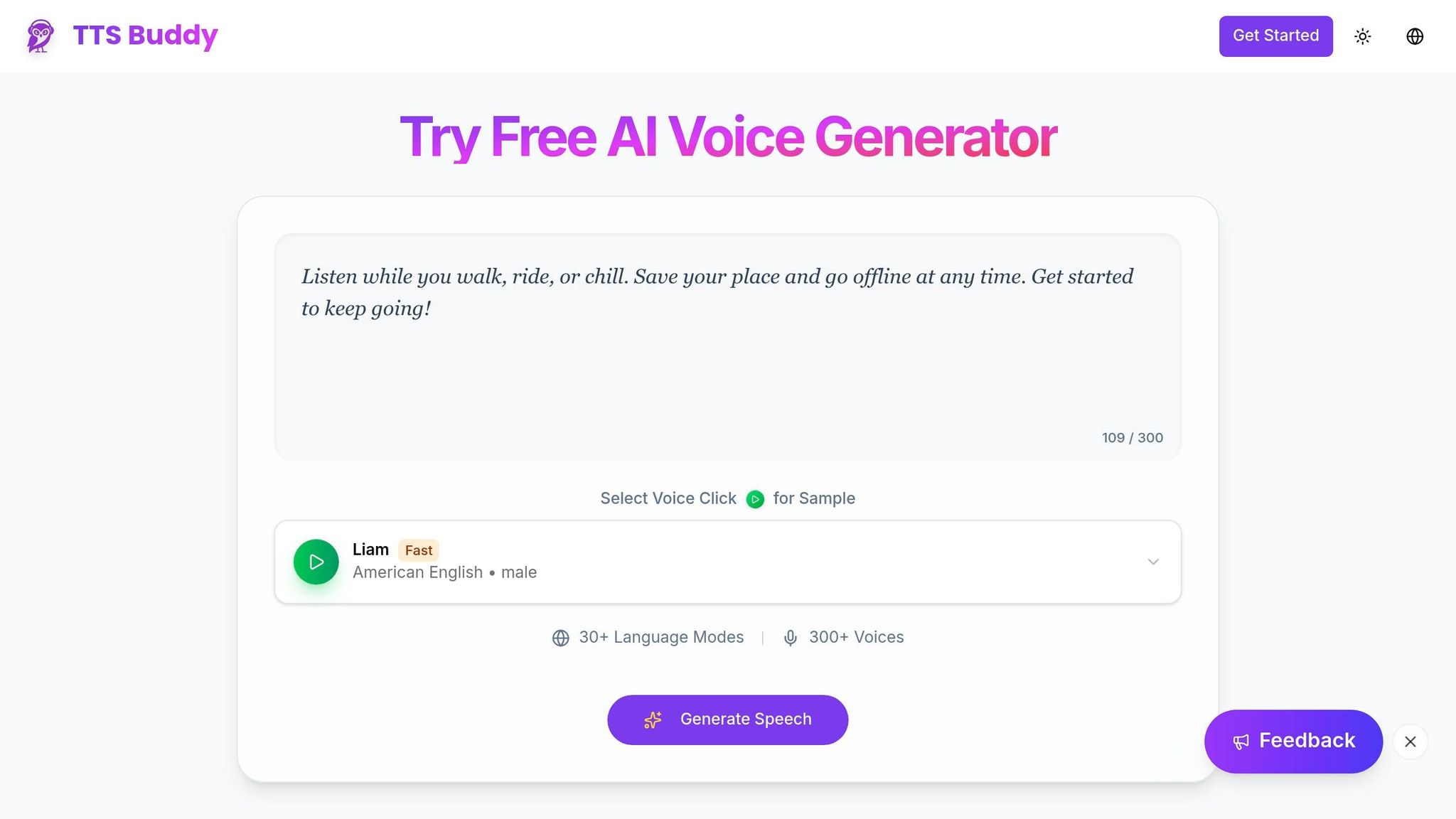
TTSBuddy is a single-binary CLI for macOS, Linux, and Windows. It supports inline text, Markdown files with automatic preprocessing, and stdin, so you can pipe agent output directly into it [1][5]. It also returns JSON output and structured exit codes, which makes it a solid match for scripts and CI workflows [1][5]. If you're working with agent frameworks that use tool calling, TTSBuddy also offers an MCP-compatible API so agents can invoke TTS directly [2][3].
Once that pipeline is in place, the next job is tuning voice and speech settings so the output sounds natural.
Configure Voices and Speech Settings for Natural Output
Select a voice by language, accent, and speed
Once your pipeline is set up, the next move is dialing in the voice and delivery so the audio sounds natural instead of stiff.
TTSBuddy comes with 58+ neural voices across 14+ languages [1]. That gives you room to match the voice to both the listener and the job. If you're working in American English, the default voice is af_heart. But there are a few other solid picks depending on the style you want:
| Voice ID | Gender | Accent |
|---|---|---|
af_heart | Female | American (Default) |
af_bella | Female | American |
af_sarah | Female | American |
am_michael | Male | American |
am_echo | Male | American |
You can pass the voice through a --voice flag, an environment variable, a config file, or an API payload. A simple CLI example looks like this:
ttsbuddy speak -f output.md --voice am_michael -o response.mp3
TTSBuddy also lets you set speech rate from 0.5x to 1.5x [1]. That matters more than people think. A voice can be a good fit, but if it talks too fast or drags, the whole thing feels off.
Tune rate, pauses, and delivery for clarity
For dense technical material or accessibility-first workflows, set the rate to 0.75 [4]. That slower pace gives listeners a little more time to process what they're hearing.
For agent summaries, alerts, and short updates, you can move faster - around 1.15–1.2 [4]. In those cases, people usually want the point fast, not a polished read.
You can also shape pacing and tone with inline tags like [short pause] or [warmly] [6]. It's a small touch, but it can make the output sound less flat and more human.
Standard voices versus Flash voices for agent workloads
Once you've picked the voice and rate, the next choice is model type. This mostly comes down to speed.
TTSBuddy's Supertonic Flash voices (st_f1–st_f5, st_m1–st_m5) generate audio 5–10x faster than standard voices [1]. That speed helps keep latency low enough for a natural back-and-forth in live agent use cases [7]. Standard neural voices like af_heart or bf_emma take longer, but they give you richer intonation. That's a better fit for long narration, release summaries, or any job where audio quality matters more than response time.
| Feature | Flash Voices | Standard Neural Voices |
|---|---|---|
| Time to first audio | 200–400ms [7] | 800ms–1.2s [7] |
| Generation speed | 5–10x faster [1] | Baseline |
| Best for | Chatbots, support bots, real-time agents | Narration, summaries, batch reports |
| Expressiveness | Good | Superior emotional nuance |
In practice, Flash voices make sense for interactive replies. Standard voices are a better match for scheduled audio or background jobs where a slight delay is fine.
Generate Audio from Text with TTSBuddy CLI and Markdown Workflows
Run the basic CLI flow with text, files, and API key auth
Once you’ve picked a voice, you can turn agent text into audio with the CLI. Set TTSBUDDY_API_KEY in your shell profile so your key stays out of shell history and logs.
Then send inline text, pass Markdown files, or pipe agent output through stdin. You can save the MP3 to a file, stream it to stdout, or return JSON for scripts.
# Inline text
ttsbuddy speak "Deployment complete. All systems nominal."

# Pipe agent output directly into speech
cat agent_response.md | ttsbuddy speak -
Convert Markdown and piped agent output into speech
When your agent output is heavy on Markdown, cleanup makes a big difference. For .md files like release notes or incident handoffs, TTSBuddy strips headings, link URLs, images, and code blocks before sending text to the voice engine. It also skips reading code syntax character by character, which saves you from that painful robot-spelling-every-symbol problem.
A few preprocessing steps help the spoken output sound smoother:
| Preprocessing Step | Purpose | Example |
|---|---|---|
| URL Filter | Stops links from being read out loud | https://... → URL |
| Filepath Filter | Shortens complex paths | /usr/bin/node → node |
| Markdown Strip | Removes syntax that shouldn’t be spoken | [Link](url) → Link |
Unix-style pipes work out of the box. Use - as the input argument to send agent output straight into TTSBuddy without writing a temp file first.
If your output is more than 500,000 characters, split it at sentence boundaries before sending it.
Use quiet mode and JSON output in automation
For scripts and CI, switch from human-facing output to machine-readable metadata. --quiet suppresses progress bars, spinners, and status messages on stderr. --json sends machine-readable metadata to stdout.
There’s one catch: --json and -o - are mutually exclusive because both write to stdout. If you use them together, the command returns exit code 2.
For automated workflows, pipe the JSON into jq and pull only the fields you need:
ttsbuddy speak "Summary ready." --no-download --json | jq -r '.audio_url'
You can extract audio_url, job_id, speech_length, and mp3_size with jq. For retries and error handling, build around these exit codes:
0for success1for API or runtime errors2for configuration problems4for rate limiting
Connect the TTS API to Production Agent Workflows
Submit TTS jobs with the /v1/agent-tts API
Use the REST API when your agent runs in a web app, background worker, or deployed pipeline. The same text-to-speech flow from earlier sections can run inside production systems through /v1/agent-tts.
Authenticate with your ttsb_ key in the Authorization header, then send a POST request with JSON that includes text and voice. You can also pass fields like speed, language, format, and instructions when you need to tune a single request.
The endpoint supports up to 500,000 characters per request [8][9]. That means longer agent responses can be turned into speech in one job instead of being split into smaller chunks.
Once you have the request shape in place, the next part is handling job status and retries without making a mess.
Handle async polling, rate limits, and idempotent retries
A POST request returns a job ID, not the final audio file. From there, poll until the job reaches completed.
TTSBuddy applies two rate limits for agent workloads: 1 job submission per minute and 30 status checks per minute [9]. Polling every 2 seconds keeps you inside that limit while still feeling responsive [9].
For day-to-day reliability, the worker should:
- Persist the job ID right away before waiting, so it can pick up where it left off after a crash or timeout
- Poll until the job status is
completed - Fetch the result URL and save it in durable storage
Add an idempotency key to the submission header so duplicate requests don't create duplicate jobs [8]. That's a simple guardrail, but it matters. If the network drops or the request times out, you can retry without wondering whether you just kicked off the same job twice.
After the worker flow is steady, the next move is to package it as a tool the agent can call on demand.
Expose TTS as a callable tool in agent frameworks
For production agents, expose the API as a tool instead of calling it ad hoc. Wrap the API call inside your agent framework so the agent can send text and get back a usable audio URL for playback.
Then pass that audio URL to your app's playback layer.
Conclusion: Build an Agent-to-Audio Pipeline That Works
A simple pipeline for text cleaning, TTS, and playback is a solid starting point. Once that pipeline is in place, latency becomes the next thing that shapes the experience. Delays beyond 500–700 ms can feel unnatural, so conversational agents work best with low-latency speech.
After that, choose the voice based on the job. Use Flash voices for interactive agents that need fast turnarounds. For setup, use the CLI for local and scripted workflows, and the API for production systems. Clear spoken output is also an accessibility requirement. Build the pipeline the right way, and spoken output stays reliable across agent workflows.
FAQs
How do I make AI-generated speech sound more natural?
Focus on text preprocessing and generation settings.
Clean the input before synthesis. Remove anything that breaks the rhythm, such as emojis, long file paths, and extra Markdown syntax. If your script includes technical terms, product names, or acronyms, add custom pronunciation dictionaries so the voice says them the right way.
Pick high-quality voices and keep the speaking rate natural, usually between 0.9 and 1.2. If the content has multiple roles, use multi-speaker mode and assign a clear voice ID to each one so listeners can tell who's talking without effort.
When should I use sync TTS versus async jobs?
Use synchronous requests for short text that can finish within a short wait window, usually around 10 seconds. Use asynchronous jobs for longer content, like full documents or extended AI summaries, when generation time is harder to predict.
If you need real-time responsiveness or low-latency playback, use streaming instead. It sends audio in chunks as it’s generated, so playback can start almost at once.
What should I clean from text before sending it to TTS?
Remove or replace anything that can make narration sound awkward, especially URLs, emojis, code blocks, and heavy formatting marks.
For Markdown, strip headers, images, and link URLs, and add periods to list items so the voice pauses more naturally. If you need to send text verbatim, use raw mode or turn off automatic preprocessing.